A KVM switch allows you to control two computers using just one keyboard, monitor, and mouse, simplifying your workspace and saving space. It works by connecting your devices to the switch, which then routes input signals to the active computer. Switching between machines is quick and easy, often with hotkeys or buttons. If you’d like to discover more tips and tricks to streamline your setup, keep exploring how KVM switches can enhance your workflow.
Key Takeaways
- Use a manual or automatic KVM switch to connect one keyboard to two computers seamlessly.
- Connect peripherals to the KVM switch, then link it to both computers with compatible cables.
- Switch control between computers via hotkeys, buttons, or remote controls for convenience.
- Ensure the KVM switch supports your display resolution and peripheral compatibility.
- Properly organize cables to prevent interference and ensure stable, quick switching.
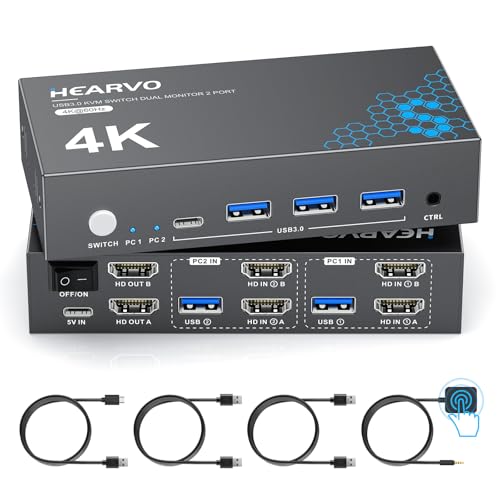
HDMI KVM Switch 2 Monitors 2 Computers, USB 3.0,4K@60Hz KVM Switches Sharing of Dual Monitors Keyboard Mouse and Printer Between 2 Computers,with EDID,2 USB Cables and Controller -S7232H2
【HDMI KVM Switch 2 Monitors 2 Computers】This HDMI KVM switch is equipped with two HDMI ports, enabling a…
As an affiliate, we earn on qualifying purchases.
As an affiliate, we earn on qualifying purchases.
What Is a KVM Switch and How Does It Work?
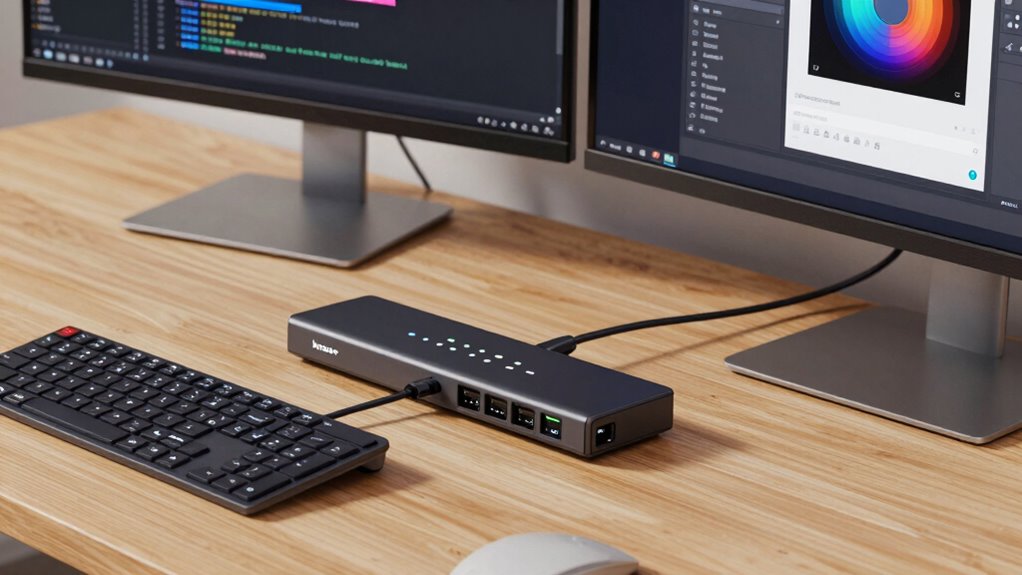
A KVM switch is a device that allows you to control multiple computers with a single keyboard, monitor, and mouse. It works by connecting all your devices through cables, which simplifies cable management and reduces clutter. You can switch between computers easily using keyboard shortcuts or a button on the switch itself. This setup enables quick alternation without unplugging and reconnecting cables. The switch detects which computer you’re controlling and routes your inputs accordingly. With a KVM switch, you save space and streamline your workspace, making it more organized. Plus, mastering keyboard shortcuts makes switching even faster, enhancing your productivity. All these features work together to give you seamless control over multiple systems with minimal hassle. Additionally, understanding the hardware setup involved can help optimize performance and ease installation. Incorporating compatibility considerations ensures your KVM switch functions correctly with your existing devices and systems. Proper configuration and system compatibility are essential for reliable operation and avoiding technical issues. Moreover, selecting a high-quality KVM switch can improve durability and overall performance. Being aware of system requirements can further help in choosing the right device for your needs.
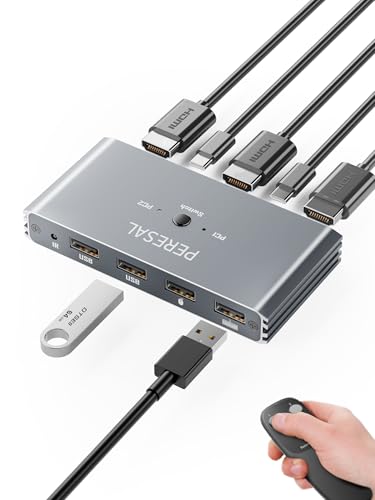
USB KVM Switch with Remote Control, HDMI Switch, 4K@60Hz KVM Switches for 2 Computers Sharing 1 Monitor, 4 USB Devices Such as Keyboard, Mouse, Printer, Scanner, Includes 2 USB-B Cables
【KVM Switch 1 Monitor 2 Computers】this KVM Switch support 2 computers/laptops share 1 monitor and one set of…
As an affiliate, we earn on qualifying purchases.
As an affiliate, we earn on qualifying purchases.
Why Use a KVM Switch in Your Workspace?
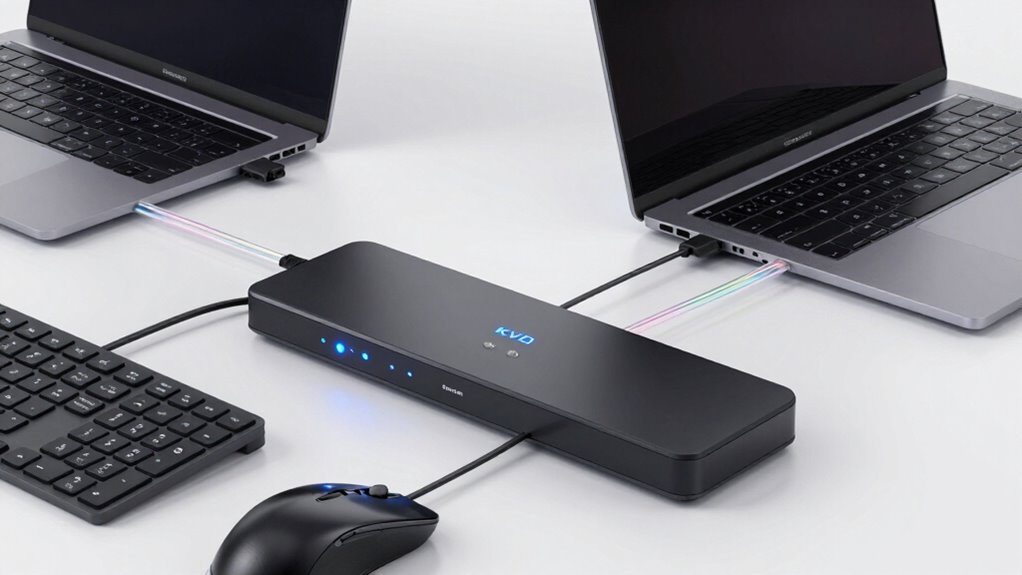
Using a KVM switch in your workspace can substantially boost efficiency by allowing you to control multiple computers with a single set of peripherals. This setup reduces clutter and saves desk space, making your workspace more ergonomic. Imagine:
- Switching seamlessly between two monitors, avoiding tangled cables and multiple keyboard setups.
- Saving money by avoiding purchasing duplicate peripherals for each device.
- Improving comfort by maintaining an organized, clutter-free work environment that reduces strain.
With fewer peripherals and less cable clutter, you’ll experience better ergonomic benefits, decreasing fatigue and discomfort. Plus, the cost savings add up over time, eliminating the need for extra keyboards, mice, or monitors. A KVM switch simplifies your workflow and enhances workspace comfort, making it a smart investment. ergonomic benefits can also contribute to better overall mental well-being by reducing physical discomfort during long work sessions.

USB3.0 KVM Switch HDMI 4K@60Hz for 4 Computers Share 1 Monitor, KVM Switch 4 Port with 3 USB 3.0 Ports Share Keyboard Mouse, Support Button Switch, Plug and Play
【HDMI KVM Switch 4 Port】KVM Switch HDMI supports 4 computers to share 1 monitor and is controlled by…
As an affiliate, we earn on qualifying purchases.
As an affiliate, we earn on qualifying purchases.
Key Features to Consider When Choosing a KVM Switch
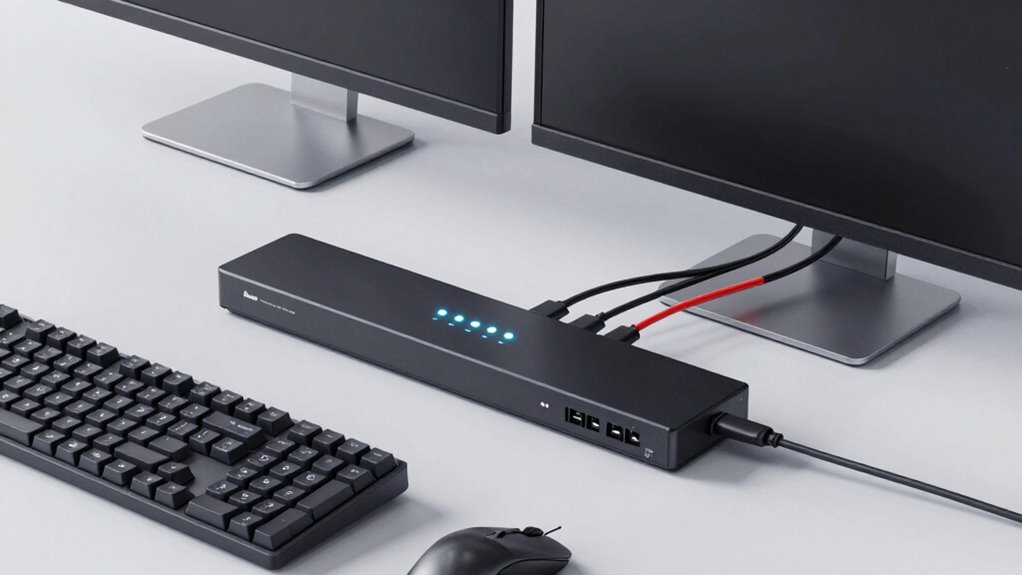
When selecting a KVM switch, it’s essential to contemplate key features that match your specific needs. First, consider device compatibility—ensure the switch supports your operating systems and peripherals. Check if it works with your monitors, keyboards, and mice, especially if you use specialized devices. Cable management is also vital; look for models with organized ports and minimal cable clutter to keep your workspace tidy. Easy switching options, like hotkeys or remote control, can improve efficiency. Additionally, assess the video resolution supported to match your display’s capabilities. Power supply requirements and the number of ports are other important factors. Understanding the ethical implications of consumer electronics can also help inform responsible purchasing decisions. Moreover, verifying the compatibility standards can ensure your devices function correctly with the switch. A thorough understanding of digital content formats can further enhance your ability to select the right equipment for multimedia needs. Staying informed about website performance metrics can also help you choose a device that maintains optimal functionality. Also, considering cabling durability can prevent future failures and reduce maintenance costs. By focusing on these features, you’ll find a KVM switch that seamlessly integrates into your setup, simplifying your workflow without unnecessary complications.
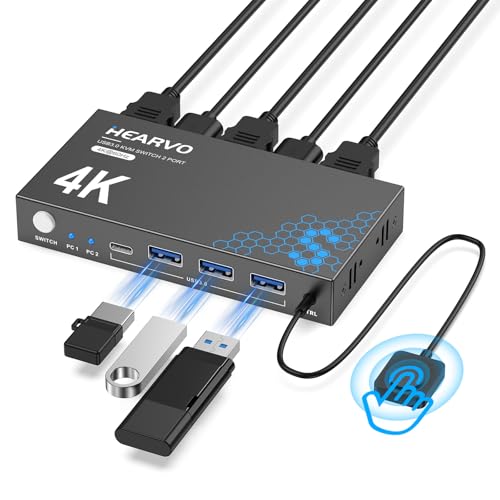
Hearvo USB 3.0 HDMI KVM Switch 1 Monitors 2 Computers, 4K@60Hz KVM Switches for 2 Computers Sharing Monitor Keyboard Mouse Hard Drives Printer, with EDID Adaptive, 2USB Cable and Controller -S7232H
【KVM Switch 1 Monitors 2 Computers】This HDMI KVM Switch with two HDMI ports allows control of two computers,…
As an affiliate, we earn on qualifying purchases.
As an affiliate, we earn on qualifying purchases.
How to Set Up Your KVM Switch (Step-by-Step)
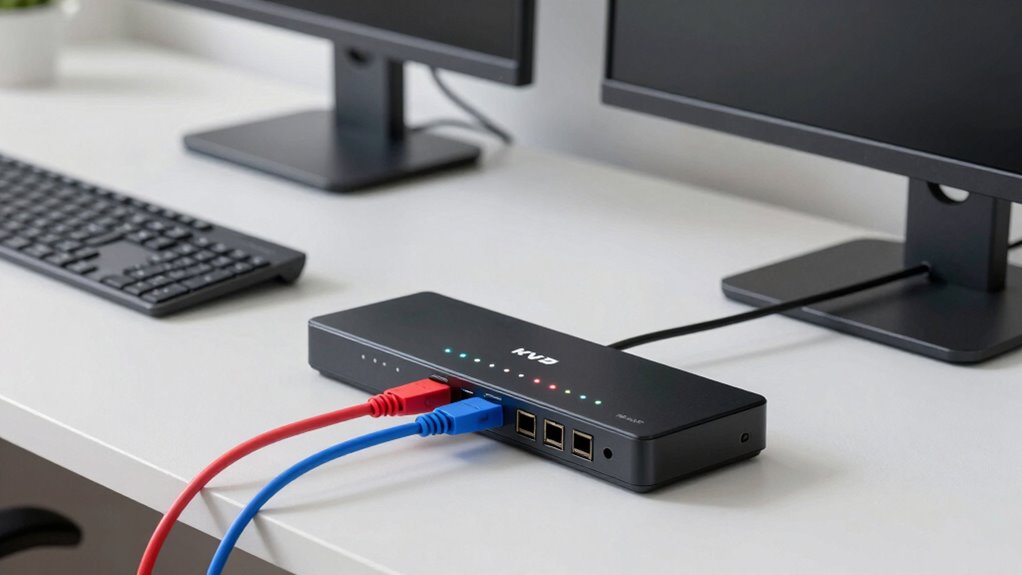
Setting up your KVM switch is straightforward, but it’s important to follow each step carefully to guarantee everything works properly. First, connect your keyboard, mouse, and monitor to the appropriate ports on the KVM device. Next, use compatible cables to link your computers to the switch, paying close attention to device compatibility to avoid connection issues. Additionally, consider vehicle accessories that can help organize your workspace, such as cable management solutions designed for electronic setups. Proper cable management can significantly improve system performance and reduce clutter. Furthermore, selecting the right noise reduction tools can enhance your overall workspace environment, especially if your setup is in a noisy area. When setting up your system, ensure you follow safety tips to prevent damage to your equipment and avoid personal injury. Conducting a thorough equipment inspection prior to setup can help identify potential issues early and ensure safety. Finally, organize your cables neatly for better cable management and to prevent accidental disconnections. To visualize the process:
- Plug your peripherals into the switch’s ports.
- Connect each computer to the switch using compatible cables.
- Tidy up cables to keep your workspace clean and ensure stable connections.
Following these steps ensures smooth operation and easy switching between devices without clutter or compatibility hiccups.
Troubleshooting Common KVM Switch Problems

If your KVM switch isn’t working properly, start by checking the power supply to verify it’s connected and functioning. Connection interference can cause issues, so confirm that all cables are secure and free from damage. Also, verify that your keyboard and mouse are compatible with the switch to avoid any input problems. Additionally, inspecting the connection quality can help identify potential issues affecting performance. Ensuring that the electromagnetic interference is minimized can also improve overall device reliability. Being aware of regional differences in technology standards can further assist in troubleshooting compatibility problems. Moreover, reviewing interference sources in the environment can help reduce electromagnetic disruptions impacting the device. Paying attention to microplastics in dust or other environmental contaminants may also contribute to maintaining cleaner and more stable connection conditions.
Power Supply Issues
Power supply issues are a common cause of malfunction in KVM switches, often leading to devices not powering on or losing signal. When your switch isn’t functioning properly, check the power supply first. Visualize these steps:
- Confirm the power cable is firmly connected to both the KVM switch and the power outlet.
- Inspect the power adapter for damage or frayed wires.
- Ensure electrical noise isn’t interfering by turning off nearby devices that could generate interference.
- Proper power management helps maintain consistent operation and reduces troubleshooting time.
- Regularly inspecting and maintaining power supplies can prevent many common issues with KVM switches.
- Being aware of electrical interference sources in your environment can further aid in troubleshooting power stability.
Electrical noise can disrupt the power supply, causing instability or sudden shutdowns. If the switch still doesn’t power up, try replacing the power adapter or plugging into a different outlet. Proper power supply management guarantees consistent operation and prevents troubleshooting headaches.
Connection Interference Problems
Connection interference is a common culprit when your KVM switch fails to reliably transmit signals between devices. Poor cable shielding can allow external electromagnetic interference to disrupt data transfer, causing flickering screens or unresponsive keyboards. To improve signal stability, check that your cables have adequate shielding and are properly connected. Use shorter cables where possible, as longer runs are more vulnerable to interference. Implement interference mitigation strategies, such as rerouting cables away from power lines or electronic devices that generate noise. Additionally, consider upgrading to shielded cables designed for high-frequency data transmission. These steps help reduce signal degradation, ensuring smoother switching and reliable operation. Addressing connection interference promptly can save you time and frustration, keeping your setup running seamlessly.
Keyboard/Mouse Compatibility
Keyboard and mouse compatibility issues are common obstacles that can prevent your KVM switch from functioning correctly. These problems often arise when your devices aren’t fully supported or recognized. To troubleshoot, picture these steps:
- Verify if your keyboard and mouse meet the switch’s compatibility requirements, especially for USB or PS/2 connections.
- Check if your keyboard compatibility and mouse compatibility are affected by driver issues—updating or reinstalling drivers can help.
- Test your devices on another computer to rule out hardware faults, and ensure they work seamlessly with your operating system.
Types of KVM Switches Compared

When choosing a KVM switch, understanding the different types available can help you find the best fit for your setup. There are mainly two types: manual and automatic switches. Manual switches require you to press a button or use a remote to switch between computers, offering straightforward control. Automatic switches detect activity and switch devices seamlessly, ideal for busy multi computer setups. The table below highlights key differences:
| Type | Device Compatibility | Control Method | Use Case | Cost |
|---|---|---|---|---|
| Manual | Universal | Physical button | Small setups, budget | Lower |
| Automatic | Varies, some universal | Signal detection | Multi computer environments | Moderate to high |
| USB-C KVM | Modern devices | Single cable | Latest hardware, sleek | Higher |
| HDMI KVM | Video-focused | Manual or remote | Media production, gaming | Moderate |
| IP KVM | Remote access | Network over IP | Data centers, remote work | High |
Tips for Optimizing Your Multi-Computer Workflow With KVM Switches
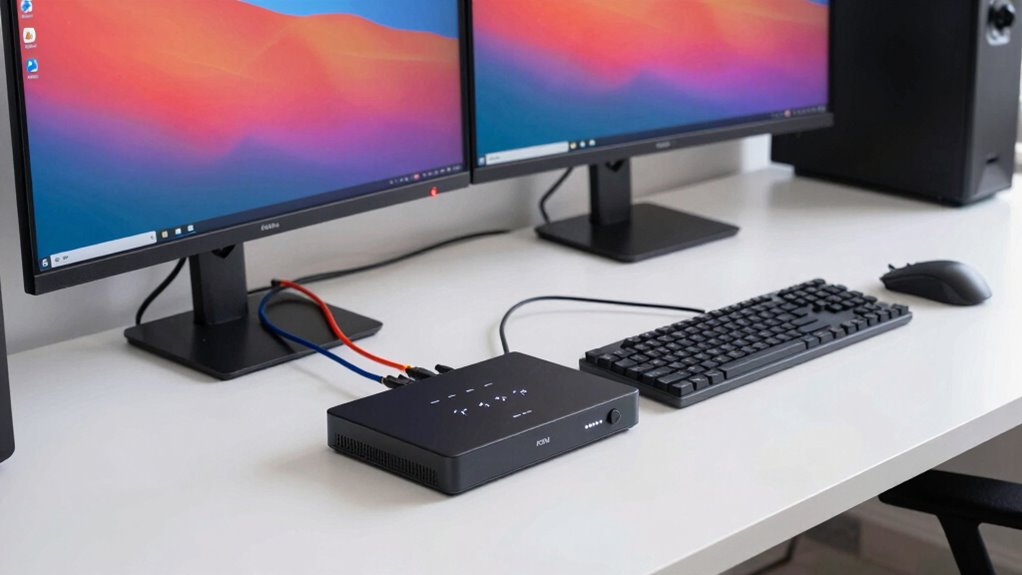
To maximize your productivity with multiple computers, leverage your KVM switch‘s full potential by organizing your workspace and workflows efficiently. First, focus on cable management by neatly bundling cables and using cable clips to prevent tangling, which keeps your desk clean and reduces frustration. Second, adopt an ergonomic setup with your keyboard, mouse, and monitor positioned for comfort, minimizing strain during long work sessions. Third, create a clear workflow by assigning specific peripherals to each computer, and use your KVM switch to switch seamlessly between them. This approach reduces clutter and saves time. By combining smart cable management, ergonomic positioning, and organized workflows, you’ll enhance efficiency and create a comfortable, distraction-free environment for multi-computer use.
Is a KVM Switch Worth It? Real-Life Use Cases and Recommendations
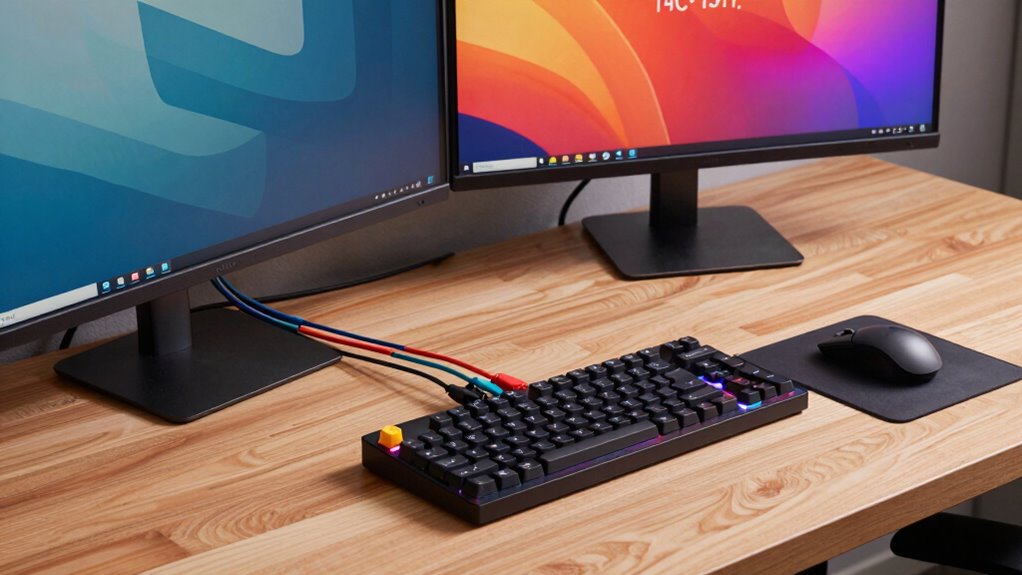
A KVM switch can save you space by reducing the number of needed peripherals and cables. It also boosts productivity by allowing quick access to multiple devices from one workstation. If you work with several computers or devices, a KVM switch might be a smart addition to your setup.
Space-Saving Benefits
A KVM switch can substantially declutter your workspace by enabling you to control multiple computers with just one monitor, keyboard, and mouse. This boosts space efficiency and reduces clutter, making your desk look cleaner and more organized. Imagine:
- Removing extra monitors, freeing up valuable desk surface.
- Eliminating multiple sets of peripherals, saving drawer or shelf space.
- Streamlining cables, reducing tangles and visual chaos.
With these changes, your workspace becomes more open and manageable. You won’t need to juggle multiple keyboards and mice, which can take up unnecessary room. Instead, you gain a sleek, minimalist setup that maximizes your available space while keeping everything easily accessible. Overall, a KVM switch helps you create a cleaner, more efficient environment.
Enhanced Productivity Gains
By simplifying your workspace with a KVM switch, you can greatly boost your productivity. With easy device management, switching between multiple computers becomes seamless, saving you valuable time. This setup enhances your multitasking efficiency by allowing you to control different systems with a single keyboard and mouse, reducing clutter and confusion. Instead of juggling multiple peripherals or wasting time plugging and unplugging devices, you can focus on your tasks. A KVM switch streamlines your workflow, making it easier to monitor, operate, and switch between systems quickly. As a result, you spend less effort on device management and more on what truly matters—completing your work efficiently. Overall, a KVM switch can significantly elevate your productivity in busy, multitasking environments.
Ideal for Multiple Devices
If you work with multiple computers or devices daily, a KVM switch can be a game-changer. It offers multi device convenience and seamless switching, making your setup much more efficient. Imagine:
- Effortlessly switching between your desktop, laptop, and server with just a press of a button.
- Managing a multi-monitor setup across different devices without unplugging cables.
- Using a single keyboard and mouse to control all your devices instantly, reducing clutter and frustration.
This setup is ideal if you need to access multiple systems regularly. It simplifies your workspace and saves time, especially during busy workdays. With a KVM switch, juggling multiple devices becomes smoother, giving you more focus on your tasks rather than technical hassles.
Frequently Asked Questions
Can a KVM Switch Support Audio and USB Devices Simultaneously?
Yes, a KVM switch can support audio and USB devices simultaneously. Many models feature audio support and USB compatibility, allowing you to connect speakers, headsets, and multiple USB peripherals without hassle. When choosing a KVM switch, verify it explicitly states support for audio and USB devices to avoid compatibility issues. This setup makes switching between computers seamless, keeping your audio and USB devices connected and functional at all times.
What Are the Limitations of Using a KVM Switch With High-Resolution Displays?
Imagine your high-res display as a delicate tapestry, and a KVM switch as the master weaver. Resolution limitations can cause your vivid images to blur or flicker, while compatibility issues may turn this harmony into chaos. High-resolution displays often strain KVM switches, leading to reduced clarity or lag. To keep your visual masterpiece pristine, choose a switch explicitly designed for 4K or higher resolutions, ensuring flawless performance.
Is It Possible to Connect More Than Two Computers With a Single KVM Switch?
Yes, you can connect multiple computers with a single KVM switch by using KVM expansion solutions. These expanders allow you to add more ports, so you can control several computers from one keyboard, monitor, and mouse. Just make sure the KVM switch or expansion supports the number of computers you’re planning to connect. This setup is ideal for managing multiple systems efficiently without cluttering your workspace.
How Does a KVM Switch Impact Network Security and Data Privacy?
Ever wondered if your KVM switch could be a security risk? It can impact network security and data privacy if not configured properly. You should implement encryption protocols and strict access controls to protect sensitive information. Without these measures, unauthorized users might intercept data or gain access to multiple systems. Properly securing your KVM switch guarantees your data remains private and your network stays safe from potential breaches.
Are Wireless KVM Switches Available, and How Do They Compare?
Yes, wireless KVM switches are available, offering convenience without cables. They use wireless options like Wi-Fi or Bluetooth for connecting your keyboard, mouse, and monitor to multiple computers. However, you should consider connection stability, as wireless signals can sometimes be impacted by interference, leading to lag or dropouts. Ultimately, if you prioritize mobility and a clean setup, wireless options are great, but guarantee your environment supports consistent connection stability.
Conclusion
In the end, embracing a KVM switch can subtly elevate your workspace, offering a seamless shift between devices without the clutter. It’s a quiet enhancement that streamlines your workflow, making multitasking feel more effortless. With a thoughtful choice and proper setup, you’ll find this simple tool becomes an elegant solution, gently guiding your digital environment toward greater efficiency. Sometimes, the most understated innovations make the biggest difference in your day-to-day productivity.