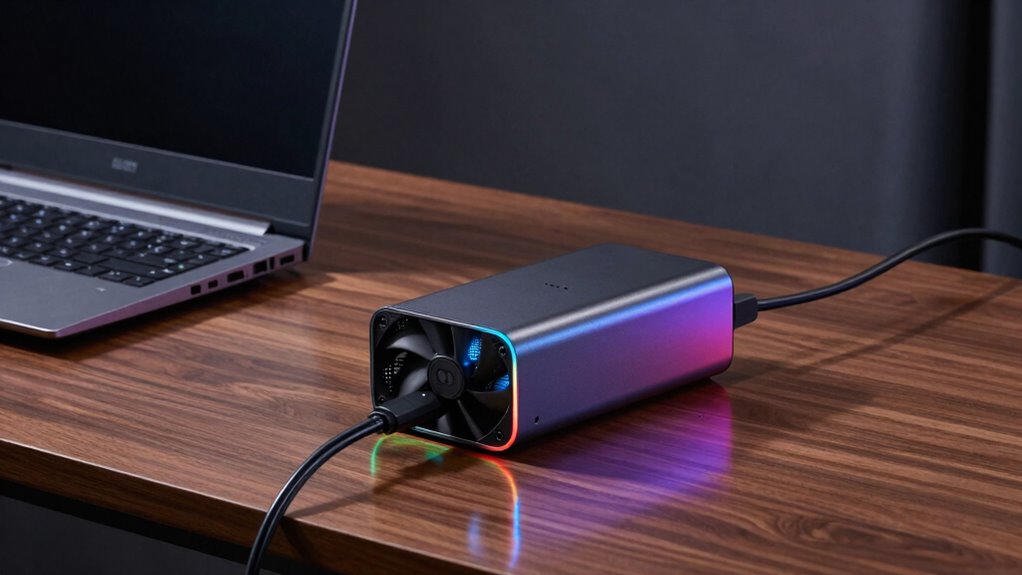

If you’re looking to boost your laptop or PC’s graphics for gaming, creative work, or demanding tasks, an eGPU could be a smart choice. It’s ideal if your device supports Thunderbolt 3 or 4 ports and you want to extend your hardware’s lifespan without buying a new computer. Consider your performance needs, compatibility, and budget before investing. Want to find out if an eGPU is right for you? Keep exploring to learn more details and tips.

Get the latest gadgets delivered free — and shop member deals
- Fast, free delivery on millions of items
- Access to Prime Big Deal Days deals on October 6–7
- Prime Video, Amazon Music and more included
Key Takeaways
- Gamers seeking higher graphics performance without replacing their laptop or PC are ideal eGPU candidates.
- Creative professionals like video editors and 3D artists benefit from improved rendering and workflow acceleration.
- Users with laptops that have Thunderbolt 3 or 4 ports and compatible external displays are well-suited for eGPU setups.
- Those facing performance bottlenecks, such as lag during demanding tasks, can significantly benefit from an eGPU upgrade.
- Casual users with basic needs may find limited advantages unless specific hardware or graphics improvements are required.
external GPU enclosure for gaming
As an affiliate, we earn on qualifying purchases.
As an affiliate, we earn on qualifying purchases.
What Is an External GPU and How Does It Work?
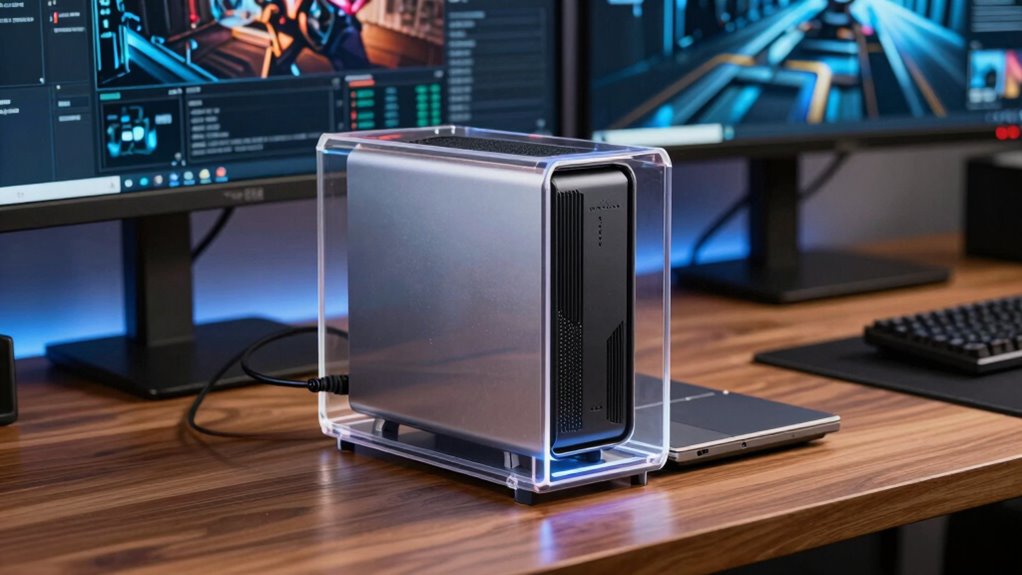
Ever wondered how you can boost your computer’s graphics performance without upgrading the internal hardware? An external GPU, or eGPU, connects to your laptop or desktop via a high-speed port like Thunderbolt 3 or 4. It houses a powerful graphics card that handles demanding tasks, considerably improving gaming performance. This setup allows you to enjoy smoother gameplay, better rendering, and higher frame rates without replacing your entire system. When considering an eGPU, portability considerations come into play—an eGPU enclosure adds size and weight, so it’s less ideal for ultra-lightweight setups. However, if you prioritize gaming performance on a portable device, an eGPU provides a flexible solution, letting you unplug for portability and plug in for serious gaming or creative work. Additionally, compatibility considerations are important, as certain systems may not support eGPU setups optimally. To maximize the benefits of an eGPU, choosing a model with efficient cooling systems can prevent overheating during intense use. Understanding performance bottlenecks can help you select the right configuration to get the most out of your eGPU. Moreover, selecting an eGPU with adequate bandwidth ensures that data transfer speeds do not hinder graphics performance. Recognizing the importance of proper setup can also help prevent connectivity issues and ensure optimal performance.
Is Your Laptop or PC Compatible With an eGPU?

To use an eGPU, your laptop or PC needs the right ports, like Thunderbolt 3 or 4, for a reliable connection. You also want to check if your system supports the external display types you’ll be connecting, such as HDMI or DisplayPort. Ensuring these compatibility points are in place helps you get the most out of your eGPU setup. Additionally, verifying that your device supports luxury lifestyle products can enhance your overall experience with high-end peripherals. Understanding your device’s watt-hours capacity can also help you determine if your power supply can handle additional hardware, ensuring optimal performance and safety. Being aware of your device’s performance upgrades capabilities can also optimize compatibility and performance, especially when considering potential future upgrades. Checking your system’s hardware specifications regularly ensures seamless integration with new peripherals and prevents compatibility issues.
Compatibility of Laptop Ports
Your laptop or PC must have the right type of port to connect an eGPU successfully. Most modern eGPU setups rely on Thunderbolt 3 or Thunderbolt 4 ports, which provide high-speed data transfer necessary for peak performance. If your laptop only has USB-C or other ports, compatibility issues may arise, preventing you from using an eGPU or limiting its effectiveness. Check your device’s specifications carefully to confirm it supports Thunderbolt protocols, as not all USB-C ports do. Some laptops may have physical ports that look compatible but lack the required bandwidth or power delivery, leading to connection problems. Verifying your laptop’s ports are compatible with eGPU standards is vital before investing in an external graphics solution.
Supported External Display Types
Ensuring your display setup is compatible with an eGPU is essential for ideal performance. Not all external display options work seamlessly, so verifying monitor compatibility is key. Most modern monitors support common connection types like HDMI, DisplayPort, or Thunderbolt 3/4, which are compatible with eGPUs. However, some older or specialized monitors may require adapters or may not support the bandwidth needed for enhanced performance. Before investing, check that your external display options include a compatible port and support high resolutions or refresh rates if you need them. Confirming monitor compatibility ensures your eGPU setup delivers smooth visuals without lag or artifacts, maximizing your gaming, creative, or professional workflows. Proper compatibility guarantees your external display will work efficiently with your eGPU system. Additionally, monitor compatibility can impact the overall quality of your visual experience. Always verify that your monitor’s bandwidth capacity aligns with your desired resolution and refresh rate to prevent potential bottlenecks.
Should You Consider an eGPU? Key Factors to Know

Before deciding on an eGPU, consider how much performance you need and the limitations you might face. Compatibility and portability also matter, as not all setups are equally easy to use or carry around. Understanding these key factors helps you determine if an eGPU is the right choice for you. Additionally, safety precautions are important to ensure proper setup and avoid potential hazards during use. Paying attention to ergonomic principles can help prevent discomfort and maintain productivity during long work sessions. Incorporating mind-body healing techniques can also support your overall well-being during intensive computing tasks. Also, being aware of system monitoring helps you track hardware performance and prevent overheating or other issues that could compromise safety and efficiency. Recognizing the influence of sound vibrations on device performance might help optimize your setup and reduce electronic noise.
Performance Gains and Limits
While an eGPU can boost graphics performance substantially, the actual gains depend on several factors, including your system’s hardware and the types of tasks you perform. You may encounter graphics bottlenecks if your CPU or internal components limit data transfer, reducing potential improvements. Thermal constraints can also limit performance, as eGPUs generate heat that may require additional cooling solutions to sustain high performance levels. Keep in mind that improvements are often more noticeable in graphically intensive tasks like gaming or 3D rendering, but less so in lightweight applications. Additionally, the system’s bandwidth determines how effectively data is transferred between components, impacting overall performance. The connection type between your computer and the eGPU also plays a crucial role in achievable speeds and efficiency. Ultimately, your system’s bandwidth, GPU compatibility, and cooling capabilities set the practical limits of what an eGPU can achieve. Understanding these factors helps you set realistic expectations for performance gains. Proper cooling is essential to prevent thermal throttling and maintain optimal performance during extended high-load usage. Moreover, considering the quality of the enclosure can influence heat dissipation and overall system stability.
Compatibility and Portability
Deciding whether an eGPU is right for you depends heavily on your system’s compatibility and portability needs. Not all laptops or desktops support Thunderbolt 3 or 4, so check your ports before investing. An eGPU can improve GPU cooling by offloading heat from your laptop, maintaining performance during intensive tasks. Portability is also a consideration—an eGPU setup adds bulk and reduces mobility, so if you need a lightweight solution, it might not be ideal. Additionally, consider power efficiency; some eGPUs deliver better performance per watt, saving energy and reducing heat output. Verify your system’s compatibility with the enclosure and GPU, and weigh these factors against your portability requirements. Understanding system requirements and compatibility factors can help you decide if an eGPU enhances your setup without compromising your mobility.
Are You a Creative Professional or Gamer? Find Out If an eGPU Fits Your Needs

Whether you’re a creative professional or a gamer, understanding if an eGPU suits your needs depends on how you use your computer. Creative tasks like video editing, 3D rendering, or graphic design benefit from enhanced hardware compatibility, allowing faster workflows. Gamers seeking improved gaming performance will notice smoother frame rates and higher settings. However, your specific hardware setup influences results. Here’s a quick comparison:
| Use Case | Hardware Compatibility | Gaming Performance |
|---|---|---|
| Creative Professional | Requires Thunderbolt 3/4 and powerful GPU | Less critical, but boosts rendering speed |
| Gamer | Needs a compatible GPU and port | Significantly improves frame rates |
| Both | Ensure system supports eGPU connections | Both benefit, but gaming sees more gains |
| Casual User | Compatibility matters, but performance less critical | Limited benefits for gaming |
How to Decide If an eGPU Is Worth the Investment
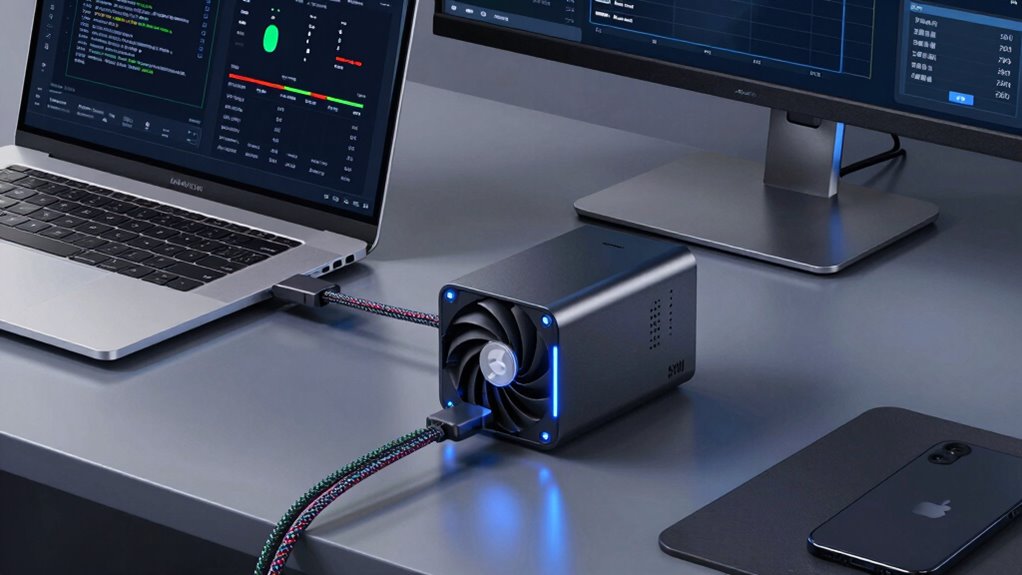
Consider whether the performance improvements justify the cost, especially if you rely heavily on graphics-intensive tasks. Think about your budget and whether the added portability of an eGPU fits your workflow. Evaluating these points helps determine if investing in an eGPU aligns with your needs.
Performance Gains Justification
To determine if an eGPU is worth the investment, you need to evaluate the tangible performance improvements it offers relative to your needs. Conduct a cost analysis by comparing the boost in graphics performance against the price of the setup. If you’re into gaming or professional tasks like 3D rendering, the gains can be significant. Additionally, consider energy efficiency; an eGPU can sometimes deliver better performance per watt, reducing overall power consumption during intensive tasks. However, if your current setup already meets your performance requirements, the upgrade may not justify the cost. Focus on how much faster and smoother your experience will be, and whether those improvements align with your workload and expectations. This will help you decide if the performance gains justify the investment.
Budget and Portability
Are you trying to determine if an eGPU fits within your budget and lifestyle? Consider its cost efficiency versus the benefits it offers. While the initial investment can be significant, an eGPU can extend your device’s lifespan and improve performance, making it a worthwhile expense for some users. However, weigh this against device portability; an eGPU setup adds bulk and reduces mobility compared to a laptop alone. If you need a highly portable solution, an eGPU might not be ideal. But if you’re seeking better graphics performance without replacing your existing hardware and can accommodate the extra size, the investment could be justified. Ultimately, evaluate whether the enhanced performance aligns with your budget and your need for mobility.
Choosing the Right eGPU: Performance, Budget, and Compatibility Tips

Choosing the right eGPU involves balancing your performance needs, budget constraints, and compatibility considerations. If gaming performance is your priority, look for an eGPU with a powerful GPU that can handle demanding titles smoothly. However, don’t overlook budget considerations; high-end models can be expensive, so find a balance between cost and performance that fits your finances. Compatibility is vital—ensure your laptop has the necessary ports and supports external graphics solutions. Check if your system’s Thunderbolt 3 or 4 port is compatible, and verify driver support. Also, consider case size and power supply requirements. By weighing these factors carefully, you can select an eGPU that enhances your gaming experience without overspending or facing compatibility issues.
Signs You Need an eGPU Upgrade
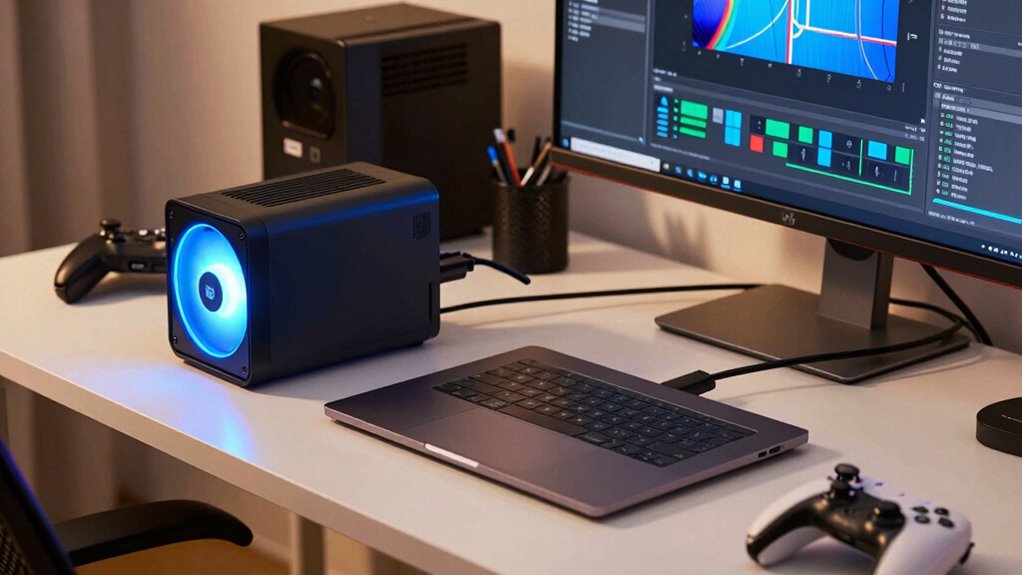
If your current eGPU no longer meets your performance needs, it’s a clear sign you should consider upgrading. You might notice slower gaming performance, making your favorite titles less smooth or visually impressive. Creative workflows can also suffer, with longer rendering times or lag during intensive tasks. Upgrading becomes essential when your setup can’t keep up with evolving software demands.
- Your gaming experience feels sluggish or choppy
- Creative projects take much longer to complete
- You’re unable to run new or demanding applications efficiently
These signs indicate your current eGPU is holding you back. An upgrade can boost gaming performance and streamline creative workflows, helping you stay productive and immersed in your work or play. Recognizing these signals early ensures you don’t miss out on the latest hardware benefits.
Limitations and Challenges of Using an eGPU
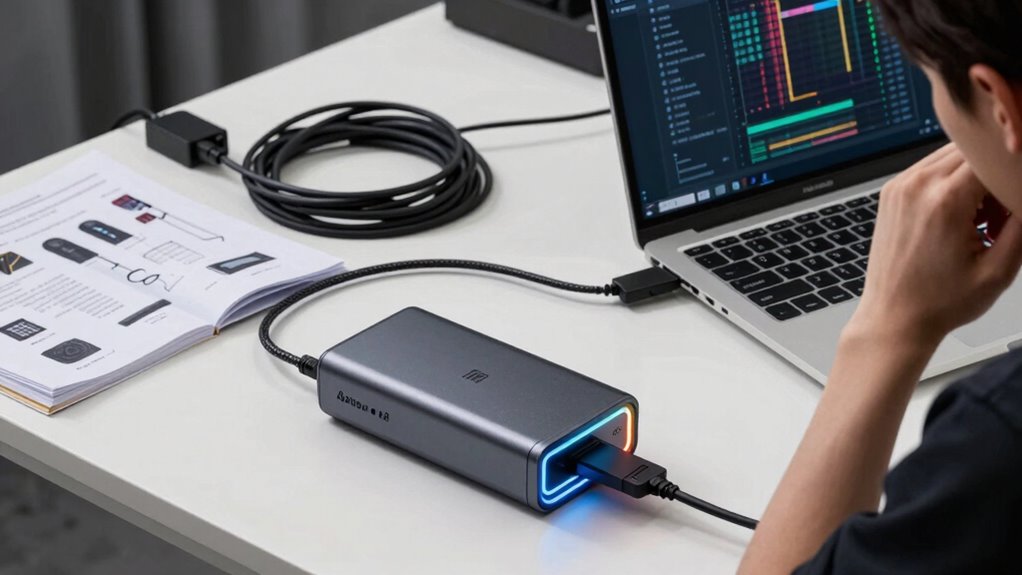
While upgrading your eGPU can considerably improve performance, it’s important to understand the limitations and challenges that come with using one. Hardware limitations, such as bandwidth constraints of Thunderbolt 3 or 4 connections, can bottleneck your GPU’s potential, preventing it from reaching full performance. Additionally, not all laptops or systems support eGPUs seamlessly, leading to compatibility issues. Software challenges also exist; drivers and operating systems may have trouble recognizing or optimizing the eGPU, resulting in instability or reduced performance. Some applications might not benefit from the external GPU at all, due to poor software optimization. Being aware of these hardware limitations and software challenges helps you set realistic expectations and ensures you’re prepared to troubleshoot potential issues effectively.
How to Set Up and Optimize Your eGPU for Best Performance
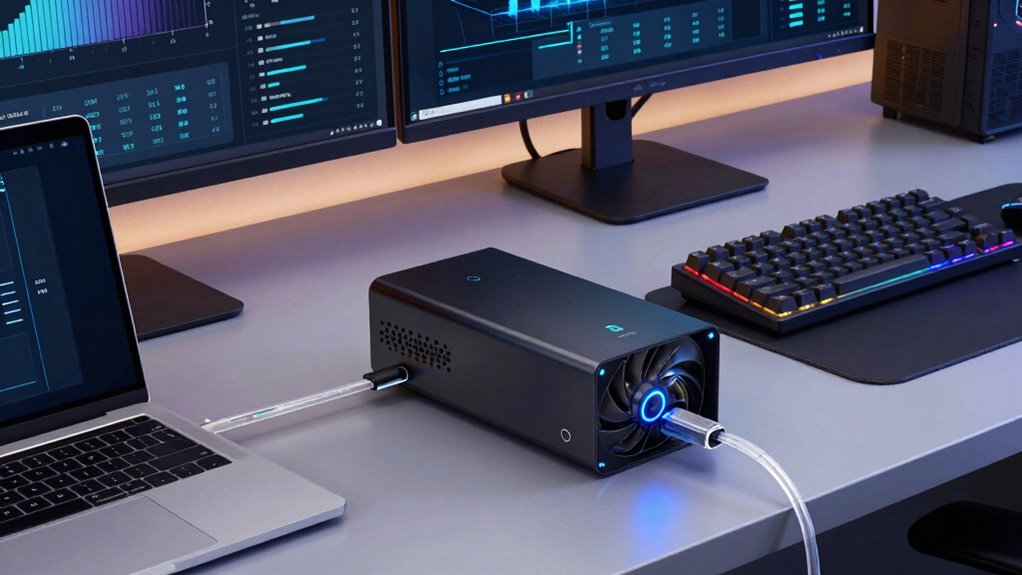
Setting up your eGPU correctly is essential for achieving ideal performance. Proper cable setup ensures stable connections and prevents signal issues. Focus on using high-quality, short cables to reduce latency and power management bottlenecks. To optimize, consider these key steps:
- Connect the eGPU directly to your laptop’s Thunderbolt port for maximum bandwidth.
- Configure power management settings to prevent the GPU from throttling or shutting down unexpectedly.
- Use the appropriate power supply to guarantee consistent power delivery, avoiding performance dips during intensive tasks.
Is an eGPU Right for Extending Your Laptop’s Lifespan or Future-Proofing?

Considering an eGPU can be a smart move if you’re looking to extend your laptop’s lifespan or future-proof your setup. An eGPU offers notable future proofing benefits by enhancing graphics performance without replacing your entire system. This setup allows you to keep your current hardware while gaining access to more powerful graphics capabilities, supporting new software or gaming demands. It can also provide lifespan extension by delaying the need for a full laptop upgrade, saving you money and effort. If your laptop struggles with demanding tasks but still meets your core needs, an eGPU can be a practical way to stay relevant longer. However, weigh the costs and compatibility requirements to make sure your investment aligns with your long-term goals.
Frequently Asked Questions
Can an eGPU Improve Laptop Battery Life During Gaming or Intensive Tasks?
An eGPU won’t necessarily improve your laptop’s battery life during gaming or intensive tasks. In fact, it often increases power consumption because the external GPU draws additional power, which can lead to reduced battery efficiency. While an eGPU boosts performance, expect your battery to drain faster during demanding activities. To maximize battery life, it’s best to unplug the eGPU when you’re not gaming or performing intensive tasks.
How Does an eGPU Affect the Portability of My Laptop or PC Setup?
An eGPU impacts your laptop’s portability by adding size, weight, and the need for extra cables, which can hinder mobility and make traveling more cumbersome. While it boosts graphics performance, it also introduces portability trade-offs, making it less convenient to carry around. Consider your mobility needs carefully—if you prioritize lightweight, compact setups, an eGPU might be less ideal, but if you seek powerful gaming or editing capabilities, it’s worth the trade-off.
Are There Specific Brands or Models of eGPUs Considered More Reliable?
You should look for eGPU brands known for high reliability, like Razer, Sonnet, and Akitio, as they tend to deliver consistent performance and build quality. When choosing a model, verify compatibility with your laptop or PC’s ports and system specifications. Reading reviews and checking manufacturer support can help you find a reliable eGPU that’s compatible with your setup, making your investment more secure.
What Are Common Troubleshooting Steps if My eGPU Isn’t Recognized?
Did you know that over 60% of eGPU issues stem from connection problems? If your eGPU isn’t recognized, start by checking the connection cables and ensuring they’re secure. Next, update your drivers—driver update is essential for compatibility. Restart your system after updates, and verify your eGPU is properly connected to your laptop or desktop. These simple troubleshooting steps often fix recognition issues quickly.
How Does an eGPU Impact System Stability and Driver Compatibility?
An eGPU can impact your system stability and driver compatibility if you don’t keep your drivers updated regularly. Outdated drivers may cause crashes or hardware conflicts, making your setup less reliable. You should verify you install the latest driver updates from your GPU manufacturer. Also, be aware that some hardware conflicts might occur, so troubleshooting and updating drivers can help maintain a stable, compatible system when using an external GPU.
Conclusion
An eGPU can be your secret weapon, opening new power and potential like a magic key. But before you jump in, weigh the pros and cons carefully—like balancing on a tightrope. If you’re ready to boost your creative or gaming experience and extend your laptop’s life, an eGPU might be your golden ticket. Just remember, it’s not a one-size-fits-all solution; choose wisely, and watch your tech soar to new heights.
Fall Picks
fall essentials
As an affiliate, we earn on qualifying purchases.