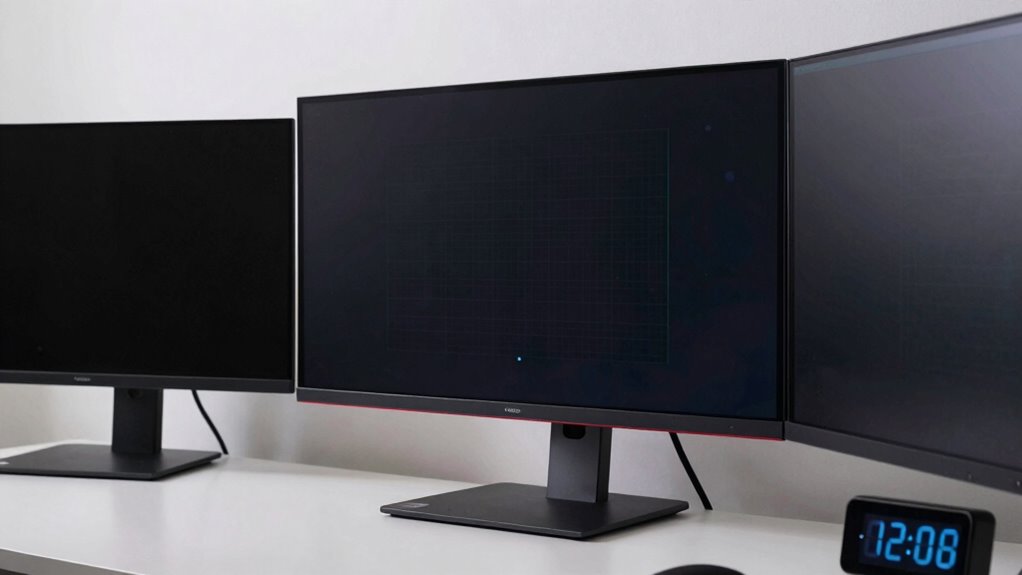

On day one, you should enable automatic wear leveling features like Screen Shift and Pixel Refresher to prevent burn-in and keep your OLED screen healthy long-term. Adjust brightness and contrast to comfortable levels, set the resolution to native, and activate screensavers or auto-dimming to avoid static images. Manage static UI elements and rotate content regularly. These proactive steps help protect your display—if you want to learn more about ensuring your OLED monitor stays in top condition, keep exploring.
Key Takeaways
- Enable automatic wear leveling features like Screen Shift and Pixel Refresher to distribute pixel wear evenly from day one.
- Activate screensavers and dynamic wallpapers to prevent static images from causing burn-in during inactivity.
- Adjust brightness and contrast to comfortable levels to reduce pixel stress and prolong display lifespan.
- Regularly calibrate the display for accurate colors and detect early signs of burn-in or pixel deterioration.
- Avoid fixed UI elements in the same position; rotate static content and enable auto-dimming to minimize burn-in risk.

10.5 Inch OLED Touchscreen Portable Monitor – 2560×1600 2.5K Ultra-Thin External Touch Display with CNC Metal Case & Speaker Travel Secondary Display for Raspberry Pi, Window, macOS, PC, Switch, PS5
- High-Definition OLED Screen: 2560×1600 2.5K resolution with vibrant visuals
- Wide Viewing Angle: 178° ultra-wide viewing for better visibility
- Fast Refresh Rate: 60Hz for smooth visuals
As an affiliate, we earn on qualifying purchases.
As an affiliate, we earn on qualifying purchases.
Why Burn-In Is a Major Concern for OLED Monitors
Because OLED monitors display images by illuminating organic pixels individually, they are especially prone to burn-in. This occurs because each pixel’s lifespan varies depending on how long it stays lit, leading to uneven wear over time. OLED technology is praised for its vibrant colors and deep blacks, but its organic nature means pixels can degrade faster with static images. When you display the same UI elements or logos for extended periods, those pixels wear out more quickly, causing ghost images or permanent burn-in. This makes static content a significant concern for OLED monitor users. Understanding pixel lifespan is essential because it directly impacts how long your display remains pristine. Additionally, avoiding prolonged display of static images can significantly prolong the lifespan of your OLED screen, emphasizing the importance of screen management. Properly configuring your display settings and utilizing screen savers can help mitigate burn-in risks and preserve display quality over time. Being aware of image retention and its effects can also guide you in maintaining optimal visual performance and preventing permanent damage. To maintain your monitor’s quality, you need to be mindful of static images and their effects on OLED technology.
Set Up Basic Settings: Brightness, Contrast, and Screen Resolution
To safeguard your OLED monitor from burn-in, start by adjusting the brightness wisely so it’s not too high. Fine-tune the contrast settings to ensure images are clear without overexposing the screen. Finally, optimize the screen resolution to match your needs for sharp visuals while minimizing unnecessary strain on the display. Incorporating mythology-inspired names with meaningful qualities can also serve as a reminder to approach your monitor setup with strength and wisdom.
Adjust Brightness Wisely
Have you ever noticed how high brightness settings can cause screen burn-in on OLED monitors? Keeping brightness at a reasonable level helps prevent this. When adjusting, consider your ambient lighting; in bright rooms, slightly higher brightness may be necessary, but avoid maxing it out. Proper color calibration also plays a role, ensuring your display isn’t unnecessarily bright or dull, which can strain your eyes and increase burn-in risk. Set your brightness to a comfortable level that matches your environment, reducing the chance of uneven wear. Regularly reassess your settings as lighting conditions change, and always prioritize a balanced, eye-friendly display to maintain picture quality and prevent burn-in. Additionally, maintaining consistent display usage habits can further help in reducing the risk of burn-in over time. Being aware of OLED panel characteristics can also guide you in making better adjustments. For example, understanding the importance of screen refresh techniques can help prolong your monitor’s lifespan. To further protect your display, consider enabling screen savers or sleep modes when the monitor is idle for extended periods.
Fine-Tune Contrast Settings
Once you’ve set a comfortable brightness level, it’s time to fine-tune your contrast settings to improve overall picture quality. Proper contrast calibration ensures that bright and dark details are clear without causing strain or risking burn-in. Start by adjusting the contrast control while displaying a test pattern or a familiar image with a range of tones. Increase contrast until you see bright areas stand out sharply without losing detail in darker regions. Avoid pushing settings too high, which can cause color clipping or uneven brightness. Consistent display calibration helps you achieve a balanced picture, reducing the risk of burn-in caused by static elements. Take your time to tweak contrast gradually, and test with different content to find the best balance that enhances clarity without compromising display longevity. Additionally, understanding how OLED burn-in occurs can help you identify potential issues early and prevent permanent image retention.
Optimize Screen Resolution
Setting your monitor’s screen resolution correctly is essential for sharp, clear images and smooth performance. Choose the native resolution for your OLED to ensure the best picture quality and reduce strain on the panel. This not only improves visual clarity but also helps with accurate color calibration, making colors look natural and consistent. Consider your viewing distance; sitting too close can emphasize pixelation, while sitting too far might reduce detail. Adjust the resolution so that content appears crisp without unnecessary scaling. Proper resolution also minimizes the risk of burn-in by avoiding prolonged display of static images at non-native resolutions. Regularly checking and optimizing this setting guarantees your OLED monitor delivers peak performance and longevity, providing a better viewing experience while protecting against potential burn-in issues. Streamlining AI Agent Governance helps ensure your display settings align with security and operational standards.
Enable Automatic Features Like Screen Shift and Pixel Refresher
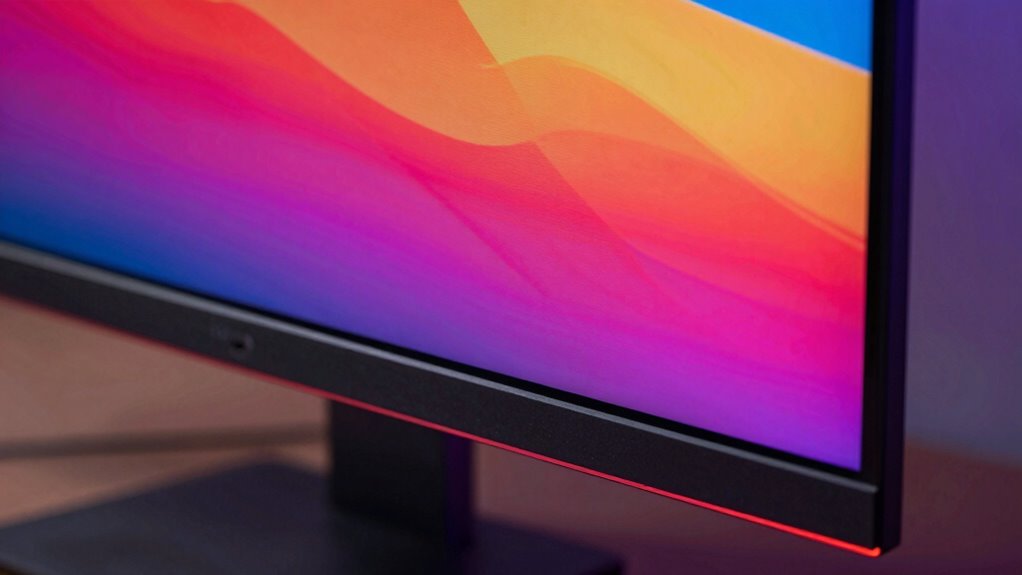
Enabling automatic features like Screen Shift and Pixel Refresher can considerably reduce the risk of burn-in on your OLED monitor. Screen Shift moves the image slightly over time, preventing static pixels from wearing unevenly, while Pixel Refresher helps restore pixel performance. Using these tools regularly keeps your display looking fresh and prolongs its lifespan. Emerging trends in digital publishing highlight the importance of incorporating automated display management tools for optimized user experience.
Screen Shift Benefits
Have you ever wondered how to extend the lifespan of your OLED monitor? Screen shift benefits play a vital role by automatically moving static images slightly, reducing the risk of burn-in. This feature aids in static UI management, preventing persistent image retention. When activated, it:
- Minimizes pixel wear caused by fixed elements
- Promotes even pixel usage across the display
- Reduces the chance of burn-in from static content
- Keeps your screen looking fresh over time
- Works silently in the background without user intervention
- Supports digital age practices by reducing screen fatigue and promoting healthier viewing habits
Additionally, enabling features like pixel refreshing helps to further mitigate burn-in effects by periodically recalibrating the display.
To maximize protection, it’s also advisable to keep your display’s brightness levels optimized, as excessive brightness can accelerate pixel degradation. Implementing these automatic display adjustments can significantly enhance your monitor’s longevity and viewing experience.
Pixel Refresher Importance
Regularly activating automatic features like Pixel Refresher and Screen Shift is essential for maintaining your OLED monitor’s health. The pixel refresher importance lies in its ability to evenly distribute pixel wear, helping prevent image retention and OLED burn-in. By running these automatic processes, you reduce the risk of static image persistence, which can cause permanent ghosting. Screen Shift moves the image slightly at regular intervals, while the pixel refresher recalibrates pixels to maintain uniform brightness. These features are designed to work in the background, so you don’t have to think about them daily. Enabling them from day one ensures your monitor stays in ideal condition and extends its lifespan. In short, using these automatic tools is a simple yet effective way to safeguard your OLED display against burn-in.
Manage Static UI Elements and Limit Persistent Bright Spots
To prevent burn-in on your OLED monitor, managing static UI elements carefully is vital. Static UI components like taskbars, icons, or menus can cause persistent bright spots if left unchanged over time. To improve brightness longevity and perform effective bright spot management, consider these strategies:
- Enable screensavers that activate during inactivity
- Use dynamic or animated wallpapers instead of static images
- Avoid leaving fixed UI elements in the same position for extended periods
- Adjust interface layouts to vary element placement regularly
- Turn off unnecessary static indicators when not in use
- Understanding OLED technology can help you better grasp how to protect your display from burn-in.
- Monitoring screen usage patterns allows you to identify and minimize static content that may lead to burn-in.
- Regularly adjust display settings to optimize brightness and contrast levels, reducing stress on OLED pixels.
- Being aware of display lifespan factors can help you implement preventative measures more effectively.
Implementing these tips helps distribute brightness evenly and minimizes the risk of permanent burn-in, ensuring your OLED monitor stays vibrant longer. Managing static UI effectively is key to preserving display quality over time.
Configure Color Settings and Use Screen Saver Modes
Adjusting your OLED monitor’s color settings and enabling screen saver modes are essential steps in preventing burn-in. Proper color calibration ensures that no static UI elements are overly bright or persistent, reducing the risk of burn-in over time. Set your display’s brightness to comfortable levels and avoid high contrast settings that can cause uneven wear. Incorporate ambient lighting in your workspace to minimize eye strain and prevent the need for excessively bright screens. Using a screen saver that activates after periods of inactivity helps keep static images from lingering on your display. These practices reduce static image exposure, ultimately extending your monitor’s lifespan and maintaining peak picture quality. Regularly reviewing and adjusting your color settings is a simple, effective way to protect your OLED screen. Understanding screen lifespan can help you make informed adjustments for optimal longevity. Additionally, being aware of wear leveling techniques can further enhance your display’s durability over time.
Develop Daily Habits to Protect Your Screen Over Time
Establishing daily habits can considerably extend the life of your OLED monitor. Consistently calibrate your screen to guarantee accurate colors and reduce unnecessary strain. Pay attention to ambient lighting—adjust room lighting to minimize glare and contrast that can accelerate burn-in. Develop routines like avoiding static images or logos for long periods, which can cause uneven wear. Regularly dim your screen when possible, as brighter settings wear out pixels faster. Additionally,:
Consistently calibrate, manage ambient lighting, and avoid static images to prolong your OLED monitor’s lifespan.
- Keep screen calibration up to date
- Use ambient lighting to reduce glare
- Rotate static images periodically
- Lower screen brightness when feasible
- Enable built-in screen savers or auto-dimming features
These habits help maintain image quality and prevent burn-in, ensuring your OLED monitor stays vibrant over time.
Monitor Your OLED Screen’s Health and Perform Regular Checks
Regularly monitoring your OLED screen’s health guarantees that you catch potential issues early before they cause permanent damage. Start with display calibration to *guarantee* colors and brightness are *ideal*, which can reveal uneven wear or pixel anomalies. Pay attention to ambient lighting conditions, as excessive brightness or glare can accelerate burn-in or cause uneven aging. Keep an eye on screen performance by checking for persistent image retention or discoloration, and run built-in diagnostics if available. Regular checks help you identify early signs of wear, allowing you to adjust settings or take preventive measures. Consistent monitoring *assures* your display remains in top condition, extending its lifespan and maintaining image quality over time.
Final Tips for Maximizing OLED Longevity and Performance
To maximize your OLED monitor’s lifespan, prioritize mindful usage habits and proper settings. Start with accurate panel calibration to ensure consistent image quality and reduce unnecessary strain. Manage ambient lighting to prevent glare and eye fatigue, which can impact your viewing comfort. Avoid static images for prolonged periods, and use screen savers or auto-shutdown features when idle. Adjust brightness and contrast to moderate levels, preventing excessive wear. Keep your monitor’s firmware up to date for peak performance. Regularly check for pixel health and color accuracy to catch issues early. Consider enabling built-in features designed to reduce burn-in. By practicing these habits, you’ll extend your monitor’s longevity while maintaining prime performance.
Frequently Asked Questions
How Often Should I Perform Pixel Refreshes on My OLED Monitor?
You should perform a pixel refresh on your OLED monitor every 200 to 300 hours of use to help with burn-in prevention. Regular pixel refreshes can reduce static image retention and extend your monitor’s lifespan. Keep an eye on your screen for signs of burn-in, and don’t wait too long between refreshes. Doing it periodically guarantees your display stays vibrant and free from ghost images.
Are There Specific Apps or Content Types That Increase Burn-In Risk?
Yes, static images and high contrast content increase burn-in risk on your OLED monitor. You should avoid leaving static images, like logos or menus, on the screen for extended periods. Be cautious with high contrast visuals, such as bright whites against dark backgrounds, as they can accelerate pixel wear. To protect your display, enable features like screen shift or pixel refresh, and take regular breaks during prolonged viewing sessions.
Can Using a Screen Protector Help Prevent OLED Burn-In?
Ever wondered if a screen protector can help prevent OLED burn-in? While they mainly protect against scratches and dust, some screen protectors can reduce static image retention, aiding in burn-in prevention. However, they aren’t a foolproof solution. To truly minimize burn-in risks, focus on adjusting display settings, avoiding static images, and taking regular breaks. A screen protector can be a helpful extra, but it’s not the primary defense.
What Are the Best Practices for Calibrating Color Without Risking Burn-In?
To calibrate your OLED monitor’s color without risking burn-in, start by using built-in calibration tools or professional calibration software that minimizes static images. Focus on maintaining screen uniformity and avoid leaving static elements on the screen for extended periods during calibration. Adjust brightness and contrast carefully, and enable pixel-shifting features if available. These practices help preserve your display’s health while achieving accurate color calibration.
How Long Does It Typically Take for Burn-In to Become Noticeable?
Imagine watching a static logo on your OLED monitor for several hours; burn-in could start to show in just a few weeks. Usually, it takes around 3-6 months for noticeable screen uniformity issues to appear, especially with persistent static images. The key is avoiding prolonged display of static images to minimize risks. Regularly changing content and enabling screen savers help protect your monitor from early burn-in signs.
Conclusion
By taking these steps from day one, you’re planting the seeds for your OLED monitor’s long, vibrant life. Think of your screen as a delicate garden—tend to it wisely, and it’ll reward you with brilliant visuals for years to come. Avoid neglect, and you risk letting burn-in settle like stubborn weeds. With mindful habits and proper settings, you’ll keep your display colorful and sharp, turning your screen into a lasting masterpiece.