
To quickly achieve accurate colors on your monitor, start by resetting it to factory settings and adjusting the color temperature to 6500K, which mimics daylight. Use a reliable calibration tool, like a colorimeter, along with trusted software such as DisplayCAL or X-Rite i1Profiler. Fine-tune gamma, brightness, and contrast following on-screen prompts, ensuring consistent ambient lighting. Maintaining regular calibration routines and environmental control helps keep colors precise. Keep exploring to discover all the steps for perfect calibration.
Key Takeaways
- Reset your monitor to factory settings and set color temperature to 6500K for a neutral baseline.
- Use a reliable hardware calibration tool like X-Rite i1Profiler or DisplayCAL for quick, precise adjustments.
- Ensure consistent ambient lighting, free of glare and reflections, during calibration for accurate results.
- Follow the calibration software prompts to adjust gamma, brightness, and contrast efficiently.
- Regularly recalibrate your monitor every few weeks to maintain color accuracy over time.

Calibrite Display Pro HL Monitor Calibration Colorimeter for LCD Mini LED and OLED Displays, Measure up to 3000 Nits, PROFILER Software, USB C with Adapter, Validation/Color Uniformity Tools
SPECIFICATIONS: HL high luminance sensor colorimeter measures up to 3000 nits, calibrates and profiles LCD mini LED OLED…
As an affiliate, we earn on qualifying purchases.
As an affiliate, we earn on qualifying purchases.
Why Do Accurate Colors Matter for Photographers and Designers?

Accurate colors are essential for photographers and designers because they guarantee that the images and designs you create look consistent and true to life across different devices and media. Without proper calibration precision, color inconsistency can occur, leading to mismatched hues and inaccurate shadows. This can compromise your work’s integrity, making it difficult to deliver projects that meet client expectations or reflect your artistic vision. Achieving precise calibration ensures that colors stay consistent from your monitor to print or online display. When your monitor is properly calibrated, you can trust that the colors you see are true to the original, saving time and preventing costly reworks. In short, calibration accuracy is the foundation for reliable, vibrant, and professional-quality visuals. Additionally, understanding color management is crucial for maintaining color fidelity across various outputs. Regularly monitor calibration helps in maintaining consistent color accuracy over time, especially as display settings can drift, which can impact your overall visual workflow. This ongoing process supports the natural appearance of your colors, ensuring that your final work accurately reflects your creative intent.

X-Rite i1Pro 3 Spectrophotometer Professional Color Profiling Device for Displays and Printers, 5000 Nit Monitor Support with Broadcast Video Standards, i1Profiler and (EO3BAS)
SPECIFICATIONS: Professional i1Pro 3 spectrophotometer for display and printer profiling, supports high brightness measurement up to 5000 nits,…
As an affiliate, we earn on qualifying purchases.
As an affiliate, we earn on qualifying purchases.
How to Prepare Your Monitor for Color Calibration
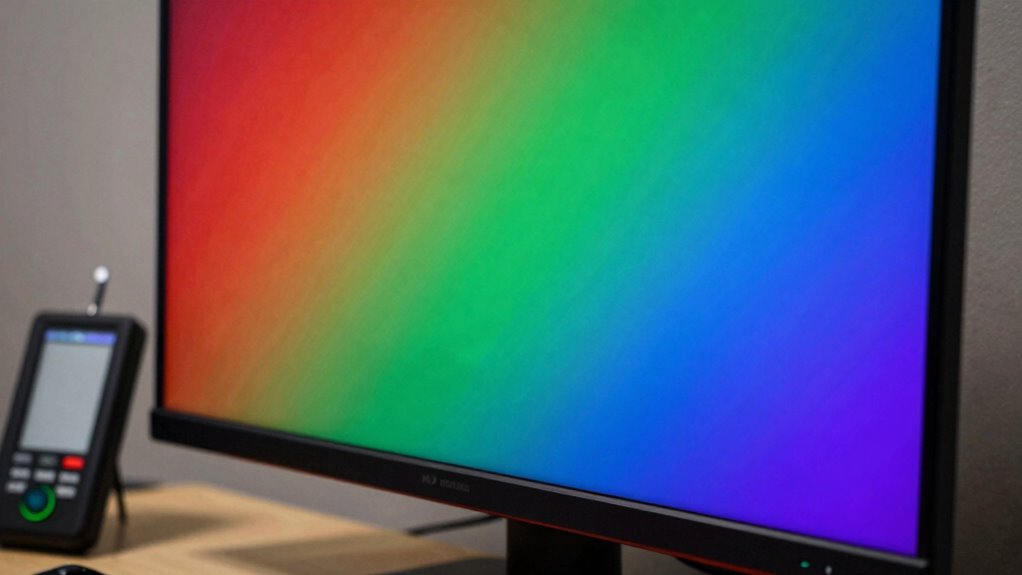
Before you start the calibration process, it’s important to prepare your monitor to guarantee accurate results. First, set your monitor to its default or factory settings to eliminate any previous adjustments. Adjust the color temperature to a standard like 6500K, which mimics natural daylight, ensuring consistency. Control your ambient lighting by reducing glare and avoiding direct light on your screen, as inconsistent lighting can affect calibration accuracy. Turn off any nearby lights that cast color tints or reflections. Allow your monitor to warm up for at least 30 minutes so it reaches a stable operating state. Consistent lighting conditions are essential for achieving reliable calibration results, as external influences can skew color accuracy. These steps help create a controlled environment, minimizing external influences and setting a reliable baseline for precise color calibration. Additionally, understanding the importance of monitor calibration can help you appreciate the significance of these preparation steps. Ensuring your monitor’s color consistency is crucial for achieving accurate calibration results and true-to-life colors. Properly monitor calibration setup also involves verifying that your graphics card settings are correct, which can further enhance calibration accuracy. Maintaining consistent monitor performance over time can help preserve calibration accuracy and overall display quality.

Burning Suite – Burn and Copy Software – CD/DVD/Blu-ray – Data, Music, Video – the all-in-one solution for Win 11, 10
Data Loss Prevention – Avoid losing important files by securely backing up your data on CDs, DVDs, or…
As an affiliate, we earn on qualifying purchases.
As an affiliate, we earn on qualifying purchases.
How Does Monitor Color Calibration Actually Work?
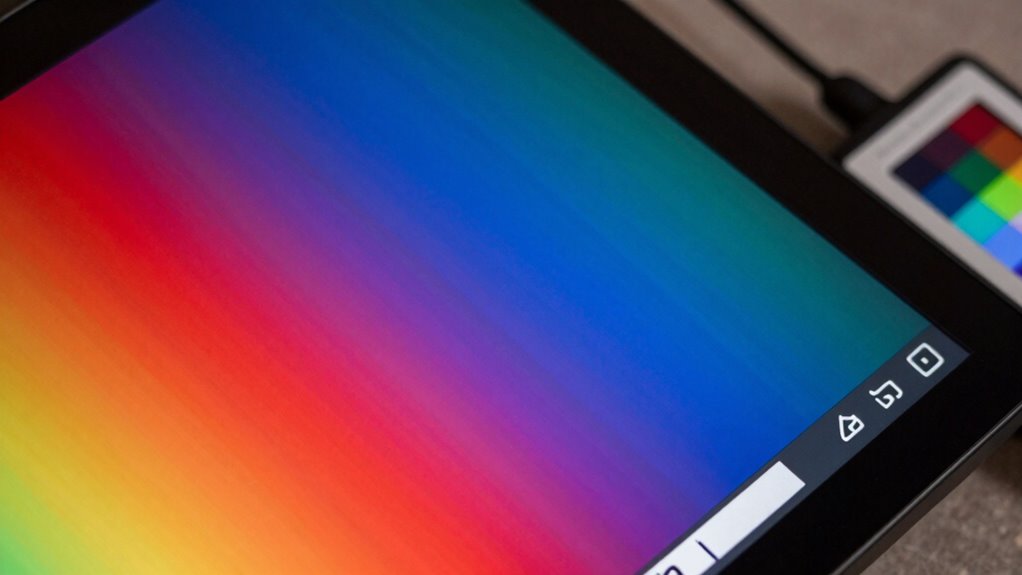
Monitor color calibration works by adjusting your display’s output to match a standard color profile, ensuring the colors you see are consistent and true to life. When calibration begins, your monitor uses a color space—like sRGB or Adobe RGB—to define the range of colors it can display. The process creates calibration profiles, which are files containing specific color adjustments tailored to your monitor. These profiles guide your display to reproduce accurate colors by aligning its output with the target color space. Essentially, calibration fine-tunes your monitor’s color rendering, correcting gamma, brightness, and contrast. By applying calibration profiles, your device maintains a standardized color output, making sure images, videos, and designs look consistent across different screens. Additionally, understanding color accuracy helps you achieve more precise and reliable visual results. Proper calibration also accounts for monitor aging, which can affect color reproduction over time. Regular calibration can also compensate for hardware drift, ensuring ongoing color fidelity.
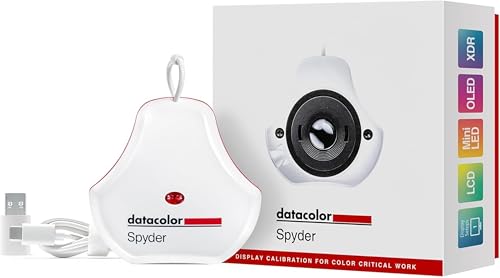
datacolor Spyder – Monitor Calibrator for Graphic Designers, Photographers, and Content Creators, Shows You True Colors, Works on OLED Monitors & LED Screens, Easy-to-Use Color Calibration Tool
Color “Surprises” Are a Thing of the Past: Datacolor’s exclusive DevicePreview TM Beta feature simulates what your photos…
As an affiliate, we earn on qualifying purchases.
As an affiliate, we earn on qualifying purchases.
Step-by-Step: How to Calibrate Your Monitor Quickly and Easily
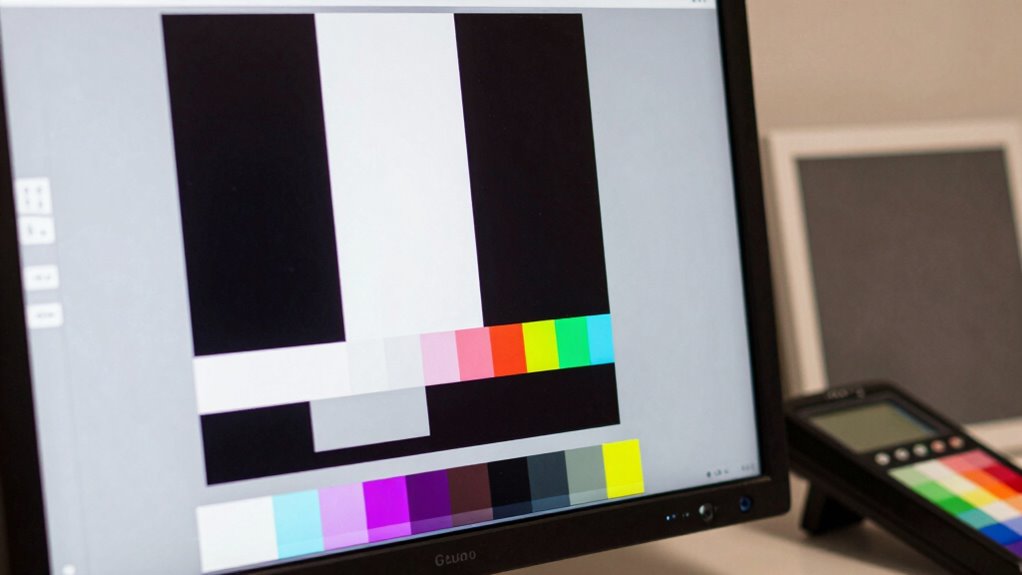
Calibrating your monitor is a straightforward process that you can complete in just a few simple steps. First, set your ambient lighting to a consistent level, ideally neutral and not too bright, to guarantee accurate color perception. Next, adjust your monitor’s color temperature to a standard setting, such as 6500K, which mimics natural daylight and provides a neutral tone. Use your monitor’s on-screen display menus to make these adjustments. If you’re using calibration software, follow its prompts to fine-tune brightness, contrast, and gamma. Keep your workspace free of reflections and ensure your monitor has been on for at least 30 minutes. Additionally, being aware of microplastics in dust can help you maintain a cleaner environment, which may contribute to more consistent viewing conditions. With these steps, you’ll quickly achieve a more accurate display that’s ready for precise color work.
Which Tools and Software Are Best for Monitor Calibration?
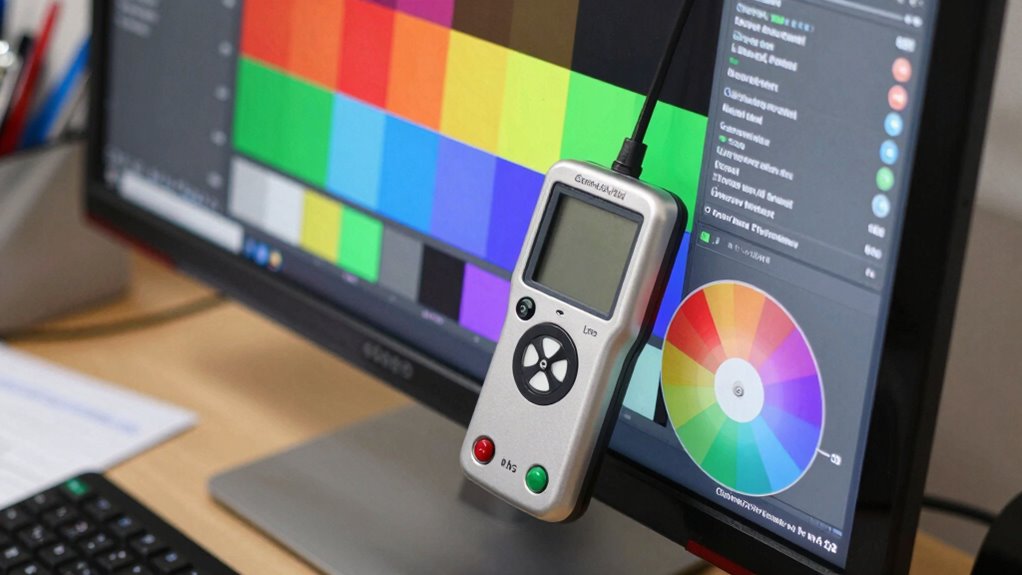
Choosing the right tools and software can make a significant difference in achieving accurate monitor calibration. For colorimeter options, you have choices like entry-level devices, mid-range models, and professional-grade tools, each offering varying levels of accuracy and ease of use. Calibration software options include popular programs such as:
- DisplayCAL — free, versatile, compatible with many colorimeters
- CalMAN — professional-grade, ideal for advanced users
- X-Rite i1Profiler — tailored for X-Rite devices, trusted by professionals
These tools help you create precise color profiles by combining reliable calibration software with compatible colorimeter options. Selecting the right combination guarantees your monitor displays colors accurately, whether you’re editing photos, designing graphics, or printing. 1023 Jack
Common Calibration Mistakes and How to Avoid Them
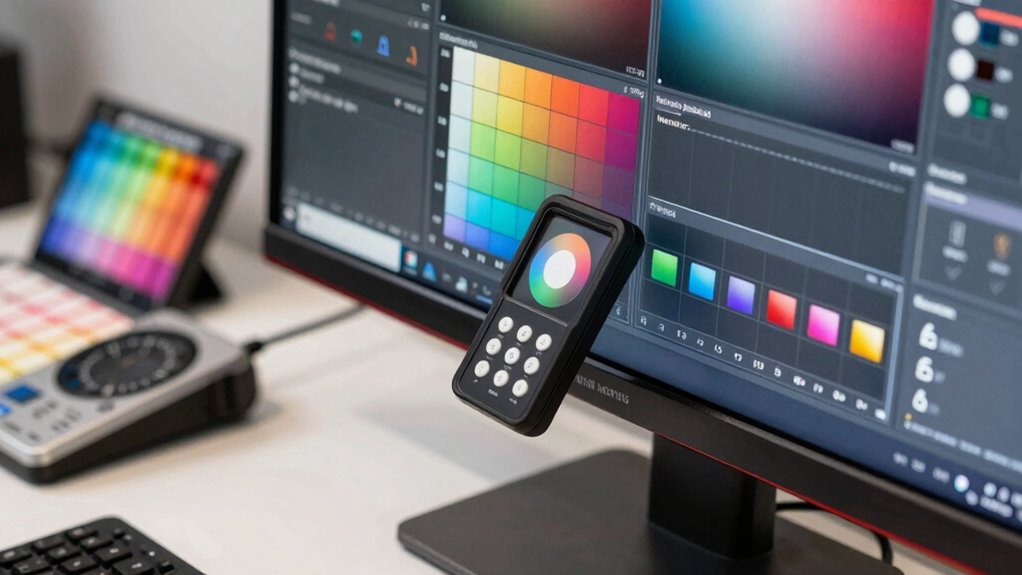
Even experienced users can fall into common calibration mistakes that compromise color accuracy. One mistake is neglecting to adjust brightness and contrast properly, leading to color misalignment. Rushing the calibration process or skipping steps often results in inaccurate results. Another frequent error is believing calibration myths, such as thinking software alone can fix all color issues without proper hardware setup. You might also ignore ambient lighting conditions, which affect how colors appear on your screen. Using outdated calibration tools or ignoring regular recalibration can cause your monitor’s colors to drift over time. To avoid these pitfalls, follow a consistent calibration routine, verify your hardware setup, and stay informed about best practices. Accurate calibration requires attention to detail and avoiding assumptions rooted in myths. Additionally, understanding AI-driven calibration can help enhance precision and streamline your process. Regularly checking your calibration against industry standards ensures your color accuracy remains reliable over time. Incorporating monitor calibration software with advanced features can further improve your calibration results and reduce errors. Paying attention to hardware calibration tools and ensuring they are properly maintained can also prevent calibration inaccuracies. Being aware of calibration environment factors is crucial for maintaining consistent and accurate results.
Tips for Maintaining Accurate Colors Over Time
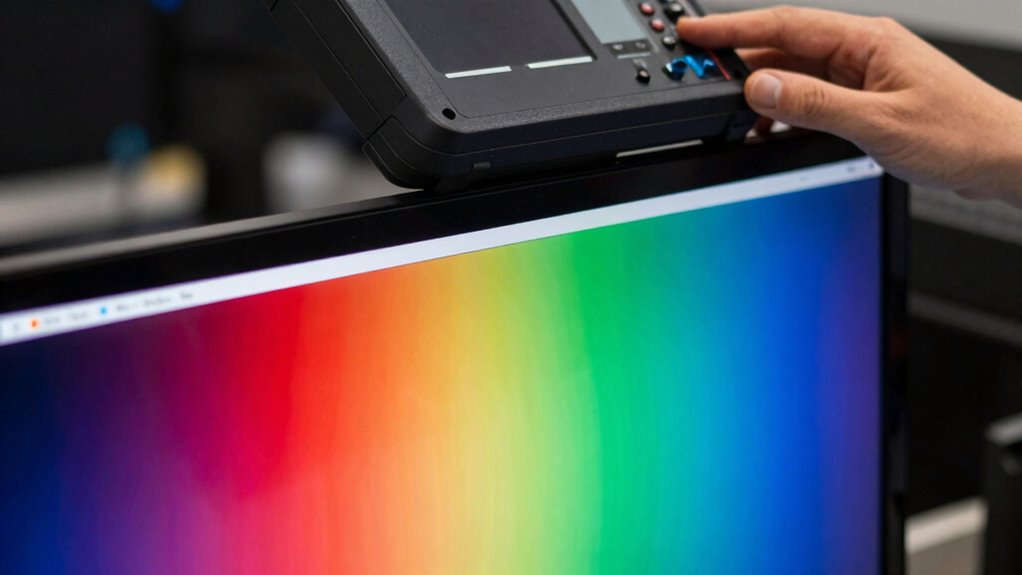
To keep your monitor colors accurate, it’s important to stick to a regular calibration schedule. You should also use consistent lighting conditions and make sure your display drivers are always up to date. These simple steps help maintain color accuracy over time and prevent drift. Incorporating support for breakfast can also help you stay energized and focused during calibration routines. Additionally, understanding the importance of growth mindsets can encourage a positive approach to learning new calibration techniques. Regularly reviewing your monitor settings ensures that any color shifts are promptly corrected, maintaining your display’s performance over time. Paying attention to environmental factors like ambient light can further enhance calibration accuracy. Being aware of your privacy policy preferences can also ensure that your calibration data remains secure and your experience tailored to your comfort.
Regular Calibration Schedule
Maintaining accurate colors on your monitor requires establishing a regular calibration schedule. Consistent calibration helps monitor hardware stay aligned, ensuring your colors remain true over time. To do this effectively, consider these steps:
- Set a specific calibration frequency—weekly or bi-weekly works best for most setups.
- Track monitoring consistency by noting any shifts in color or brightness.
- Adjust your calibration routine if you notice deviations, maintaining uniformity in your workflow.
Use Consistent Lighting
Consistent lighting conditions are essential for keeping your monitor’s colors accurate over time. Ambient lighting influences how you perceive colors and can cause discrepancies if it varies. To maintain color accuracy, keep your workspace’s ambient lighting steady, avoiding fluctuations throughout the day. Pay attention to the color temperature of your environment; cooler or warmer lighting can distort how colors appear on your screen. Use consistent light sources with a stable color temperature, ideally matching your calibration settings. Avoid direct sunlight or harsh fluorescents, which can cast color casts or flicker. By controlling ambient lighting and maintaining a stable color temperature, you ensure your monitor’s colors stay true over time, reducing the need for frequent recalibration.
Update Display Drivers
Updating your display drivers regularly is one of the most effective ways to guarantee your monitor’s colors stay accurate over time. Proper driver software compatibility ensures your monitor functions at its best with your system. To keep things current, follow these steps:
- Check for display driver updates through your device manager or manufacturer’s website.
- Download and install the latest driver software compatible with your operating system.
- Restart your computer to finalize the update and verify color accuracy.
Regular updates fix bugs, improve performance, and enhance color rendering. Staying on top of display driver updates helps prevent color discrepancies caused by outdated or incompatible driver software. This simple routine supports consistent, accurate color calibration over time.
Frequently Asked Questions
How Often Should I Recalibrate My Monitor for Optimal Color Accuracy?
You should recalibrate your monitor every 4 to 6 weeks to maintain ideal color accuracy. Regular monitor maintenance, including recalibration, ensures your display settings stay consistent and true to color. Factors like ambient lighting and screen usage can drift your display’s color over time. By sticking to this schedule, you keep your monitor’s display settings precise, which is especially important for color-sensitive work like photo editing or design.
Can Hardware Calibration Tools Damage My Monitor?
You’ll be glad to know that hardware calibration tools have a very low hardware risk when used properly. According to industry studies, less than 1% of users experience monitor damage from calibration devices. For calibration safety, always follow the manufacturer’s instructions and avoid excessive pressure or force. Proper use guarantees you get accurate color without risking damage, making hardware calibration tools safe and effective for maintaining your display’s color accuracy.
What Are the Signs That My Monitor Needs Recalibration?
You’ll notice your monitor needs recalibration if colors seem off or inconsistent, and the contrast ratio appears dull or overly harsh. Pay attention to your color temperature—if whites look too warm or too cool—and if grayscale isn’t smooth, indicating color inaccuracies. These signs suggest your display’s calibration may be drifting, so reestablishing calibration can restore accurate colors and ensure your visuals look as intended.
Is Calibration Necessary for Gaming or General Use?
Calibration is essential whether you’re gaming or using your monitor for general display. For gaming accuracy, proper calibration ensures colors are vivid, details are clear, and your experience feels more immersive. For everyday use, it guarantees your display shows true-to-life colors, reducing eye strain and improving overall image quality. Don’t overlook calibration; it enhances both gaming precision and the quality of your general display, making everything look better and more accurate.
How Does Ambient Lighting Affect Color Calibration Results?
Ambient light substantially impacts your color calibration results because it affects how colors appear on your screen. Bright or uneven ambient light can wash out or distort colors, making calibration less accurate. To get the best results, reduce ambient light and guarantee consistent lighting conditions. Adjust your monitor’s color temperature to match your environment, which helps maintain accurate and vibrant colors whether you’re gaming or working.
Conclusion
Just like Van Gogh relied on his eyes, your work depends on true color. By calibrating your monitor, you make certain your creations reflect your vision perfectly. Think of it as sharpening your artistic sword—ready to cut through confusion and produce masterpieces. Keep your calibration routine steady, and your colors will stay as honest as a mirror. Master this skill, and your images will always speak their true, vibrant story.