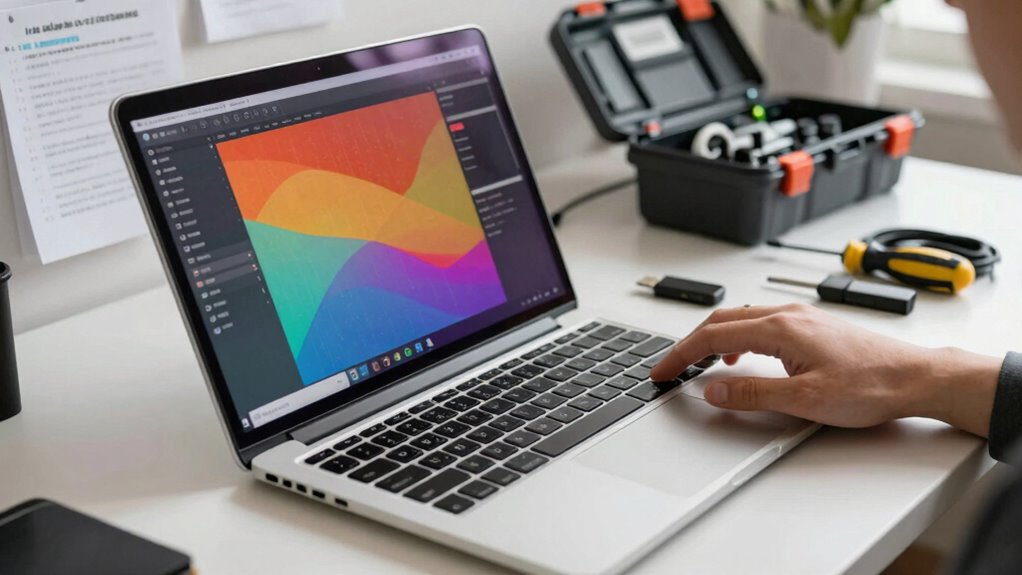
To speed up a slow laptop without buying a new one, start by optimizing power settings and switching to balanced or high-performance plans when plugged in. Remove unnecessary background apps and disable startup programs to reduce boot time. Clean up temporary files and system clutter using built-in tools, update drivers and BIOS, and monitor hardware health. Managing these settings can boost your laptop’s performance—exploring further tips will reveal even more ways to improve speed effectively.

Get the latest gadgets delivered free — and shop member deals
- Fast, free delivery on millions of items
- Access to Prime Big Deal Days deals on October 6–7
- Prime Video, Amazon Music and more included
Key Takeaways
- Disable unnecessary startup programs and background processes to reduce boot time and resource usage.
- Clear temporary files and system clutter to improve overall system responsiveness.
- Update drivers, BIOS, and keep software current for better hardware performance.
- Remove unused applications and manage storage to free up system resources.
- Optimize power settings and battery management to enhance system efficiency and stability.
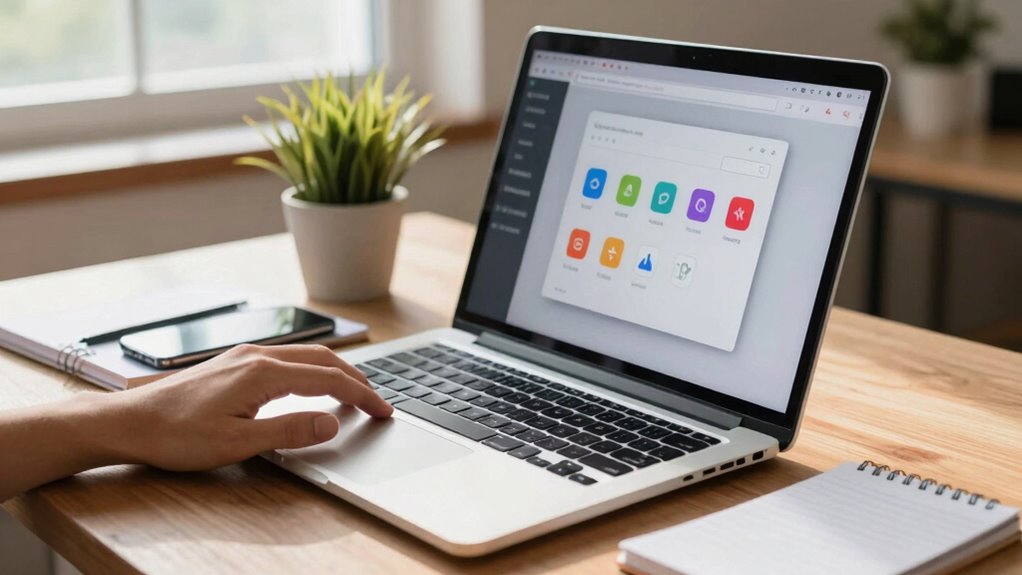
If your laptop has started running slowly, it can be frustrating and disruptive. You might notice longer load times, lagging applications, or delays when switching between tasks. Before considering a new device, you can try several practical steps to boost your current laptop’s performance. One effective approach involves focusing on battery optimization and startup management. These areas directly impact how your laptop functions daily and can markedly improve speed without any additional cost.
Battery optimization is often overlooked but plays an essential role in overall system performance. When your battery is degraded or not properly optimized, your laptop may slow down to conserve power or behave unpredictably. To address this, check your power settings and switch to a balanced or high-performance power plan, especially when plugged in. Disable any battery-saver modes that restrict background activity, as these can cause sluggishness. Also, consider calibrating your battery if it’s old, which helps your device better manage power and prevents unnecessary throttling. Removing unnecessary apps that run in the background can also reduce battery drain and free up resources, making your system quicker. Keep your drivers and BIOS updated, as manufacturers often release updates that improve power management and hardware efficiency, which, in turn, can enhance overall speed. Additionally, regularly monitoring your system’s power consumption can help identify processes that drain resources unnecessarily. You can further improve performance by tracking hardware health, ensuring your components are functioning optimally and identifying potential issues early. Regularly checking your system’s hardware health can also reveal underlying issues affecting performance. Moreover, optimizing your software environment by managing background processes ensures smoother operation.
Startup management is another essential factor. When your laptop boots up, several programs may launch automatically, consuming system resources and slowing down startup times. You can manage this by opening your task manager or system configuration tool and disabling unnecessary startup programs. Focus on keeping only essential applications enabled at startup; this reduces the load on your CPU and RAM right from the start. Additionally, regularly review your installed programs and uninstall any that you no longer need. Over time, clutter from unused software can bog down your system. Clearing out temporary files and unnecessary system files using built-in cleanup tools can also free up space and improve responsiveness. With fewer background processes and less clutter, your laptop will have more resources available for the tasks you actually want to perform. Making sure your system drivers are up to date can also help improve startup performance and overall stability.
As an affiliate, we earn on qualifying purchases.
Frequently Asked Questions
Can Updating Drivers Improve My Laptop’s Speed?
Updating drivers can definitely improve your laptop’s speed. Driver updates optimize hardware compatibility, fixing bugs and enhancing performance. When you update drivers, your system communicates better with components like graphics cards, network adapters, and storage devices. This can lead to smoother operation, faster response times, and reduced lag. Regularly checking for driver updates guarantees your hardware runs efficiently, helping your laptop perform at its best without needing a new device.
Does Removing Startup Programs Really Make a Difference?
Yes, removing unnecessary startup programs can considerably boost your laptop’s speed. When you disable these programs, your system loads faster, saving boot time and improving performance. To get the best results, consider doing antivirus optimization and disk defragmentation regularly. Antivirus optimization ensures your security software doesn’t slow down your system, while disk defragmentation helps organize data efficiently, reducing load times and making your laptop run smoother and faster.
How Often Should I Perform a System Cleanup?
You should perform a system cleanup every few months to keep your laptop running smoothly. Regular cleanups help with software optimization by removing unnecessary files and cache. If your hardware is outdated, consider hardware upgrades like adding RAM or switching to an SSD, which can substantially boost performance. Frequent maintenance ensures your system stays optimized, preventing slowdowns and prolonging your laptop’s lifespan without needing a new device.
Will Upgrading My RAM Significantly Boost Performance?
Upgrading your RAM can considerably boost your laptop’s performance, especially if it’s struggling with multitasking or running large applications. To guarantee this upgrade helps, check your hardware compatibility first. Then, follow proper RAM installation steps, turning off your device and grounding yourself. Installing more RAM allows your system to handle more data at once, reducing lag and speeding up overall performance without the need for a new laptop.
Are There Any Risks in Disabling Background Processes?
Disabling background processes can improve speed, but beware of background process risks. You might accidentally disable essential services, causing system instability or crashes. Always identify critical processes before disabling them, and proceed cautiously. While disabling unnecessary background processes can free up resources and enhance performance, if done improperly, it could lead to data loss or system errors. So, weigh the speed benefits against potential system stability risks.
Conclusion
By following these simple tips, you can breathe new life into your sluggish laptop without the expense of a new one. Regular maintenance, clearing unnecessary files, and optimizing startup programs make a significant difference. Did you know that over 60% of laptop slowdowns are caused by unnecessary background processes? Staying proactive with these small adjustments keeps your device running smoothly, saving you time and money while extending its lifespan.
Fall Picks
fall essentials
As an affiliate, we earn on qualifying purchases.