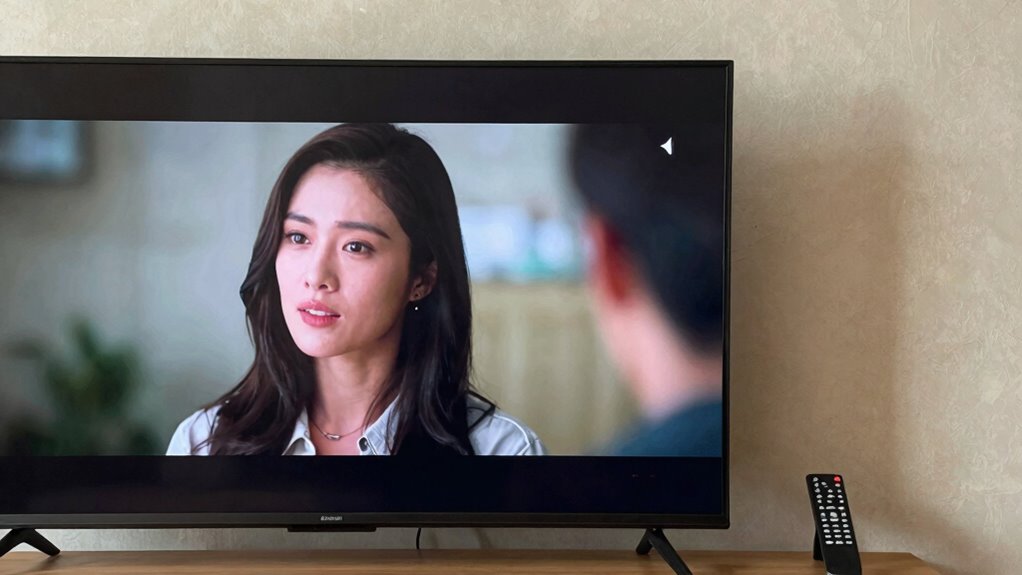

If you’re experiencing lip sync issues, the first setting to check is the audio delay or lip sync adjustment on your device. This controls how long the sound waits before playing, and a mismatch causes audio to lag or jump ahead of visuals. Just access your device’s sound settings, locate the sync or delay option, and make small adjustments. Fine-tuning this can often fix the problem quickly—more tips on restoring perfect sync are right ahead.
Key Takeaways
- The first setting to check is the device’s “audio delay” or “lip sync” option in the sound or audio menu.
- Adjust this setting slightly to realign audio with video, typically by just a few milliseconds.
- Ensure your device firmware is up-to-date, as outdated software can affect sync settings.
- Use a scene with clear dialogue to accurately test and fine-tune the adjustment.
- External factors like connection issues or outdated firmware can also impact sync, so address these if needed.
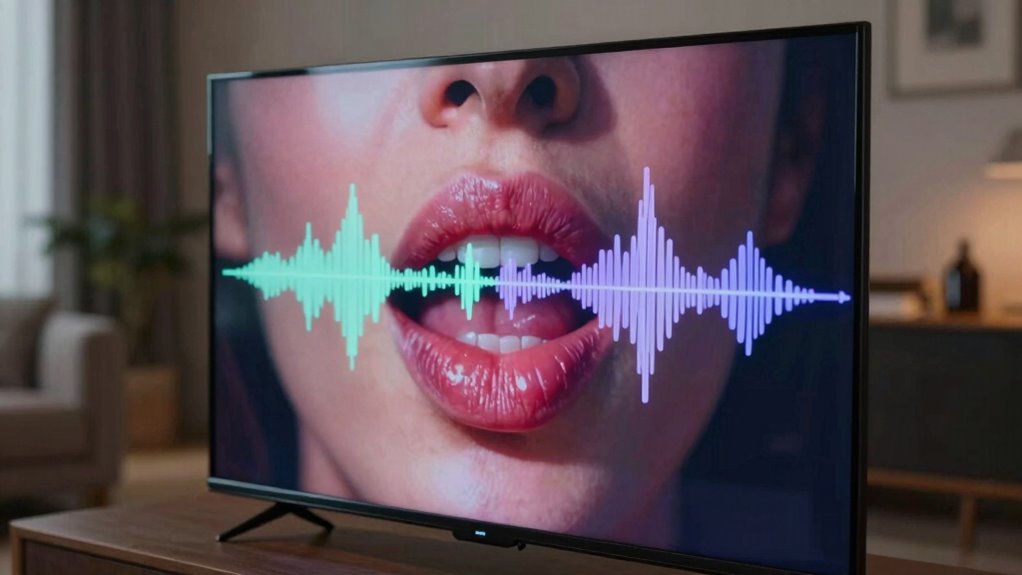
Audio lip sync problems can be incredibly frustrating, especially when the sound doesn’t match the on-screen action. It’s a common issue that disrupts your viewing experience and can make even the most engaging videos seem off. The good news is that most of these problems often come down to a simple setting you can check first: the audio delay or video timing adjustment. This setting controls how long your device waits before playing the sound relative to the video. If it’s misaligned, you’ll notice that voices or sounds lag behind or jump ahead of the visual cues.
Audio sync issues are common but often fixable with simple timing adjustments in your device settings.
When you experience a voice delay, it’s usually because the device’s video timing isn’t synchronized with the audio output. Whether you’re watching on a smart TV, streaming device, or computer, this mismatch often stems from a setting that can be easily tweaked. Many devices have an audio delay or lip sync option that allows you to manually adjust the timing. If the sound is trailing behind the action, increasing the delay might help; if it’s ahead, reducing it can restore harmony. Before trying more complicated solutions, it’s best to check this setting first, as it’s often the root cause of lip sync issues.
To do this, you’ll need to access your device’s audio or sound settings menu. Look for options labeled “audio delay,” “lip sync,” or “video timing.” Once you locate it, try small adjustments—just a few milliseconds at a time. Play a scene with clear dialogue and see if the voice matches the lip movements and on-screen actions. Many devices allow real-time adjustments, so you can tweak and test until everything lines up perfectly. This process is usually straightforward, and it often resolves the problem without needing to restart or reconfigure other settings. Additionally, audio synchronization can be affected by external factors like outdated firmware or connection issues, so keeping your device updated can help maintain proper timing. Keeping your device’s firmware up-to-date ensures compatibility and can prevent many common lip sync problems. Being aware of external factors that influence audio sync can help you troubleshoot issues more effectively.
As an affiliate, we earn on qualifying purchases.
Frequently Asked Questions
Can Outdated Drivers Cause Lip Sync Issues?
Yes, outdated drivers can cause lip sync issues. If your audio driver isn’t current, it may not work seamlessly with your system update, leading to audio and video mismatches. To fix this, check for the latest driver updates through your device manager or manufacturer’s website. Maintaining your audio driver up-to-date ensures compatibility, improves performance, and helps resolve lip sync problems quickly.
Does HDMI Cable Quality Affect Audio Sync?
Yes, HDMI cable quality can affect audio sync, especially if the cable is low-quality or too long, which can cause signal degradation. Bluetooth interference might also disrupt audio transmission, worsening sync issues. To fix this, use a high-quality HDMI cable of appropriate length and minimize Bluetooth interference by turning off nearby devices or repositioning your setup. These steps help guarantee your audio stays synchronized with your video.
How Do I Reset Audio Settings on My Device?
Stop the clock—it’s time to reset your device. To reset your audio settings, access your device’s menu and find the audio calibration or sound settings. Look for a “Reset” or “Restore Defaults” option and select it. This will perform a device reset, restoring your audio to its initial state. Doing this often fixes lip sync issues and gives you a clean slate to reconfigure sound settings for peak performance.
Are Certain Streaming Apps More Prone to Lip Sync Problems?
Yes, some streaming apps are more prone to lip sync issues. Apps with complex voice recognition features or those that heavily rely on content buffering can struggle to keep audio and video in sync, especially during high-quality streams. You might notice delays or mismatched lip movements. To fix this, try updating the app, reducing streaming quality, or restarting your device. These steps can help improve synchronization and overall playback.
Can External Speakers Impact Audio Lip Sync Accuracy?
External speakers can definitely impact audio lip sync accuracy. If your speakers aren’t properly calibrated, they might introduce audio delay, causing a noticeable mismatch between sound and lip movement. To fix this, check your speaker calibration settings and make sure they’re aligned with your device’s audio output. Proper calibration minimizes delay, helping you enjoy synchronized audio and visuals. Always test your setup after adjustments for the best results.
Conclusion
When audio and video are out of sync, it can turn a great viewing experience into a frustrating one. Before diving into complex fixes, check that one simple setting first—often, it’s the key to smooth playback. Think of it as the first piece of the puzzle; get it right, and everything else falls into place. Remember, sometimes the fix is just a click away, saving you time and headache.