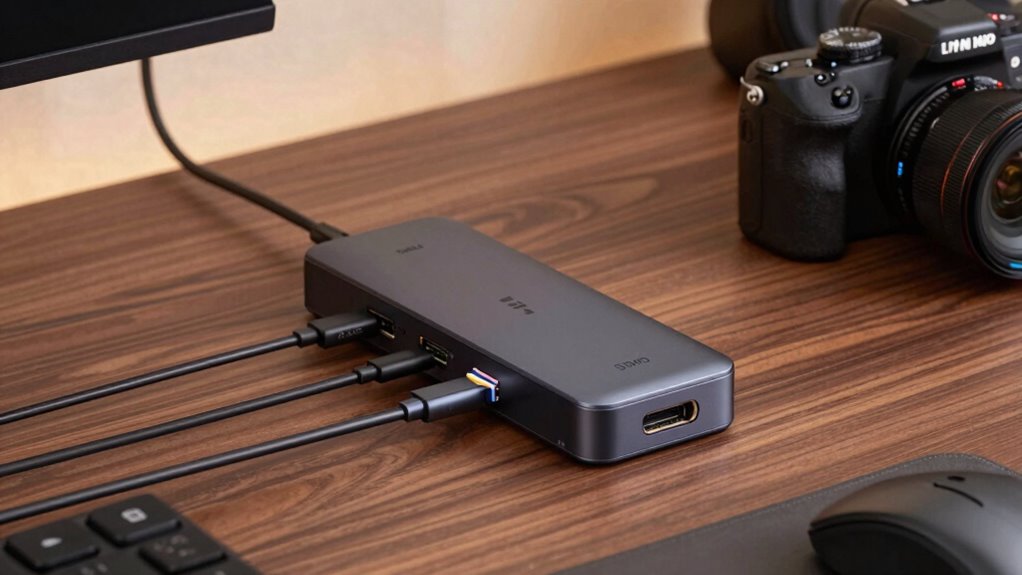

Thunderbolt 4 docks expand your laptop’s connectivity by offering multiple high-speed ports through a single cable, supporting fast data transfer, video output, and charging. They help fix common issues like unstable connections, device incompatibilities, and limited ports, making your workspace more reliable. However, they have limitations, such as bandwidth constraints and compatibility with older devices. To optimize your setup, learn about choosing the right dock and troubleshooting tips—more details await if you continue exploring.
Key Takeaways
- Thunderbolt 4 docks expand connectivity with a single port, supporting high-speed data and multiple peripherals simultaneously.
- They fix common connectivity issues by improving device power management and communication standards.
- Limitations include insufficient power for some peripherals, compatibility challenges, and data bandwidth constraints.
- Choosing the right dock involves matching port types, number, and features to your specific workflow needs.
- Troubleshooting involves updating firmware, testing cables, and verifying device compatibility to ensure stable connections.

Plugable Thunderbolt 4 Dock with 100W Charging, Thunderbolt Certified, Laptop Docking Station Dual Monitor Single 8K or Dual 4K HDMI for Windows and Mac, 4X USB, Gigabit Ethernet (TBT4-UD5)
Thunderbolt Certified & Award-Winning Performance: Officially recognized as the Best Thunderbolt Dock 2025 by Wirecutter, this Thunderbolt docking…
As an affiliate, we earn on qualifying purchases.
As an affiliate, we earn on qualifying purchases.
What Are Thunderbolt 4 Docks and How Do They Work?
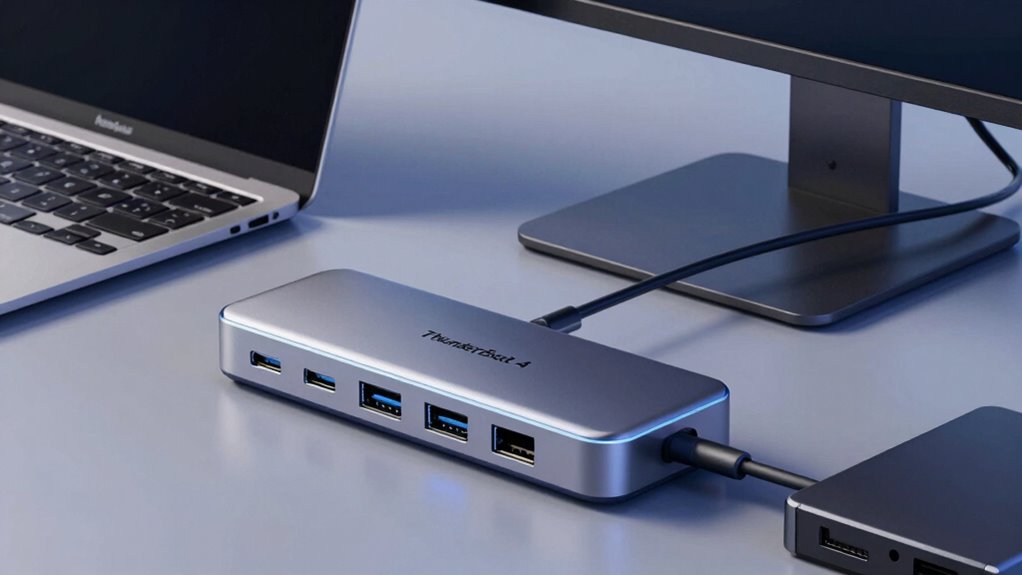
Thunderbolt 4 docks are versatile hubs that expand your laptop’s connectivity options, allowing you to connect multiple devices through a single port. They work by leveraging Thunderbolt 4 technology, which supports high-speed data transfer and multiple device connections simultaneously. However, you might encounter compatibility issues if your laptop isn’t fully compatible with Thunderbolt 4 standards, potentially limiting performance or device recognition. Additionally, power delivery is a key feature; these docks can supply power to your laptop and peripherals, reducing the need for separate chargers. Keep in mind that the dock’s ability to deliver sufficient power depends on its specifications and your device’s requirements. Proper compatibility considerations are essential to maximize functionality and ensure seamless operation. It’s also important to consider hardware standards to ensure the dock integrates well with your existing setup. To get the most out of your Thunderbolt 4 dock, understanding Thunderbolt specifications can help you choose the right model for your needs. Overall, Thunderbolt 4 docks simplify setup and enhance connectivity, provided compatibility and power delivery needs are met.
Plugable Thunderbolt 4 Dock with 100W Charging, Thunderbolt Certified, Laptop Docking Station Dual Monitor Single 8K or Dual 4K HDMI for Windows and Mac, 4X USB, Gigabit Ethernet (TBT4-UD5)
Thunderbolt Certified & Award-Winning Performance: Officially recognized as the Best Thunderbolt Dock 2025 by Wirecutter, this Thunderbolt docking…
As an affiliate, we earn on qualifying purchases.
As an affiliate, we earn on qualifying purchases.
How Do Thunderbolt 4 Docks Fix Common Connectivity Problems?
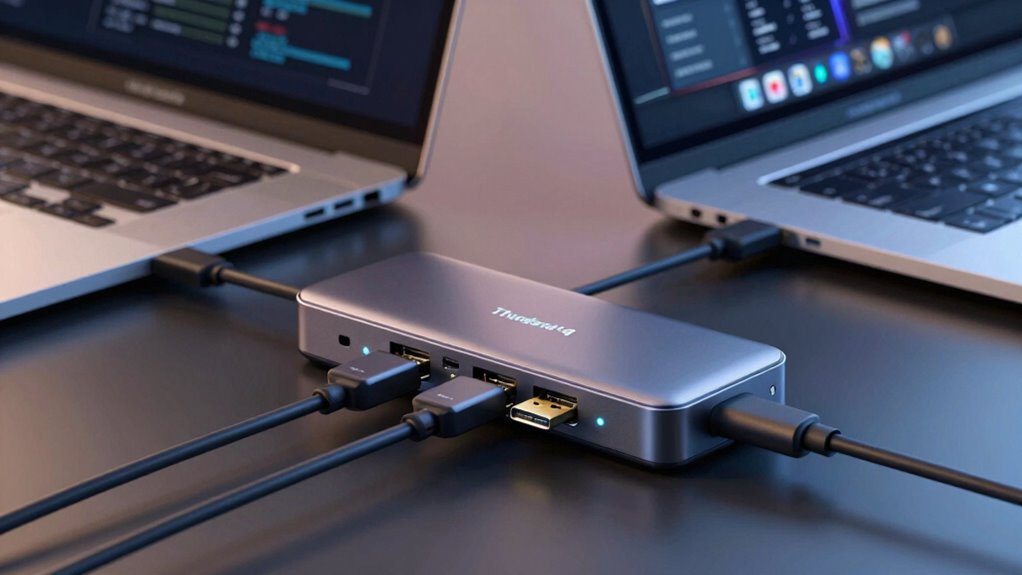
Connecting multiple devices can often lead to issues like devices not being recognized or slow data transfer speeds. Thunderbolt 4 docks address these problems through advanced power management, guaranteeing your devices receive stable power and reducing connection drops. They also enhance device compatibility by supporting a wide range of peripherals, including high-resolution displays and fast data drives. This compatibility simplifies setup and minimizes conflicts, so your devices work seamlessly together. The docks manage power distribution efficiently, preventing overloads that can cause connectivity issues. Additionally, Thunderbolt 4’s standardized protocols ensure your hardware communicates reliably, reducing errors and improving overall stability. By integrating these features, Thunderbolt 4 docks fix common connectivity problems, making your setup more reliable and easier to use. Moreover, they promote work-life harmony by streamlining your workspace and reducing technical frustrations. These docks often incorporate power management features that optimize energy use, further enhancing overall system performance. Implementing universal compatibility standards ensures your devices stay connected and function properly over time. Additionally, future-proofing capabilities allow your setup to adapt to upcoming technologies, ensuring long-term usability. Incorporating robust protocols enhances data transfer reliability and security, further improving your experience.
Plugable Thunderbolt 4 Dock with 100W Charging, Thunderbolt Certified, Laptop Docking Station Dual Monitor Single 8K or Dual 4K HDMI for Windows and Mac, 4X USB, Gigabit Ethernet (TBT4-UD5)
Thunderbolt Certified & Award-Winning Performance: Officially recognized as the Best Thunderbolt Dock 2025 by Wirecutter, this Thunderbolt docking…
As an affiliate, we earn on qualifying purchases.
As an affiliate, we earn on qualifying purchases.
What Limitations Do Thunderbolt 4 Docks Have?
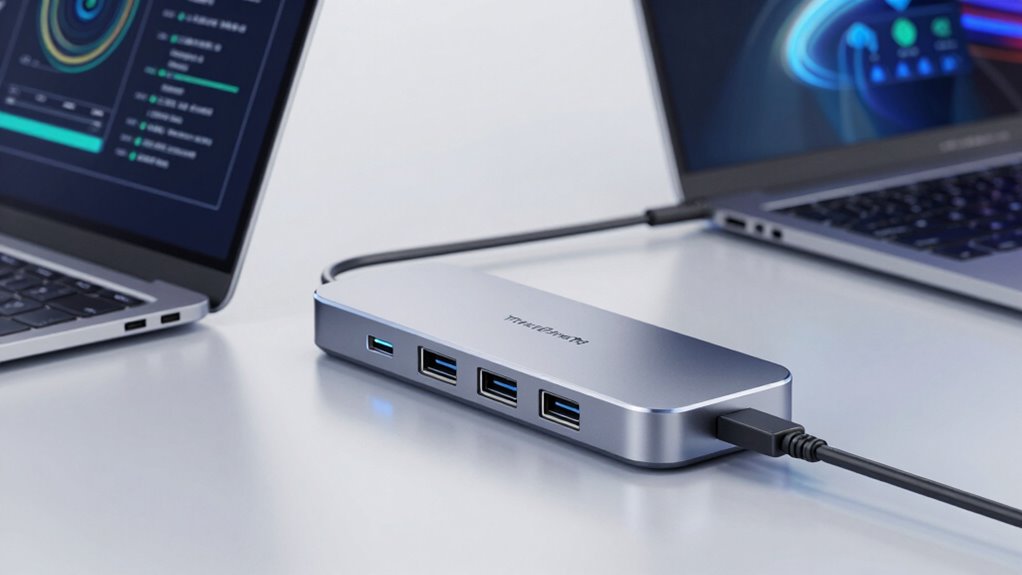
While Thunderbolt 4 docks offer many benefits, they also have limitations that can affect your setup. One key issue is power delivery limitations; they may not provide enough power for all devices or high-demand peripherals, requiring additional power sources. Compatibility issues can also arise, especially with older laptops or devices that aren’t fully compliant with Thunderbolt standards. These limitations can restrict your device choices or force workarounds.
| Limitation | Impact |
|---|---|
| Power delivery limits | Devices may not receive sufficient charging power |
| Compatibility issues | Not all devices work seamlessly with Thunderbolt 4 |
| Bandwidth constraints | May limit data transfer speeds for heavy tasks |
| Daisy chaining restrictions | Fewer devices can be connected simultaneously |
| Price | Often more expensive than alternative docks |

Belkin Connect Thunderbolt 4 Docking Station, 5-in-1 USB-C Multiport Core Hub w/ 96W Power Delivery for Mac, Windows, Single 8K or Dual 4K Display, Thunderbolt 4 Cable & Power Supply Included
MULTIPORT CORE HUB: Optimize your workspace with a compact 5-in-1 docking station solution. Connect all your devices, charge…
As an affiliate, we earn on qualifying purchases.
As an affiliate, we earn on qualifying purchases.
How to Choose the Best Thunderbolt 4 Dock for Your Setup
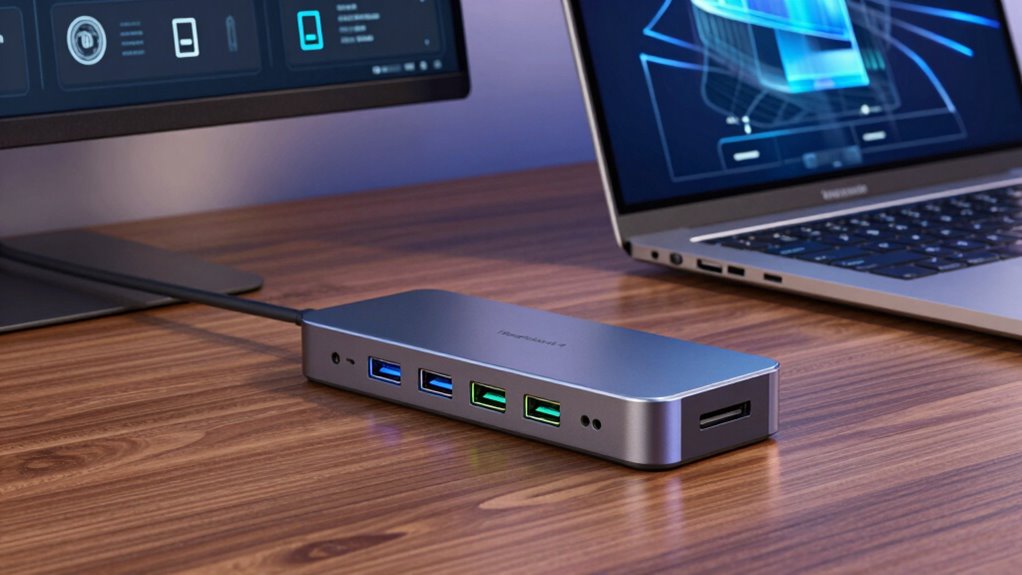
Choosing the right Thunderbolt 4 dock depends on your specific needs and device setup. First, consider compatibility considerations—ensure your laptop or device supports Thunderbolt 4 and that the dock’s ports match your peripherals. Think about the number and types of ports you need, like USB-C, HDMI, or Ethernet, to avoid future limitations. Budget constraints also play a role; higher-end docks offer more features, but you can find reliable options within your price range. Prioritize features that align with your workflow, whether that’s multiple displays, fast data transfer, or charging capabilities. Avoid overspending on unnecessary ports or features you won’t use. By balancing compatibility and budget, you can select a Thunderbolt 4 dock that seamlessly enhances your setup without overspending. Additionally, considering nail biology and hygiene can help you maintain a healthy environment for your devices and workspace.
Troubleshooting Thunderbolt 4 Dock Problems: Tips and Solutions
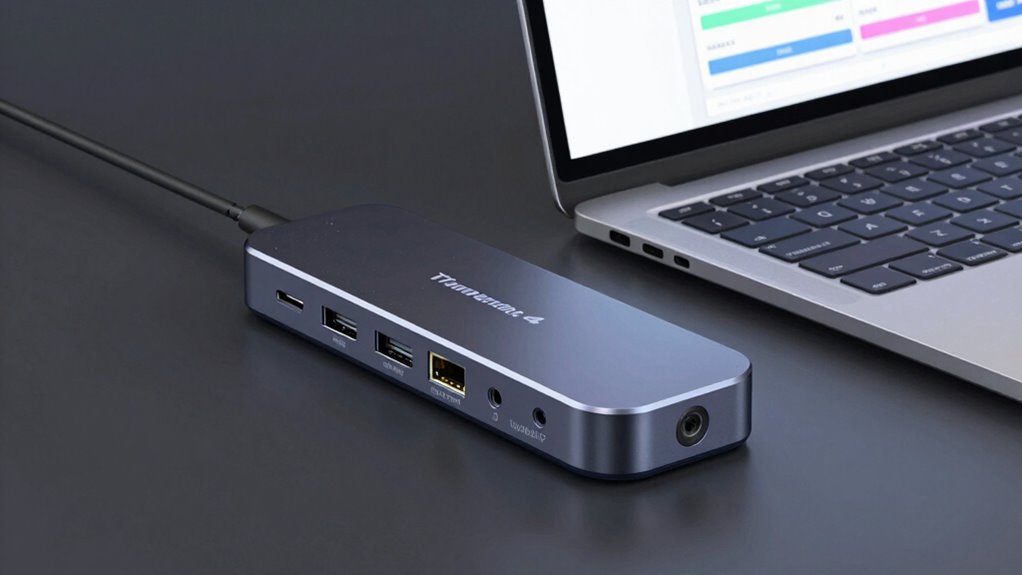
Troubleshooting issues with your Thunderbolt 4 dock can often be straightforward if you know where to start. First, check device compatibility—ensure your laptop and peripherals meet the dock’s requirements. Sometimes, incompatible devices cause connection problems or unreliable performance. Next, verify that your dock has the latest firmware updates; manufacturers frequently release updates to fix bugs and improve stability. To do this, visit the manufacturer’s website and follow their instructions for updating firmware. If you encounter connection drops or peripheral issues, try reconnecting the dock or restarting your system. Also, test different Thunderbolt ports and cables to rule out hardware faults. Keeping your drivers and firmware up to date is key to resolving most common Thunderbolt 4 dock problems quickly and effectively. Regularly monitor device security to prevent potential vulnerabilities that could impact your dock’s performance and safety. Being aware of hardware compatibility issues can help you avoid costly troubleshooting in the long run. Ensuring proper cable management can also reduce wear and tear on connections, thereby improving overall stability. Additionally, staying informed about firmware updates can help you implement necessary fixes before issues arise. Understanding the importance of ethical considerations in technology can help users make informed decisions about device security and data privacy.
Frequently Asked Questions
Can Thunderbolt 4 Docks Support Multiple High-Resolution Displays Simultaneously?
Think of Thunderbolt 4 docks as a bridge connecting your digital world. Yes, they support a multi-monitor setup with high display resolution, allowing you to connect multiple high-res displays simultaneously. This means you can expand your workspace and boost productivity. However, keep in mind that the exact number of supported displays depends on the dock’s specifications. So, choose a dock that matches your needs for seamless multi-monitor performance.
Are Thunderbolt 4 Docks Compatible With USB-C Devices Without Thunderbolt Support?
Yes, Thunderbolt 4 docks are compatible with USB-C devices that lack Thunderbolt support, but with some device limitations. You can connect your USB-C devices to the dock, and they’ll work for data transfer and charging, but you won’t get the full Thunderbolt 4 benefits like high-speed data or multiple displays. Keep in mind, compatibility might vary depending on your device’s specifications, so check your device’s capabilities first.
How Does Thunderbolt 4 Certification Impact Dock Performance and Reliability?
Thunderbolt 4 certification guarantees your dock meets strict standards for performance consistency and compatibility. It guarantees faster data transfer rates, reliable power delivery, and seamless connection with compatible devices. When your dock is certified, you can trust it to deliver stable, high-quality performance across various peripherals, reducing lag and connection issues. Certification standards give you peace of mind, ensuring your dock operates at ideal speed and reliability every time you connect.
Do Thunderbolt 4 Docks Require Specific Driver Installations or Software?
Did you know over 90% of Thunderbolt 4 docks work seamlessly out of the box? You don’t need specific driver installations or software updates for basic functionality. However, some advanced features might require the latest drivers or firmware updates. You should check your device manufacturer’s instructions to verify compatibility and peak performance, especially if you plan to use high-speed data transfer or multiple peripherals simultaneously.
What Are the Power Delivery Limits of Thunderbolt 4 Docks for Charging Devices?
Thunderbolt 4 docks have power delivery limits of up to 100W, which means you can charge most laptops and devices efficiently. However, these power limitations can affect charging speeds for larger devices or when multiple devices are connected simultaneously. Keep in mind that if you need rapid charging or have high power demands, you might experience slower charging speeds. Always check your device’s power requirements to guarantee maximum performance.
Conclusion
In the end, Thunderbolt 4 docks are like your trusty sidekick, fixing many connectivity woes and boosting your setup—if you remember to keep expectations grounded, like a wise old owl in a tech jungle. While they don’t solve every issue, understanding their strengths and limits helps you avoid gremlins and keep your gadgets humming smoothly. So, equip yourself wisely, and you’ll be cruising through your digital adventures—no need to call in the tech cavalry!