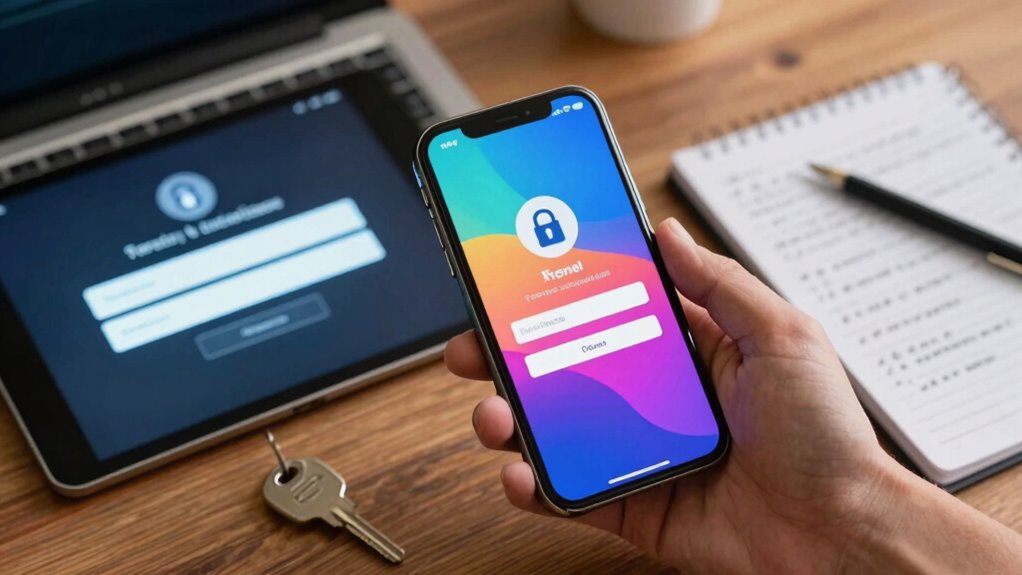

To facilitate two-factor authentication quickly across all your accounts, start by prioritizing your most sensitive ones like email, banking, and social media. Go to each platform’s security settings to turn on 2FA, using options like biometric login or backup codes for added security. Enable 2FA systematically and generate backup codes in case of emergencies. Staying updated with platform-specific steps ensures a fast setup—keep going to discover more tips for streamlining your online security.

Get the latest gadgets delivered free — and shop member deals
- Fast, free delivery on millions of items
- Access to Prime Big Deal Days deals on October 6–7
- Prime Video, Amazon Music and more included
Key Takeaways
- Prioritize your most sensitive accounts (email, banking, cloud) for immediate 2FA activation.
- Access security or privacy settings on each platform to enable 2FA quickly.
- Use biometric options and generate backup codes during setup to streamline access.
- Keep backup codes secure and store them in a password manager or printed in a safe place.
- Regularly review and update security settings across accounts to maintain comprehensive protection.
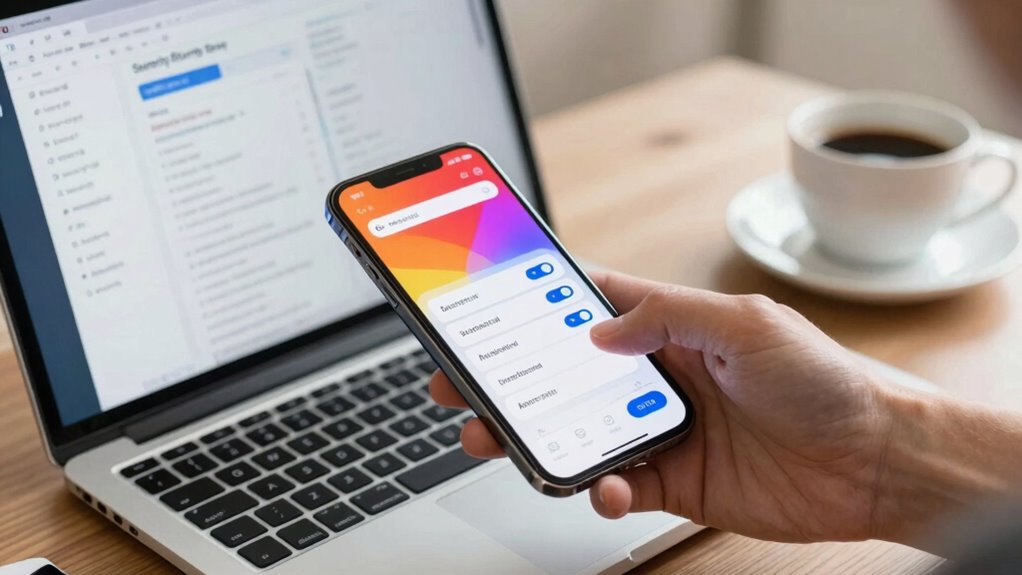
In today’s digital world, securing your online accounts is more important than ever, and enabling two-factor authentication (2FA) is one of the simplest ways to do it. When you activate 2FA, you add an extra layer of security that makes it significantly harder for hackers to access your data, even if they’ve stolen your password. The first step is to identify which accounts support 2FA—most major services like email providers, social media platforms, and banking apps do. Once you find those, you can start the process of turning it on, usually through the account’s security or privacy settings.
Many services now offer biometric options as part of their 2FA process. Instead of relying solely on text messages or authentication apps, you might be able to use fingerprint scans, facial recognition, or even iris scans. These options are quick, convenient, and highly secure because they rely on your unique biological features. If your device supports biometric options, enable them during setup, which simplifies the login process while keeping your account protected. However, it’s wise not to depend solely on biometrics. Sometimes, biometric systems can fail or be compromised, so always set up backup options.
Biometric options like fingerprint or facial recognition enhance security and convenience during 2FA setup.
Backup codes are another crucial component when activating 2FA, especially for situations when your primary authentication method isn’t available. Once you enable 2FA, most platforms will generate a set of single-use backup codes. Keep these codes in a safe place—either printed and stored securely or saved in a password manager. If your phone gets lost, stolen, or your biometric authentication stops working, these backup codes become your lifeline to access your account. Using them ensures you don’t get locked out and can regain control quickly, which is vital for maintaining your online security. Additionally, understanding how multi-factor authentication works can help you better appreciate the layers of protection it provides. Familiarizing yourself with the security features of each platform can further enhance your overall online safety. Being aware of potential biometric vulnerabilities is important, as no security measure is entirely foolproof. Recognizing the potential risks associated with different authentication methods can help you make informed decisions about your security setup. Moreover, staying informed about the latest developments in digital security can help you adapt your practices as new threats emerge.
Turning on 2FA across all your accounts might seem overwhelming at first, but tackling it systematically makes it manageable. Start with your most sensitive accounts—email, banking, cloud storage—and then work your way down the list. For each, follow the step-by-step instructions provided by the service, usually found under security settings. As you activate 2FA, opt for biometric options when available and generate backup codes. Store those codes securely, and consider setting reminders to review your security settings periodically. By acting swiftly and consistently, you’ll significantly bolster your defenses against cyber threats, keeping your online presence safer.
biometric authentication security key
As an affiliate, we earn on qualifying purchases.
As an affiliate, we earn on qualifying purchases.
Frequently Asked Questions
Does Enabling 2FA Affect App Login Speed?
Enabling 2FA can cause slight login delays, but generally, it doesn’t substantially slow down app login speed. You might notice a brief wait during the authentication process, especially if your app isn’t fully compatible with 2FA methods. However, most modern apps are designed to handle 2FA smoothly, so the added security step usually doesn’t hinder your overall login experience. Over time, these delays become minimal and manageable.
Can 2FA Be Bypassed on Any Platform?
Yes, 2FA can sometimes be bypassed, especially if platforms rely solely on weak biometric security or poor password management. For stronger protection, you should use multi-layered security, combining biometric methods with robust passwords and secure password management tools. Always stay updated on platform security features, and enable additional safeguards like hardware tokens, to minimize the risk of bypass attempts and keep your accounts safer.
Is 2FA Available for All Accounts Instantly?
Think of account security as a fortress, with 2FA acting as an extra gate. Not all accounts open this gate instantly; some require manual setup or verification. While many services now offer 2FA quickly, others might need a waiting period or additional steps. You’ll find that enabling 2FA enhances user convenience by providing stronger protection, but the availability depends on the platform’s security policies and your prompt action to activate it.
What Are the Best Backup Options for 2FA?
You should use backup options like authentication app recovery codes, hardware tokens, or secure cloud backups to guarantee security protocols are maintained. Store recovery codes offline in a safe place, like a password manager or a physical safe, to enable smooth backup recovery if your primary 2FA method is lost. These backup options help you access accounts securely and prevent lockouts, maintaining your overall security.
How Often Should I Update My 2FA Settings?
Think of your 2FA settings as a garden needing regular tending. You should update them at least every six months or immediately if you notice suspicious activity. Staying proactive enhances your security awareness and keeps your user experience smooth. Regular updates prevent vulnerabilities, much like pruning a tree ensures healthy growth. So, make it a habit to review and refresh your 2FA settings periodically to stay one step ahead of potential threats.
Conclusion
Turning on two-factor authentication across all your accounts is a smart move to protect your digital life. Just imagine, over 80% of data breaches could be prevented with this simple step. By enabling 2FA quickly, you double your defenses and stay safer online. Don’t wait—secure your accounts now and enjoy peace of mind knowing you’ve added an extra layer of security. It’s fast, easy, and well worth the effort.
Fall Picks
fall essentials
As an affiliate, we earn on qualifying purchases.