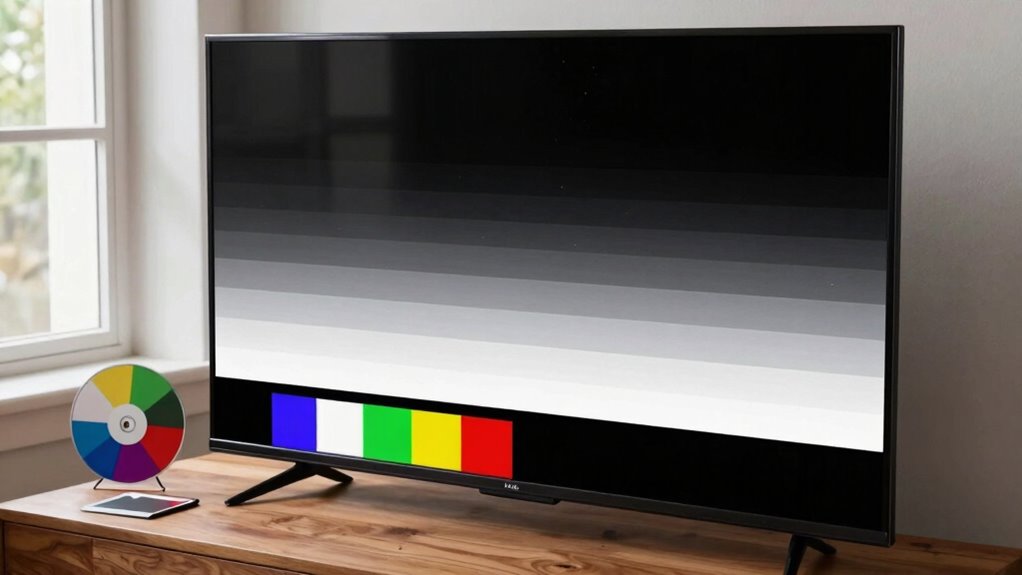

To calibrate your TV without professional gear, start by adjusting the brightness and contrast to balance shadow details and vividness. Set the color temperature to ‘Warm’ for natural hues, and tweak saturation and hue to correct any unnatural colors. Use test images or calibration videos to guide your adjustments, and make sure your room has soft, indirect lighting to avoid glare. Small tweaks can make a big difference—if you keep exploring, you’ll discover even more tips for perfect picture quality.

Get the latest gadgets delivered free with Prime
- Fast, free delivery on millions of items
- Prime Video, Amazon Music and more included
- Member-only deals all year
Key Takeaways
- Use test images or calibration videos to guide your adjustments for color, brightness, and contrast.
- Access your TV’s picture settings menu to manually tweak color temperature, saturation, and hue.
- Set color temperature to “Warm” for natural tones and avoid overly vivid or cool colors.
- Balance brightness and contrast using test patterns to preserve shadow detail and prevent washed-out blacks.
- Recalibrate periodically, considering ambient lighting changes for consistent picture quality.
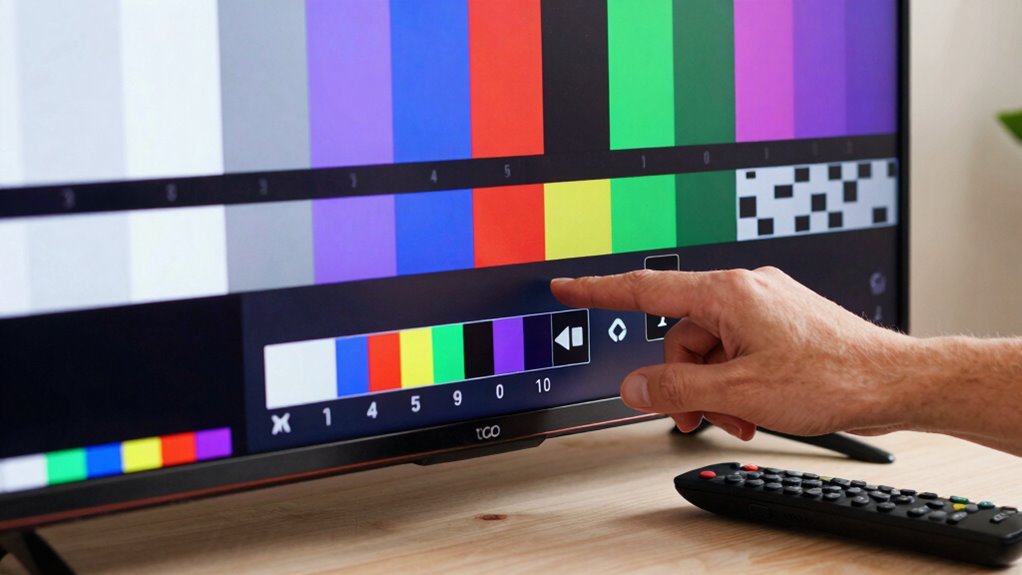
Calibrating your TV guarantees you get the best picture quality possible, whether you’re watching movies, sports, or playing games. While professional calibration offers precision, you can improve your TV’s picture using simple tools and adjustments. Start by focusing on two key aspects: color accuracy and brightness settings. These elements directly influence how vibrant, realistic, and comfortable your viewing experience feels.
First, verify your TV is in a well-lit room, but avoid direct sunlight or glare, which can skew your perception of picture quality. To begin, access your TV’s picture settings menu. Many models have an automatic or basic calibration option, but for better results, manually adjust the settings. Look for options labeled “Color,” “Color Temperature,” “Brightness,” and “Contrast.”
For color accuracy, set the color temperature to “Warm” or “Warm 2” if available. This setting typically provides a more natural and less overly saturated picture, aligning closer to how content is meant to be seen. If your TV allows detailed adjustments, try to fine-tune the color to minimize any color cast — reds, greens, or blues that seem off. You can do this by using test images or calibration videos available online, which display color bars and gradients. These help you spot unnatural hues and correct them by adjusting the color saturation or hue controls. Additionally, adjusting color calibration settings can significantly improve the overall picture quality.
When it comes to brightness settings, aim for a balance that preserves details in both dark and bright scenes. Start by lowering the brightness until blacks look deep and rich without losing shadow detail. If blacks appear gray or washed out, reduce the brightness further. Conversely, if bright scenes look dull, increase the brightness slightly. The goal is to achieve a realistic contrast where dark areas are detailed but not overly crushed, and bright areas retain their vibrancy. Remember that perception of image quality can be affected by ambient lighting conditions in your room, so calibration should be revisited periodically for optimal results. Using test patterns can help you make more precise adjustments and see the effects immediately. Additionally, some TVs have advanced calibration options that allow for more precise fine-tuning if you wish to explore further. It’s also helpful to understand the impact of ambient lighting on your viewing experience, which can influence how you perceive your calibrated picture.
Products Worth Considering

Bose SoundLink Flex Bluetooth Speaker (2nd Gen), Black

Anker SOLIX S2000 Portable Power Station, 2,010Wh, 1,500W

Bose QuietComfort Ultra Earbuds (2nd Gen) – Wireless Noise‑Cancelling Earbuds with Mic, Immersive Audio, USB‑C Charging, Up to 6 Hours Batte
As an affiliate, we earn on qualifying purchases.
Frequently Asked Questions
Can I Calibrate My TV Using Only Built-In Settings?
Yes, you can calibrate your TV using only built-in settings. Start by adjusting the picture settings like brightness, contrast, and backlight to improve picture quality. Use the TV’s color and tint controls to enhance color accuracy, ensuring images look natural. Many TVs also offer preset modes like ‘Cinema’ or ‘Game’ that help optimize picture quality. Take your time tweaking these settings for the best viewing experience without professional gear.
How Often Should I Recalibrate My TV?
Ever wonder how often you should recalibrate your TV? Typically, you should do it every six months to a year, especially if you notice color accuracy or picture enhancement decline. Regular recalibration helps maintain ideal picture quality, ensuring vivid colors and sharp details. Changes in viewing environment, new content types, or updates can impact calibration. So, keep an eye on your picture and recalibrate as needed for the best viewing experience.
Does Room Lighting Affect Calibration Accuracy?
Yes, room lighting affects calibration accuracy. Ambient lighting influences how you perceive colors and contrast on your TV, making it harder to get precise calibration without professional tools. If your room is too bright or has uneven lighting, it can wash out details and distort color accuracy. To improve calibration, try to watch in a dimly lit room with consistent lighting, which helps you see true colors and contrast better.
Are There Any Risks in Calibrating My TV Myself?
Sure, risking your TV’s calibration is like trying to fix a spaceship with duct tape—sure, it might work, but don’t expect perfection. The risks? You might end up with skewed colors or washed-out images. Calibration cost can be low if you DIY, but professional assistance guarantees precision. However, if you’re brave enough, just remember: a bit of trial and error might save you cash but could also turn your TV into a colorful mess.
What Is the Best Online Tool for TV Calibration?
The best online tool for TV calibration is a reputable calibration software like Portrait Displays’ CalMAN or SpectraCal. These tools help enhance color accuracy and guarantee your TV displays true-to-life images. You just need to follow the software’s guided steps, use test patterns, and make adjustments accordingly. While it’s not as precise as professional gear, it’s a great way to improve your TV’s picture quality at home.
Conclusion
Now that you’ve mastered the methods to calibrate your TV without professional gear, you’re all set to see stunning scenes and vibrant visuals. With a little patience and these simple steps, you’ll perfect picture quality and enjoy crisp, clear colors every time. So, take your time, trust your eye, and tweak until everything looks just right. Remember, a little effort elevates entertainment, turning your home into a haven of high-quality harmony. Happy viewing!