This checklist is for anyone setting up or refreshing a home office for 2026, from daily video calls to work that moves between rooms. It focuses on practical desk essentials named in the picks, with straightforward guidance for matching each item to your setup.

Get the latest gadgets delivered free with Prime
- Fast, free delivery on millions of items
- Prime Video, Amazon Music and more included
- Member-only deals all year
The sections follow the main jobs these devices can do: connect desk equipment, support typing, handle video calls, manage listening, organize power, and carry files. Each product pick has a short verdict, while the webcam section offers selection advice without naming a model.
Use the checklist to compare each item with your actual devices, desk space, and work habits. Check connector and operating-system compatibility before buying, and treat the look-for points as questions to resolve against the product details for your own setup.
USB-C Docking Station
A docking station can make a desk easier to use when you regularly connect a laptop to other equipment. The listed pick is the Anker Prime DL7400 14-in-1 DisplayLink Docking Station. Before choosing it, write down the devices you expect to connect and confirm that the dock’s ports and connection method match them. The phrase “14-in-1” alone does not tell you whether the specific ports suit your monitor, storage, or other peripherals. A common mistake is assuming that any USB-C port supports every dock feature. Check your computer’s specifications and the dock’s compatibility details, especially if you plan to use DisplayLink or connect displays. Also consider where the dock will sit, how much cable reach you need, and whether its footprint fits your desk. If multiple people will use the setup, confirm that each computer is compatible rather than relying on one successful connection. Verify the connection details before making the dock the center of your workspace.What to look for:
- Confirm the dock’s listed compatibility with your computer and operating system.
- Match its available ports to the monitors and peripherals you actually use.
- Check DisplayLink requirements against your intended computer setup.
- Measure the desk space and cable reach available at your workstation.
- Review the included cables and connection instructions.
Anker Prime DL7400 14-in-1 DisplayLink Docking Station

This docking station connects up to three 4K displays and offers USB-C, USB-A, HDMI, DisplayPort, Ethernet, audio, and SD/TF card ports. It supports laptop charging up to 140W, with a built-in display and fan for monitoring and cooling.
Pros:
- Supports up to three 4K external displays
- Provides up to 140W laptop charging
- Broad selection of ports, including 2.5Gbps Ethernet
- Built-in smart display and fan cooling
Cons:
- Requires a DisplayLink driver for triple-display use
- DRM-protected streaming may show a black screen
- Front USB-C ports do not support video output
Best for: People connecting several compatible devices at one workstation
Not ideal for: Setups that have not confirmed DisplayLink and port compatibility
Bottom line: Choose this dock after matching its connection requirements and ports to your computer and desk gear.
Ergonomic Wireless Keyboard
The Microsoft Wireless Comfort Desktop 5050 with AES – Keyboard and Mouse combines a keyboard and mouse in one named pick. That pairing may suit someone who wants both input devices together, but comfort depends on your hands, posture, desk height, and working habits. Check the keyboard’s layout and dimensions, and consider whether the mouse shape feels appropriate for the way you hold it. Comfort is personal, so product descriptions cannot replace checking the fit for your own workspace. A frequent buying mistake is treating the word “ergonomic” as a guarantee that the set will suit every user. Compare the keyboard layout with your typing needs, including number-pad use and any preferred key arrangement. Check how the keyboard and mouse connect, what power they require, and whether your computer supports that connection. If you switch between devices, confirm how the set handles them before purchase. Leave enough desk room for the keyboard, mouse movement, and a neutral arm position; a large keyboard can crowd a compact work surface.What to look for:
- Check keyboard layout, dimensions, and key arrangement against your typing habits.
- Consider whether the mouse shape and size suit your hand and grip.
- Confirm wireless connection and operating-system compatibility.
- Review power requirements for both included devices.
- Measure desk room for the keyboard and comfortable mouse movement.
Microsoft Wireless Comfort Desktop 5050 with AES – Keyboard and Mouse

This wireless keyboard and mouse set features an ergonomic comfort curve design that promotes natural wrist posture and includes a built-in palm rest for added support. It provides a comfortable, tangle-free workspace suitable for extended use.
Pros:
- Ergonomic design promotes natural wrist posture
- Wireless setup reduces cable clutter
- Built-in palm rest offers extra wrist support
Cons:
- Limited details on battery life
- No specific compatibility information provided
Best for: People seeking a paired wireless keyboard and mouse
Not ideal for: Users who need a specific layout or mouse shape not confirmed in the listing
Bottom line: Check layout, connection, and personal fit before choosing this keyboard-and-mouse set.
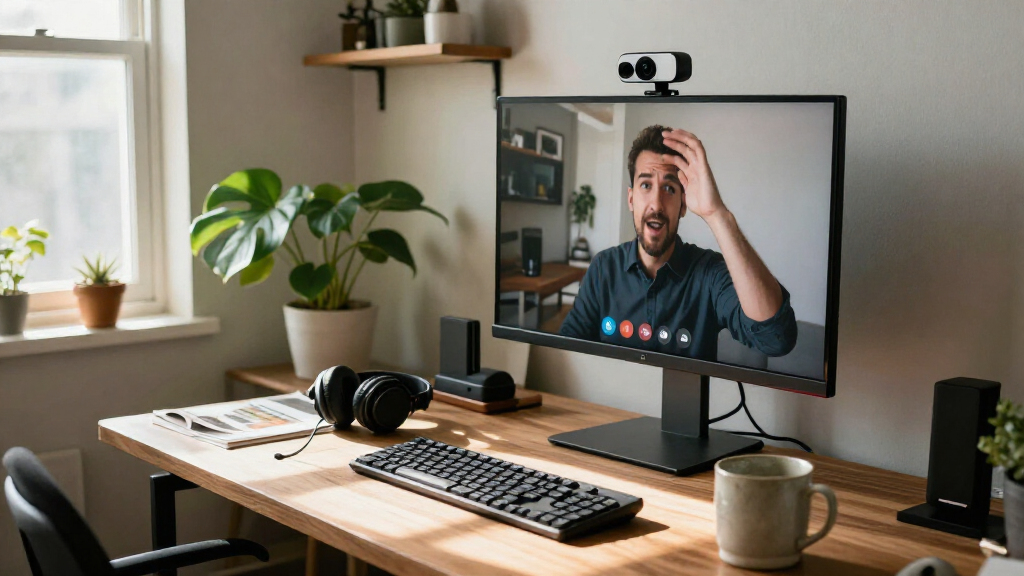
1080p Webcam
A webcam belongs on the checklist if your work includes video calls, but this section has no named product pick. Start by confirming that the camera works with your computer and the meeting software you use. A 1080p label describes a resolution; it does not by itself establish how the camera will look in your room. Consider your usual lighting, the distance between you and the camera, and whether you need to adjust its angle. Room setup matters when deciding what will work for calls. Avoid choosing by resolution alone. Check how the camera attaches to your monitor or laptop, whether it can sit securely at your preferred height, and how it connects to your computer. Review the product details for microphone features if you intend to use its audio, and check whether the camera includes a privacy cover if that matters to you. Make sure its field of view suits your framing: a close desk position and a wider shared workspace may call for different coverage. Confirm compatibility and mounting before ordering.What to look for:
- Confirm compatibility with your computer and video-call software.
- Check the mounting style against your monitor or laptop.
- Compare the listed field of view with your preferred framing.
- Review microphone details if you plan to use camera audio.
- Check for a privacy cover and a suitable connection type.
Noise-Canceling Headphones
Headphones can help make a home-office routine more manageable when you need to listen privately or reduce distractions. The listed pick is Bose QuietComfort Headphones, Twilight Blue – Limited Edition Wireless. Before deciding, check the connection options against the devices you use for calls and audio. Consider how long you typically wear headphones at a stretch, and look for fit details that help you judge whether the headband and ear cushions will work for you. Comfort over time is worth considering alongside features. A common mistake is assuming that noise canceling replaces a suitable microphone or will behave the same in every setting. Review the product information for call controls, microphone details, and the way noise-canceling features are managed. Confirm whether the wireless connection works with your computer and phone, and check whether wired listening matters to you. Think about your shared spaces and whether you need to remain aware of nearby conversation. Color and edition can distinguish this listed pick, but the practical choice should still match your devices and listening habits.What to look for:
- Confirm wireless compatibility with your computer and phone.
- Review microphone and call-control details for meetings.
- Check fit and comfort information for extended wear.
- Understand how noise-canceling controls work for your use.
- See whether wired listening or included accessories matter to you.
Bose QuietComfort Headphones, Twilight Blue – Limited Edition Wireless Bluetooth

Experience high-fidelity audio with Bose QuietComfort wireless headphones featuring active noise cancellation, adjustable modes, and up to 24 hours of battery life. These over-ear headphones offer comfort, customizable sound, and seamless device switching, making them ideal for immersive listening in various environments.
Pros:
- Excellent noise cancellation and customizable modes
- Long-lasting battery life of up to 24 hours
- Comfortable over-ear design with plush cushions
- Seamless multi-device switching
Cons:
- Premium price may be high for some users
- Limited color options beyond Twilight Blue
- Requires app for full feature access
Best for: Listeners seeking wireless headphones for work and everyday audio
Not ideal for: People whose setup requires an unconfirmed connection or call feature
Bottom line: Check device compatibility, call details, and fit before choosing these headphones.
Surge Protector Power Strip
A power strip can help gather desk equipment around one outlet, and the listed pick is the GE Surge Protector Power Strip with 2 Tethered USB Ports. Before adding it to your setup, count the plugs and USB-powered devices you expect to use at the same time. Check the outlet spacing and cord reach against your desk layout, and read the product details to understand its connections. Count your devices first so the strip suits the equipment you plan to place nearby. Do not assume that the USB ports replace every charger or connection you use. Confirm that their specifications suit the devices you intend to charge, and check whether the tethered design fits how you want to arrange cables. Review the strip’s listed electrical rating and safety information for your intended equipment. Keep its placement accessible and follow the manufacturer’s instructions for use. A crowded strip can be awkward to manage, so consider bulky plugs and whether the connected cables can reach without crossing your work area.What to look for:
- Count outlets and USB devices needed at the same time.
- Check plug spacing for larger adapters.
- Compare cord length with outlet and desk placement.
- Review USB port specifications for intended devices.
- Read the listed electrical rating and safety instructions.
GE Surge Protector Power Strip with 2 Tethered USB Ports
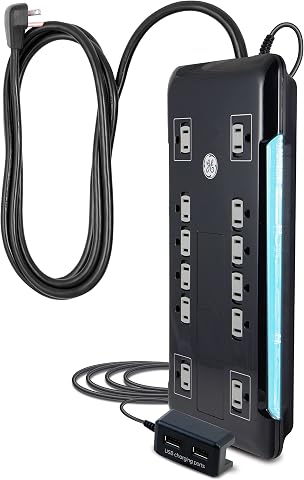
This surge protector features 12 outlets, including two USB ports for charging devices. It has an 8-foot extension cord, space-saving design, and surge protection with a 4320 joule rating, ensuring safety and reliability for home or office use.
Pros:
- Multiple outlets and USB ports for versatile charging
- Long extension cord for flexible placement
- High surge protection rating for safety
Cons:
- Limited to 120V electrical system
- No mention of smart or energy-saving features
Best for: People consolidating desk plugs and USB charging connections
Not ideal for: Setups needing more outlets or USB specifications than confirmed
Bottom line: Match the strip’s outlets, USB details, and cord reach to your desk equipment.
Portable SSD
A portable SSD can be useful when you need an external place for files or want storage that can travel with you. The listed pick is the SanDisk 8TB Extreme Portable SSD. Start by confirming that the drive’s connection works with your computer and that its capacity suits the files you intend to keep. Check its physical size and cable needs against your bag or desk arrangement. Storage fit starts with your files, so think through what you plan to store and move. A common mistake is buying an external drive without checking the computer’s ports, included cable, or file-system needs. Review the listing for connection details and compatibility with your operating systems. If you move files between different computers, confirm that your workflow supports that. Also check any stated durability or protection details against how and where you plan to carry the drive; do not infer protection beyond what the product information specifies. Keep a separate backup plan for important files, since a portable drive is still a single storage device.What to look for:
- Confirm connection type and compatibility with each computer.
- Compare the stated capacity with the files you expect to store.
- Check included cable details and port requirements.
- Review file-system and cross-device workflow considerations.
- Check stated durability information for your travel habits.
SanDisk 8TB Extreme Portable SSD

The SanDisk 8TB Extreme Portable SSD offers high-speed NVMe performance with up to 1050MB/s read and 1000MB/s write speeds. It features rugged durability with drop, water, and dust resistance, along with password protection and a 5-year warranty, making it ideal for active lifestyles and professional use.
Pros:
- High-speed data transfer with up to 1050MB/s read and 1000MB/s write speeds
- Rugged design with drop, water, and dust resistance for durability
- Includes password protection with 256-bit AES encryption for security
- Compact and portable, ideal for travel and on-the-go use
Cons:
- Performance may vary depending on host device and conditions
- Limited to USB 3.0 and USB 3.2 Gen 2 connectivity, may require compatible ports
- Price not specified, which could be a consideration for budget-conscious buyers
Best for: People who need an external drive for files across work locations
Not ideal for: Users whose computers lack a compatible connection
Bottom line: Confirm ports, workflow, and storage needs before choosing this portable drive.
Build your list around the work you need to do first: confirm computer and monitor connections, then choose the keyboard, camera, and headphones that fit your daily routine. Add power and portable storage after checking the devices and cables already on your desk. This needs-first order helps you avoid buying accessories that do not match your setup.
You do not have to refresh every part of a home office at once. Use the sections to identify the most useful gap, verify fit and compatibility, and make one considered choice at a time. A well-matched setup starts with the equipment and habits you already have.
Halloween Picks

DomKom 6-Foot Halloween Inflatable Ghosts Roasting Marshmallows

Gemmy 5.4 ft The Nun Animatronic Halloween Decoration

Spirit Halloween Scary Sitting Scarecrow Animatronic, 4 ft 6 in
As an affiliate, we earn on qualifying purchases.