To improve your color grading at home, start by calibrating your monitor to guarantee accurate colors and contrast. Adjust brightness, contrast, gamma, and set a neutral white point around 6500K for natural tones. Use calibration tools and test patterns to fine-tune your display continuously. Avoid common mistakes like ignoring ambient light and not recalibrating regularly. Mastering these settings can transform your workflow—if you keep exploring, you’ll discover more tips to get professional results.
Key Takeaways
- Calibrate your monitor regularly to ensure accurate color reproduction and consistent grading results.
- Set the color temperature to around 6500K for natural daylight look and neutral whites.
- Adjust brightness and contrast to optimize shadow details without washing out highlights.
- Use calibration tools or test patterns to fine-tune gamma, saturation, and white point settings.
- Maintain consistent ambient lighting and document your settings to prevent color shifts during grading.
As an affiliate, we earn on qualifying purchases.
Why Proper Monitor Calibration Improves Your Color Grading
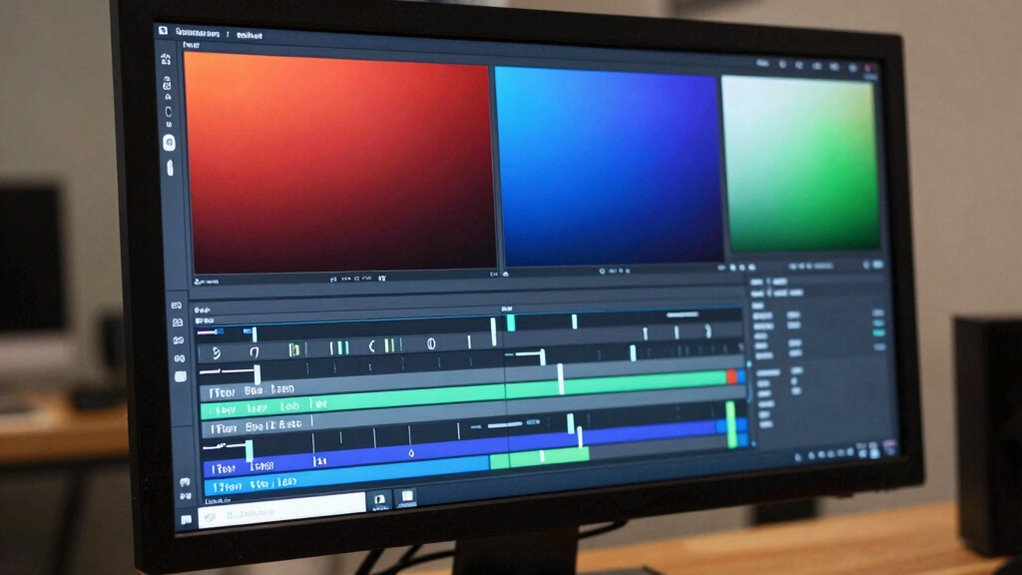
Proper monitor calibration is essential because it guarantees that the colors you see on your screen are accurate and consistent. When you calibrate your monitor, you align its output with a standard color space, ensuring that colors are truly represented. Your monitor hardware plays a crucial role in this process, as different displays have varying capabilities and color reproduction qualities. By calibrating, you optimize how your monitor interprets color data, reducing discrepancies between what you see and the actual colors intended in your project. This accuracy is indispensable for precise color grading, helping you achieve professional results and avoid surprises when your work is viewed on other devices. In short, proper calibration transforms your monitor into a reliable tool for true-to-life color work. Additionally, understanding your monitor’s color reproduction capabilities helps in selecting the right calibration settings for your specific display.
Get to Know Your Monitor’s Native Settings and Capabilities

Your monitor’s native color gamut determines the range of colors it can display, so understanding it helps you make better grading choices. Check your monitor’s default calibration settings to see how it’s currently presenting colors and contrast. Knowing these native aspects allows you to optimize your workflow for more accurate and consistent results. Additionally, understanding your monitor’s color breeds and capabilities can help you choose the best settings for precise color grading. Being aware of the color gamut and how it interacts with your content can significantly improve your grading accuracy. Recognizing the native resolution of your monitor can also impact how you perceive detail and sharpness in your work. Familiarizing yourself with your monitor’s hardware specifications ensures you’re utilizing its full potential for high-quality color grading. Understanding your monitor’s refresh rate can help you avoid artifacts and achieve smoother previews during grading.
Native Color Gamut
Understanding your monitor’s native color gamut is essential for achieving accurate color grading at home. Your monitor’s display gamut determines the range of colors it can produce, directly impacting monitor color accuracy. Knowing your display gamut helps you understand which colors your monitor can reproduce naturally and which might need correction. Some monitors have a wider display gamut, offering richer, more vivid colors, while others have a narrower one, limiting color options. By identifying your monitor’s native color gamut, you can set realistic expectations and make informed adjustments. This knowledge ensures that your color grading remains consistent and true to life, minimizing the need for extensive corrections later. Ultimately, understanding your monitor’s display gamut empowers you to optimize your color workflow effectively. Recognizing the native color gamut of your monitor is a crucial step in achieving professional-quality results.
Default Calibration Settings
Getting to know your monitor’s default calibration settings is a crucial step in achieving accurate color grading at home. These settings reveal your monitor’s native capabilities, including its color shift tendencies and hardware limitations. Many monitors come with factory presets that may not reflect true colors, so understanding their defaults helps you identify potential issues early. Be aware that hardware limitations can cause color inaccuracies or uneven brightness, affecting your work. By starting with the default calibration, you can better assess whether adjustments are needed or if you should perform a professional calibration. Recognizing your monitor’s inherent strengths and weaknesses allows you to make informed decisions, ensuring your color grading results are consistent and reliable.
How to Calibrate Your Monitor Using Basic Tools and Software

Calibrating your monitor with basic tools and software is a straightforward process that can substantially improve your color accuracy. Start by downloading free calibration tools like DisplayCAL or using built-in Windows or macOS calibration wizards. These programs guide you through adjusting your monitor’s settings to achieve better display consistency. Begin with setting a neutral white point and ensuring uniform brightness. Use test images or grayscale patterns to fine-tune your display. Accurate calibration helps you see true colors and ensures consistency across different projects. Regularly calibrate to maintain ideal color accuracy over time, especially considering monitor technology can significantly influence calibration results. Additionally, understanding color space concepts can help you interpret calibration outcomes more effectively. For optimal results, consider the ambient lighting in your workspace, as it can impact how colors appear on your screen.
Adjust Brightness, Contrast, and Gamma for Accurate Colors

Adjusting your brightness and contrast is key to achieving accurate colors on your display. You want to fine-tune these settings so images look natural and vibrant without losing detail. Properly setting gamma guarantees your colors stay consistent across different viewing conditions. Additionally, understanding monitor calibration ensures your display is optimized for precise color reproduction. Regularly calibrating your monitor can help maintain consistent color accuracy over time, especially if your environment’s lighting changes. Implementing indigenous wellness practices into your routine can also promote a balanced approach to overall health, aligning your physical and mental well-being with natural rhythms. Proper cable management and avoiding cable failures can also ensure your calibration remains effective and your display performs reliably.
Fine-Tune Brightness Levels
Have you ever noticed how a slight change in brightness or contrast can make your images pop or look dull? Adjusting these settings carefully guarantees your colors stay accurate. To do this effectively, consider your monitor ambient lighting—bright rooms require different brightness levels than dark rooms. Use calibration tools to help fine-tune your monitor’s brightness, contrast, and gamma for ideal results. Being aware of performance cookies can also help you analyze how different settings impact your viewing experience. Additionally, understanding your monitor’s color accuracy capabilities ensures your adjustments lead to the most true-to-life images possible. Recognizing ambient lighting conditions further enhances your ability to set your monitor for optimal visual fidelity. Moreover, regularly checking your display measurements helps maintain consistent and precise color reproduction. Incorporating color calibration techniques can further improve your overall display quality and ensure your adjustments stay effective over time.
Optimize Contrast Settings
Optimizing contrast settings is essential for achieving accurate colors and details in your images. To do this, start by adjusting your monitor’s contrast ratio to ensure whites are bright without losing detail in shadows. Next, tweak the gamma to balance midtones, which impacts how contrast and color temperature appear on-screen. Maintaining proper color temperature—around 6500K—ensures colors stay true and consistent. When contrast is too high, colors can appear harsh; too low, and details get washed out. Use test patterns or calibration tools to fine-tune these settings. Remember, the goal is to create a harmonious balance that preserves color accuracy and contrast, giving you a reliable foundation for color grading at home. Proper contrast optimization makes your images pop with clarity and precision.
Set the Right Color Temperature and White Point

To achieve accurate color grading at home, you need to set the correct color temperature and white point from the start. These settings influence how colors appear on your screen, ensuring consistency and true-to-life visuals. Adjusting the color temperature affects the warmth or coolness of your display, while setting the right white point ensures whites look neutral, not tinted. Using a passive voice detection tool can help identify and correct any passive constructions in your adjustments, promoting clearer communication. Regularly checking and calibrating your monitor with a calibration device helps maintain optimal color accuracy over time. Incorporate monitor calibration into your routine to ensure long-term consistency. Use a calibration tool or software to find the suitable balance for your environment. – Set your monitor to a standard color temperature, like 6500K, for natural daylight. – Regularly check and adjust the white point to prevent color shifts over time. Properly configuring these settings also helps in color accuracy and reduces eye strain during extended use. Ensuring your display settings align with industry standards is essential for professional-quality color grading. Getting these settings right forms the foundation of good color grading, helping you avoid color inaccuracies and ensuring your work looks professional.
Use Calibration Patterns and Test Images to Fine-Tune Your Display

Once you’ve set your monitor’s color temperature and white point, the next step is to use calibration patterns and test images to fine-tune your display. These test patterns help you identify issues with color calibration, making certain your monitor displays accurate colors. By analyzing test images, you can adjust settings like contrast, saturation, and gamma to achieve the best possible color fidelity. Use specialized calibration tools or online test patterns designed for this purpose. Carefully compare the test images to your display, making incremental adjustments until the colors appear natural and consistent. This process helps eliminate color casts, improve gray scale accuracy, and ensure your monitor provides a reliable foundation for color grading. Proper calibration with test patterns results in a more precise and professional-looking finished project.
Verify Your Monitor’s Color Accuracy and Maintain It Over Time

Regularly verifying your monitor’s color accuracy guarantees it continues to display true-to-life colors, which is essential for maintaining consistency in your work. Over time, hardware calibration can drift, affecting color consistency. To keep your display reliable, check it periodically with calibration tools or test images. This ensures your monitor remains accurate and consistent, saving you from surprises during editing. Keep in mind:
Regularly check your monitor’s colors to ensure consistent, accurate editing results over time.
- Use calibration software and hardware tools regularly to re-calibrate your monitor
- Compare your display against standardized test images for ongoing accuracy
- Document calibration settings to track changes and maintain consistency over time
Common Mistakes to Avoid When Calibrating Your Monitor at Home

Calibration mistakes can substantially impact your monitor’s color accuracy, leading to inconsistent results in your work. One common error is rushing through the monitor calibration process without carefully following the steps or using incorrect reference files. Another mistake is using the wrong ambient lighting conditions, which can skew your perception of true colors. Additionally, setting the brightness and contrast too high or low can distort your calibration, affecting color accuracy. Relying solely on default or generic profiles without customizing them for your specific monitor also harms accuracy. Ultimately, neglecting to regularly recalibrate your monitor causes drift in color consistency over time. Avoid these pitfalls to ensure your monitor calibration remains precise, giving you the consistent and accurate color results needed for professional-grade color grading at home.
Frequently Asked Questions
What Are the Best Calibration Tools for Beginners?
For beginners, the best calibration tools for achieving color accuracy are user-friendly and affordable. Consider using tools like the X-Rite i1Display Studio or Datacolor SpyderX, which simplify the calibration process. These devices measure your monitor’s colors and adjust settings automatically, ensuring consistent results. You’ll enjoy better color accuracy without complex steps, making it easier to develop your skills and produce professional-looking videos or photos at home.
How Often Should I Recalibrate My Monitor?
You should recalibrate your monitor every 4 to 6 weeks, especially if you notice color shifts or discrepancies. For example, a photographer I know recalibrates monthly to maintain color accuracy. Consider professional calibration services annually for precision, but frequent recalibration guarantees your settings stay consistent. Regularly adjusting your monitor helps keep your color grading reliable, preventing costly mistakes and ensuring your work looks its best.
Can Software Calibration Replace Hardware Calibration?
Software calibration can’t fully replace hardware calibration because of its limitations, such as less accuracy and consistency over time. Hardware calibration offers precise color adjustments and stability, ensuring your monitor displays colors accurately for professional work. While software tools are convenient and cost-effective for quick tweaks, investing in hardware calibration provides the advantages of superior accuracy, making it essential for critical color grading tasks.
What Are Signs My Monitor Needs Recalibration?
You’ll notice your monitor needs recalibration if colors look off or inconsistent, affecting color accuracy. Look for display uniformity issues like uneven brightness or color shifts across the screen. If images appear faded, overly vibrant, or don’t match your expectations, it’s a sign to recalibrate. Regularly checking these signs helps maintain accurate color reproduction, ensuring your monitor delivers consistent, true-to-life visuals essential for color grading at home.
How Do Ambient Lighting Conditions Affect Calibration Accuracy?
Think of your monitor as a painter’s canvas—ambient light shapes how colors appear. Bright ambient light can wash out your color perception, making calibration less accurate. When you work in varying lighting conditions, your calibration becomes inconsistent, like trying to match colors in a dim room versus a sunny one. To guarantee true color accuracy, keep ambient light steady, minimizing its impact on your perception and calibration accuracy.
Conclusion
Think of your monitor as a canvas—you want it perfectly primed before you start painting. When you calibrate correctly, every color pops and details come to life, just like a painter blending shades seamlessly. I once struggled with dull hues until I took the time to calibrate, and suddenly, my projects burst with vibrancy. Proper calibration transforms your home setup into a professional-grade workspace, making your color grading more accurate and your creative vision clearer.