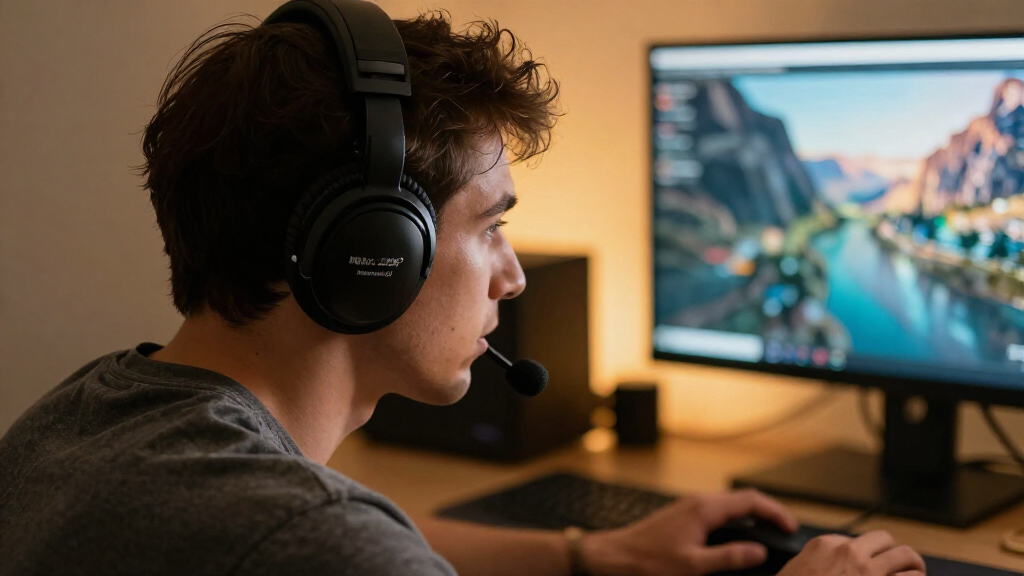

Set up your wireless gaming headset so you can hear game audio and use its microphone on a PC or console. This guide is for beginners who have a compatible headset and want to connect it, adjust sound and chat settings, and check that everything works. Allow 15-30 minutes; the exact connection steps depend on your headset and device.

Get the latest gadgets delivered free with Prime
- Fast, free delivery on millions of items
- Prime Video, Amazon Music and more included
- Member-only deals all year

Turtle Beach Stealth 600 Wireless Gaming Headset
- ✔ Connectivity: 2.4 GHz wireless and Bluetooth
- ✔ Bluetooth: Version listed inconsistently as 5.2 and 5.4
- ✔ Drivers: 50 mm Nanoclear

Logitech G733 LIGHTSPEED Wireless Gaming Headset, Black
- ✔ Connectivity: 2.4 GHz LIGHTSPEED wireless
- ✔ Wireless range: Up to 20 meters
- ✔ Battery life: Up to 29 hours

Earbay G986-PRO Wireless Gaming Headset with Bluetooth 6.0 and RGB Charging Dock
- ✔ Connectivity: 2.4 GHz wireless, Bluetooth 6.0 and 3.5 mm wired
- ✔ Drivers: 40 mm composite diaphragm
- ✔ Battery life: Up to 45 hours
Difficulty: Beginner | Time: 15-30 minutes
What You’ll Need
Tools & Materials:
- Wireless gaming headset and its USB receiver, charging cable, or audio cable
- PC, PlayStation, Xbox, Nintendo Switch, or other compatible device
- Headset manual or manufacturer setup instructions
- Optional: a phone or computer with internet access for firmware updates
Knowledge:
- Basic ability to open device settings and select audio devices
- The headset’s connection type: USB wireless receiver, Bluetooth, or a console-specific wireless system
Check the headset’s compatibility with your exact device and console generation before starting. Many gaming headsets use a USB receiver rather than Bluetooth. Some Xbox-compatible models need an Xbox-specific receiver or wireless connection; a generic Bluetooth headset may not connect directly. Charge the headset before setup.
Turtle Beach Stealth 600 Wireless Gaming Headset
The Stealth 600 is the most adaptable choice in this group because it combines low-latency 2.4 GHz wireless with Bluetooth. That lets us keep a gaming connection while also pairing with a phone or other Bluetooth device, making it more flexible than the G733’s 2.4 GHz-focused setup. Its compatibility list spans Xbox, PlayStation, Windows PC, Steam Deck and mobile, though buyers should still confirm the connection method they need for their exact console and setup.Battery life is its clearest advantage: the supplied specifications claim up to 80 hours, well beyond the G733’s 29 and the Earbay’s 45. The flip-to-mute microphone, AI noise reduction and glasses-friendly memory foam cushions are practical touches for frequent play. EQ modes are built in, with a 10-band EQ available through the Swarm II app. The tradeoff is that deeper adjustments require software, and the listing gives two different Bluetooth version numbers, so we would not rely on either version claim when comparing devices. Choose it for flexibility and endurance; skip it if we want to avoid app-based tuning or need a listing with fully consistent wireless specifications.
Pros:
- Combines low-latency 2.4 GHz wireless and Bluetooth
- Up to 80 hours of stated battery life with quick charge
- Glasses-friendly memory foam cushions and lay-flat design
- Flip-to-mute microphone with AI noise reduction
Cons:
- Advanced 10-band EQ customization requires the Swarm II app
- Supplied listing conflicts on whether Bluetooth is version 5.2 or 5.4
Best for: Players who switch among console, PC and mobile devices and want long battery life with both 2.4 GHz and Bluetooth.
Not ideal for: Buyers who want to avoid companion software for advanced EQ or need an unambiguous Bluetooth version specification.
Bottom line: We recommend the Stealth 600 for its broad device support, dual wireless connections and standout stated battery life, provided its app-dependent tuning suits our setup.
“We recommend the Stealth 600 for its broad device support, dual wireless connections and standout stated battery life, provided its app-dependent tuning suits our setup.”
Logitech G733 LIGHTSPEED Wireless Gaming Headset, Black
At a listed 278 g, the G733 is the lightest option here, so it makes the most sense when we want an over-ear headset that keeps weight low during longer sessions. Its reversible suspension headband and memory foam earcups add to that comfort-first emphasis. Compared with the Stealth 600, however, it gives up Bluetooth and the much longer stated battery life; its appeal is a lighter fit and Logitech’s set of PC-oriented customization features.The Blue VO!CE microphone filters and dual-zone LIGHTSYNC RGB provide more control over voice processing and appearance, while 40 mm PRO-G drivers and DTS Headphone:X 2.0 are part of its audio feature set. Those extras rely on G HUB, which adds software to set up and maintain. Compatibility includes PC, PS5, PS4 and Nintendo Switch, but the supplied details say stereo play support is limited to PS4. That caveat matters for console buyers: the Stealth 600 is the more flexible wireless pick, while the G733 is better suited to someone whose setup centers on PC and who values lower listed weight. Skip it if Bluetooth, longer battery life or simple console support is the priority.
Pros:
- Lightweight 278 g design with reversible suspension headband
- Memory foam earcups for an over-ear fit
- Blue VO!CE microphone filters and dual-zone RGB customization
- Up to 29 hours of stated battery life and 20-meter wireless range
Cons:
- Customization features require Logitech G HUB software
- Supplied details limit listed stereo play support to PS4
- No Bluetooth connection is listed
Best for: PC players who prioritize a light headset, customizable microphone filters and RGB controls.
Not ideal for: Players who need Bluetooth, the longest battery life or broad listed stereo support across consoles.
Bottom line: We would choose the G733 for its low listed weight and PC-focused customization, while accepting a shorter battery claim and narrower connection flexibility than the Stealth 600.
“We would choose the G733 for its low listed weight and PC-focused customization, while accepting a shorter battery claim and narrower connection flexibility than the Stealth 600.”
Earbay G986-PRO Wireless Gaming Headset with Bluetooth 6.0 and RGB Charging Dock
The Earbay G986-PRO offers the widest mix of connection types in this roundup: 2.4 GHz wireless, Bluetooth 6.0 and a 3.5 mm wired option. Its included RGB charging dock gives the wireless setup a dedicated base, and the cable provides a fallback for Xbox, where the listing says play requires a wired connection. That makes it a practical fit for a household with varied devices, but less seamless for someone expecting every platform to work wirelessly. The Stealth 600 is the stronger choice if we want listed Xbox compatibility alongside two wireless modes.With up to 45 hours of stated playback, the G986-PRO lasts longer on paper than the G733, though it falls short of the Stealth 600’s 80-hour claim. The ENC boom microphone has a one-touch mute control, and the 40 mm drivers keep the listed driver size in line with the G733. Its three modes sound versatile, but 2.4 GHz and Bluetooth operation depend on the included transmitter base or a compatible Bluetooth device. That extra dependency, plus a less established feature set in the supplied details, means we would rank it behind the more straightforward Stealth 600 and the lightweight G733. Consider it when a charging dock and wired fallback are useful; skip it if cable-free Xbox play is essential.
Pros:
- Offers 2.4 GHz wireless, Bluetooth and 3.5 mm wired connections
- Up to 45 hours of stated playback
- ENC boom microphone with one-touch mute
- Includes a charging dock with customizable RGB lighting
Cons:
- Xbox play requires a wired 3.5 mm connection
- 2.4 GHz wireless depends on the included transmitter base
- Bluetooth use requires a compatible device
Best for: Players who want a charging dock, multiple connection modes and a wired option for Xbox.
Not ideal for: Xbox players who require wireless connectivity, or buyers who want wireless modes without relying on a base or compatible Bluetooth device.
Bottom line: We would consider the G986-PRO when its dock and three connection modes fit our device mix, while recognizing that Xbox play is wired and wireless modes have setup dependencies.
“We would consider the G986-PRO when its dock and three connection modes fit our device mix, while recognizing that Xbox play is wired and wireless modes have setup dependencies.”
As an Amazon Associate we earn from qualifying purchases.
Before You Start
Find the headset’s power, pairing, mute, volume, and chat-mix controls. Keep the receiver close to the device during setup, and plug it directly into a USB port when possible. If you use a USB hub, dock, controller, or adapter, check the headset maker’s instructions: some connections do not pass audio or chat correctly. Do not assume that connecting the headset means the microphone is selected too.
Step-by-Step Instructions
Step 1: Charge the headset and identify its connection method
Charge the headset, then check its manual or product label to identify how it connects: with a USB wireless receiver, Bluetooth, or a console-specific wireless system. Note whether the receiver has a PC, PlayStation, or other mode switch. Select the mode that matches the device you plan to use.
Tip: If the headset supports more than one connection type, use the method the manufacturer recommends for gaming. A USB receiver often provides more reliable game audio and microphone support than Bluetooth.
Check: The headset has enough charge to complete setup, and you know which connection method and device mode to use.
Step 2: Connect the receiver or start Bluetooth pairing
For a USB wireless headset, plug its receiver into a USB port on the PC or console and set its mode switch to the matching platform. For Bluetooth, open the device’s Bluetooth settings, put the headset into pairing mode using its manual, and select the headset when it appears. Wait for the device to confirm the connection before continuing.
Tip: Pairing mode and normal power-on are not always the same. Follow the headset’s button sequence; otherwise, it may not appear in the Bluetooth device list.
Check: The device shows the headset as connected, or the receiver and headset show the paired or connected status described in the manual.
Step 3: Select the headset for game audio
Open the PC or console’s sound or audio settings. Select the headset as the output device for game, system, or chat audio. On a PC, look for the headset’s name in the output-device list; some USB headsets show separate game and chat outputs. On a console, choose the connected headset under audio output settings when that option is available.
Tip: If the headset exposes separate game and chat devices, use the game output for game sound and the chat output for voice chat when the headset maker recommends that arrangement.
Check: A system sound, menu tone, or game sound plays through the headset rather than the built-in speakers.
Step 4: Select and check the microphone
In the device’s audio settings, choose the headset microphone as the input or chat microphone. Unmute the headset and lower its microphone boom if it has one. Use the settings’ input meter or microphone test to speak at your usual volume, then adjust the input level until your voice registers clearly without peaking.
Tip: Some headsets mute when the microphone is flipped up or when a button is pressed. Check the mute indicator and the headset controls if the input meter stays still.
Check: The microphone test or input meter responds when you speak, and stops responding when you mute the headset.
Step 5: Set volume and chat balance
Start with the headset volume at a comfortable, moderate level. Play game audio and use the headset or device controls to adjust it. If the headset has a game-chat mix wheel, move it toward the middle first, then adjust until game and voice chat are both easy to hear.
Tip: Change one control at a time. A chat-mix wheel can make game audio or voice chat seem missing when it is turned fully toward the other source.
Check: Game sound is clear, voice chat is audible, and the headset does not distort at the volume you plan to use.
Step 6: Test voice chat in the game or chat app
Open the game or voice-chat app’s audio settings and select the headset microphone and output if the app offers separate choices. Join a private test call or use the app’s microphone test. Speak, listen for playback or confirmation, and ask a trusted teammate to confirm your voice sounds clear before relying on the headset during a match.
Tip: PC apps can keep using a previous microphone even after the operating system changes its default. Check the app’s own audio settings if the device-level test works but teammates cannot hear you.
Check: The game or chat app receives your voice, and you can hear its audio through the headset.
Step 7: Check the connection from your normal playing position
Keep the headset on and move to your usual seat. Play audio while turning your head and moving as you would during a game. Listen for dropouts, crackling, or noticeable delay. If the signal is unstable, reposition the receiver, reduce obstructions, or follow the manufacturer’s guidance for wireless range and interference.
Tip: Keep the receiver away from crowded USB hubs and other wireless devices when possible. A short USB extension cable can help move a receiver into a clearer position if the manufacturer supports it.
Check: Audio remains steady from your normal seat, and the microphone stays connected during speech.
Step 8: Save settings and check battery or firmware
Save any audio changes. Check the headset’s battery level using its indicator or companion app, and note how to charge it. If the manufacturer recommends a firmware update for your model, follow its official instructions with the headset connected and adequately charged; do not disconnect it during an update.
Tip: Firmware updates are optional unless the manufacturer says one is needed to fix a problem or support your device. Use only software and instructions from the headset maker.
Check: Your audio selections remain in place, the battery status is visible or understood, and any update you chose to install finishes without an error.
Common Mistakes to Avoid
- Buying or pairing a headset without checking platform compatibility. — Check the maker’s compatibility list for your exact PC or console. Confirm the connection type and any platform mode switch before setup.
- Assuming that game audio and the microphone both work as soon as the headset connects. — Select the headset for both output and input, then test each one separately in device settings and in the game or chat app.
- Leaving the headset muted or turning the chat mix fully toward game audio. — Check the mute indicator and set the game-chat balance near the middle before making small adjustments.
- Updating firmware with a low battery or interrupting the update. — Check the manufacturer’s instructions, charge the headset first, and keep the connection in place until the update completes.
Troubleshooting
Problem: The headset does not appear in the device’s audio settings.
Solution: Check that the receiver is firmly connected, the headset is powered on, and its platform mode matches the device. Try another direct USB port or repeat Bluetooth pairing using the headset’s pairing sequence. Confirm compatibility in the manual.
Problem: Game audio works, but the microphone does not.
Solution: Unmute the headset, lower the microphone boom if needed, and select the headset microphone as the input device. Check the game’s or chat app’s microphone choice and permissions, then repeat its input test.
Problem: The microphone works, but game audio is silent or too quiet.
Solution: Select the headset as the audio output, raise its volume, and check the game-chat mix. If the headset has separate game and chat outputs, confirm the game is using the recommended game output.
Problem: Audio cuts out, crackles, or sounds delayed.
Solution: Move closer to the console or PC, reposition the receiver, and remove obstructions where possible. Disconnect and reconnect the receiver or pair the headset again. Check the maker’s guidance for wireless range, interference, and supported connection modes.
What Success Looks Like
The device and game or chat app use the headset for audio output and microphone input. You can hear game sound and voice chat at a comfortable level, your microphone test responds clearly when unmuted, and audio stays connected from your normal playing position. You also know how to check the headset’s charge and mute status.
Next Steps
Charge the headset after use if needed, and keep its receiver with the device so it is easy to reconnect. Before a multiplayer session, check battery level, mute status, and chat balance. If you use the headset with another platform, switch to the appropriate mode and repeat the output and microphone checks; settings may not carry over between devices.
Frequently Asked Questions
Can I use any wireless gaming headset with any console?
No. Compatibility depends on the headset’s connection method and the console. Check the manufacturer’s list for your exact model and console generation before buying or connecting it.
Does a USB wireless receiver work the same way as Bluetooth?
No. A receiver may use a gaming-focused wireless connection and may include separate game and chat audio. Bluetooth pairing follows the device’s Bluetooth settings and may have different microphone, latency, or compatibility limits.
Why can I hear the game but my teammates cannot hear me?
The microphone may be muted, the boom may be in the mute position, or the game may be using another input device. Select the headset microphone in the game or chat app and run its microphone test.
Can I connect the headset to my PC and console at the same time?
Only if the headset supports simultaneous connections or audio mixing. Check the manual for supported combinations and how to switch between them; many models connect to one gaming device at a time.