
To get true 4K at 144Hz, you need the right cables and ports that support high bandwidth standards like HDMI 2.1 or DisplayPort 1.4. Not all cables or ports can handle the data load, which can cause flickering or black screens. Using certified, quality cables and ensuring both your GPU and monitor support these standards are essential for smooth, high-performance visuals. Keep exploring to learn how to optimize your setup for the best experience.
Key Takeaways
- Not all HDMI or DisplayPort cables support 4K at 144Hz; specific standards like HDMI 2.1 or DisplayPort 1.4 are essential.
- Using certified, high-quality cables ensures stable high-bandwidth signal transmission, preventing flickering or black screens.
- Both GPU and monitor ports must support the necessary standards to handle 4K at 144Hz effectively.
- Proper hardware compatibility and port selection are crucial to unlock full 4K 144Hz performance.
- Correct display and system configuration maximize image quality and ensure the desired high refresh rate.
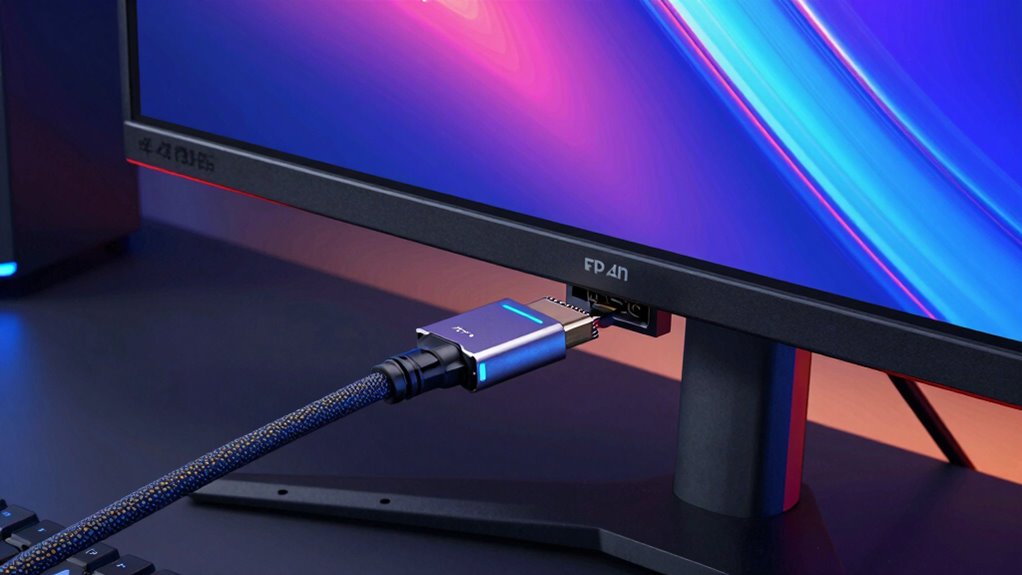
Achieving smooth 4K gaming at 144Hz isn’t just about having a powerful graphics card; it also depends heavily on the cables and ports you use. The right connection ensures that your high-resolution, high-refresh-rate signals transmit without bottlenecks or degradation. If your cables or ports aren’t up to speed, you might experience stuttering, flickering, or even a black screen, no matter how advanced your GPU is. To get the best experience, you need to pay attention to display calibration and refresh rate settings, but first, your hardware must support the necessary bandwidth.
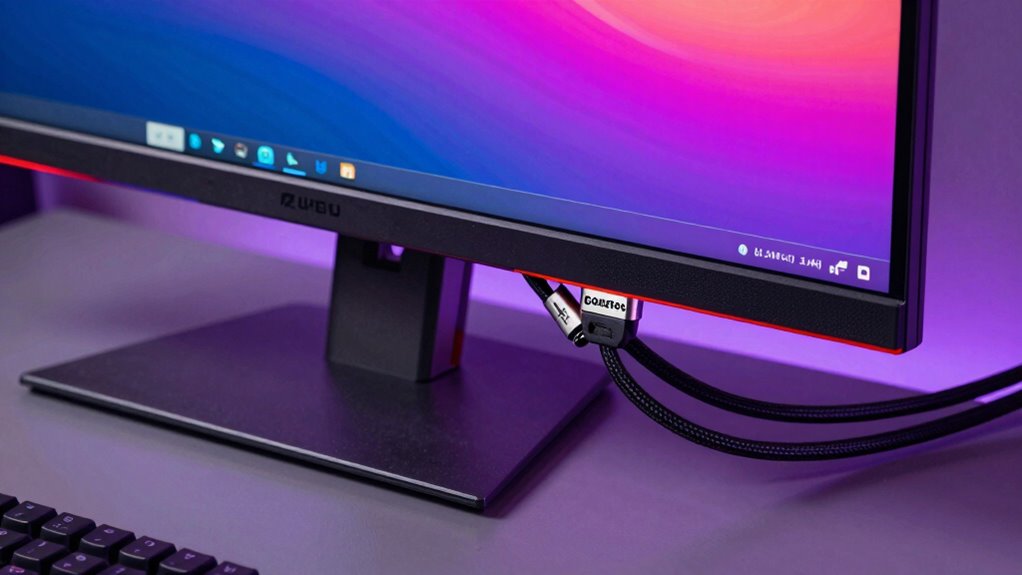
Start by examining your cables. Not all HDMI or DisplayPort cables are created equal. For 4K at 144Hz, you need at least a DisplayPort 1.4 or HDMI 2.1 cable. These cables are designed to handle the high data transfer rates required for such demanding resolutions and refresh rates. Using an older HDMI 2.0 or lower-quality cable can limit your bandwidth, causing your monitor to default to lower refresh rates or reduced resolution. Confirm that your cables are certified for 4K at 144Hz, and avoid cheap or generic alternatives that might not deliver consistent performance. Additionally, cable quality plays a crucial role in maintaining stable high-bandwidth signals. Ensuring you have the right cable standards can prevent potential issues before they arise.
Next, consider your ports. Your graphics card and monitor should both support the necessary standards. Many modern GPUs and monitors feature multiple DisplayPort and HDMI ports, but not all are capable of handling 4K at 144Hz simultaneously. Check the specifications to ensure your hardware supports the high bandwidth needed. Connecting through the correct port is crucial—sometimes, a port might be limited to lower refresh rates or resolutions despite supporting the same interface type. Additionally, understanding port standards can help you identify which connections are best suited for high-performance setups.
Once the physical connections are confirmed, you need to adjust your display settings. Proper display calibration is essential to maximize image quality and color accuracy, especially when gaming at high resolutions. Use your monitor’s on-screen display (OSD) controls to fine-tune brightness, contrast, and color profiles. Additionally, head into your operating system’s display settings to adjust refresh rate settings. Make sure your system recognizes the monitor at 144Hz and that the refresh rate is correctly set. Sometimes, default settings may default to a lower refresh rate, so manual adjustment is necessary.
In the end, achieving smooth 4K at 144Hz is a combination of compatible hardware, high-quality cables, and proper configuration. Don’t overlook the importance of display calibration and refresh rate settings—they’re crucial for unlocking the full potential of your setup. When everything aligns, you’ll experience buttery-smooth gameplay with sharp visuals and vibrant colors, making your gaming sessions truly immersive.
HDMI 2.1 cable for 4K 144Hz
As an affiliate, we earn on qualifying purchases.
As an affiliate, we earn on qualifying purchases.
Frequently Asked Questions
Can I Use Any HDMI Cable for 4K at 144HZ?
No, you can’t just use any HDMI cable for 4K at 144Hz. Cable compatibility depends on the cable’s specifications, like HDMI version and bandwidth. You need a high-quality HDMI 2.1 cable that supports the necessary bandwidth for 4K at 144Hz. Also, your port must meet the required specifications; otherwise, you won’t get the best performance. Always verify both your cable and port to guarantee compatibility.
Do All USB-C Ports Support 4K at 144HZ?
Not all USB-C ports support 4K at 144Hz. Your cable compatibility and port specifications matter greatly. Check if your USB-C port supports DisplayPort Alt Mode 1.4 or Thunderbolt 3/4, as these standards enable high-resolution, high-refresh-rate displays. If your port lacks these features, you won’t attain 4K at 144Hz. Always verify your device’s specifications to guarantee it can handle such demanding display capabilities.
What Is the Maximum Distance for Reliable 4K 144HZ Transmission?
You might think a cable’s got endless range, but for reliable 4K at 144Hz, stick to around 15 feet. Beyond that, cable durability and signal interference become your enemies, causing flickers or lag. Ironically, the longer the cable, the more chance interference ruins your crisp visuals. So, keep it short, sturdy, and shielded—your display’s clarity depends on it.
Are There Specific Display Adapters Needed for 4K at 144HZ?
Yes, you need specific display adapters for 4K at 144Hz. Make certain your cable quality is high and supports the necessary bandwidth, like HDMI 2.1 or DisplayPort 1.4, to handle the high refresh rate and resolution. Also, check port compatibility on your device—your port must support these standards. Using the right adapter ensures smooth, high-quality visuals without lag or flickering.
How Do I Check if My Port Supports 4K at 144HZ?
To see if your port can handle 4K at 144Hz, you need to gently explore its capabilities. Check your device’s specifications or look for labels indicating HDMI 2.1 or DisplayPort 1.4, as these support high display resolutions and refresh rates. Alternatively, consult your device’s manual or run a system diagnostic. Ensuring your port supports the right standards guarantees smooth visuals and ideal refresh rates.
DisplayPort 1.4 cable for gaming
As an affiliate, we earn on qualifying purchases.
As an affiliate, we earn on qualifying purchases.
Conclusion
So, next time you’re setting up your gaming or streaming rig, think of your cable and port as the unsung heroes behind the scenes. They’re like the sturdy bridge supporting a soaring eagle—without them, that stunning 4K at 144Hz display remains just a dream. Choosing the right cable and port guarantees your visuals soar smoothly, turning your setup into a vivid, seamless landscape. Don’t let a weak link clip those wings; upgrade and access true performance.
4K 144Hz monitor HDMI port
As an affiliate, we earn on qualifying purchases.
As an affiliate, we earn on qualifying purchases.
high bandwidth HDMI cable
As an affiliate, we earn on qualifying purchases.
As an affiliate, we earn on qualifying purchases.