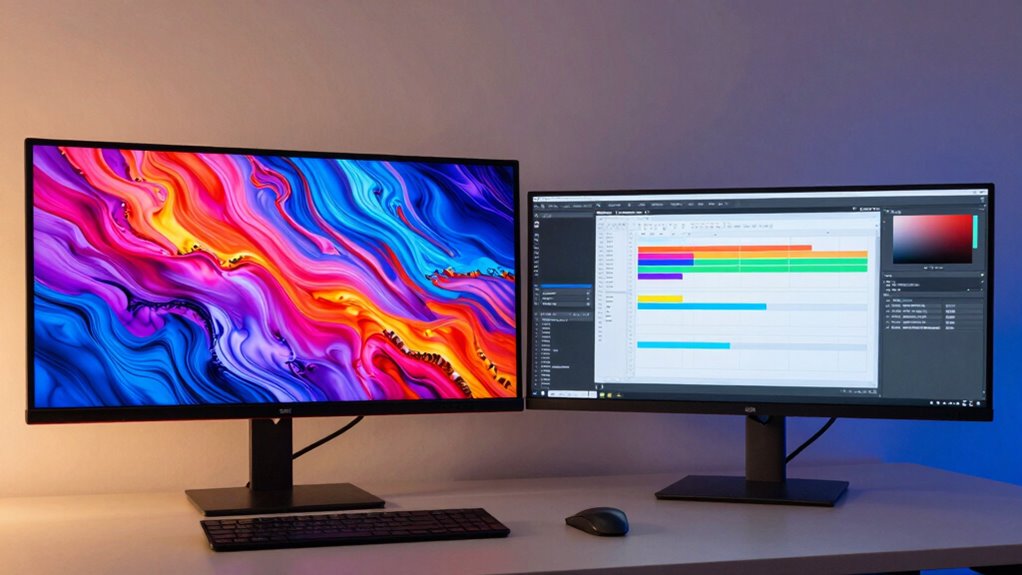
The key difference between ultrawide and dual monitors hinges on your workspace size, workflow needs, and budget. If you want a seamless panoramic view for gaming or multitasking, an ultrawide offers immersion and fewer cables. But if you prefer flexibility for creative tasks or have limited space, dual monitors might suit you better. To decide, consider your device compatibility, ergonomics, and future upgrades—continue exploring to find the perfect fit for your setup.

Get the latest gadgets delivered free — and shop member deals
- Fast, free delivery on millions of items
- Access to Prime Big Deal Days deals on October 6–7
- Prime Video, Amazon Music and more included
Key Takeaways
- The choice depends on your specific workflow, such as gaming, creative work, or multitasking needs.
- Compatibility with your device’s ports and graphics card influences whether ultrawide or dual monitors are feasible.
- Space constraints and ergonomic preferences determine if a single large ultrawide or multiple smaller screens suit your setup.
- Budget considerations impact whether investing in an ultrawide or multiple monitors aligns with your financial plan.
- Future-proof features like high refresh rates and advanced connectivity options may sway the decision based on long-term needs.
As an affiliate, we earn on qualifying purchases.
What Are Ultrawide and Dual Monitors?
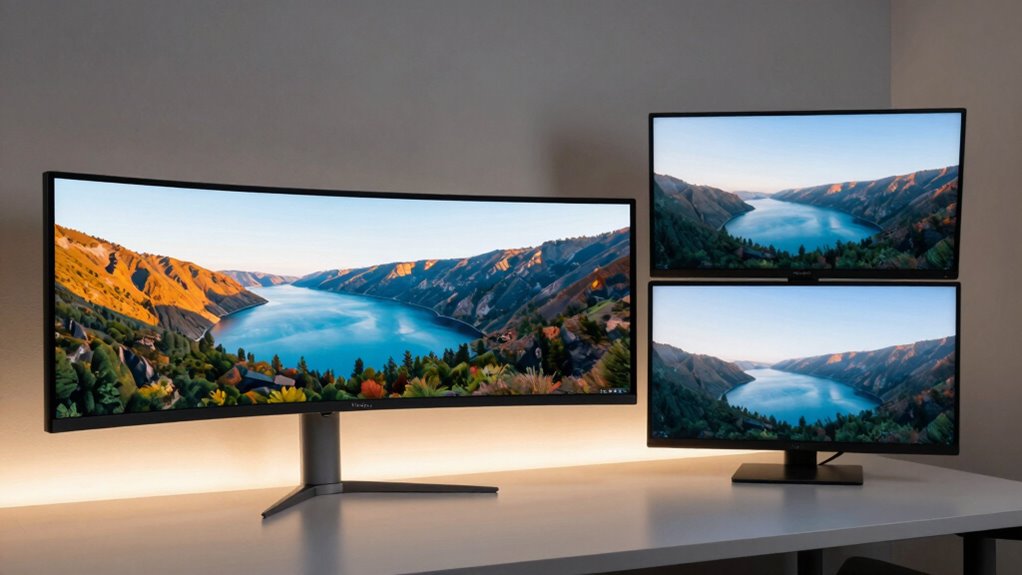
Ultrawide and dual monitors are popular options for expanding your screen space, but they serve different needs. Ultrawide monitors typically feature a single screen with a wider aspect ratio, usually 21:9 or 32:9, giving you a seamless panoramic view. Dual monitors involve two separate screens, often with standard aspect ratios like 16:9, connected side by side. When choosing between them, consider resolution options—ultrawides often offer higher resolutions for immersive visuals, while dual setups provide flexibility with different screen sizes and resolutions. Aspect ratio considerations are key: ultrawides deliver a continuous display ideal for multitasking or creative work, whereas dual monitors allow you to customize your workspace by combining different screens. Both setups enhance productivity but cater to different preferences.
Which Setup Is Best for Gaming, Multitasking, or Creative Work?
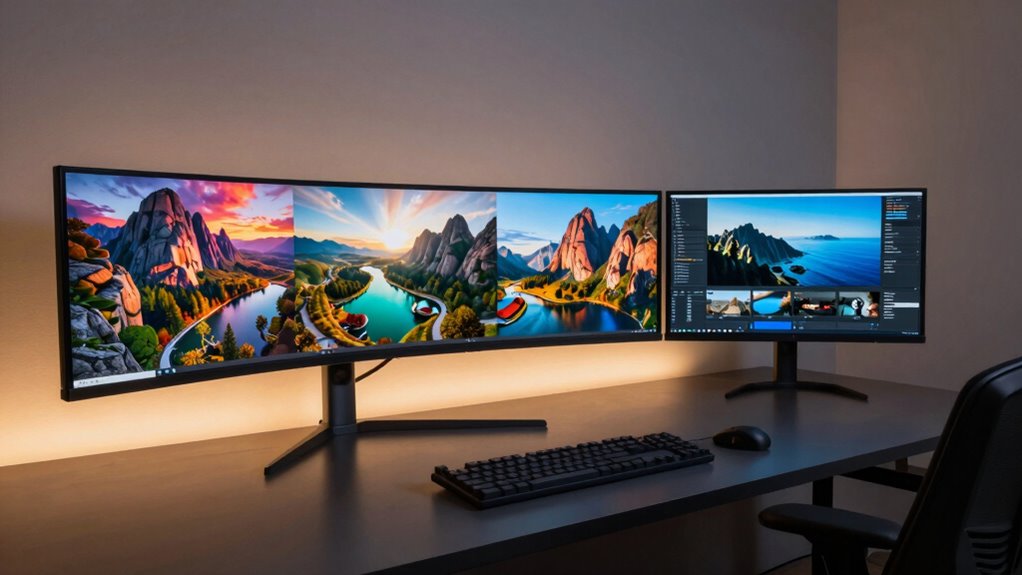
Choosing the right monitor setup depends on your primary use, as each configuration offers distinct advantages for gaming, multitasking, or creative work. Ultrawide monitors excel in immersive gaming and seamless multitasking with broad resolution benefits, making it easier to manage multiple windows. Dual monitors provide flexibility for creative tasks like editing and design, allowing you to spread tools and canvases across screens. Aesthetic considerations also matter; ultrawides create a sleek, continuous look, while dual setups can be customized with different styles. The table below highlights these differences: Additionally, understanding fabric technology can inspire innovative ways to enhance your workspace with sustainable and smart textile solutions.
Furthermore, selecting a monitor setup that aligns with ergonomic principles can improve comfort and productivity during extended use.
How Does Screen Space Affect Your Productivity?
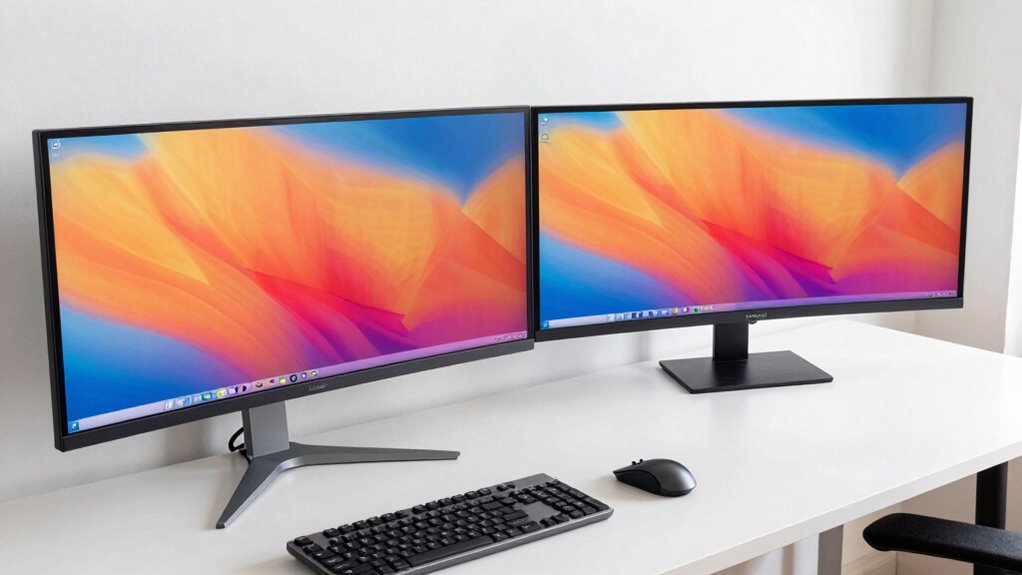
When you have more screen space, you’ll notice an immediate boost in productivity because you can view multiple applications and documents simultaneously without constant toggling. Increased screen real estate allows you to organize your workspace more effectively, reducing time spent switching between windows. You can also customize your monitor setup to suit your specific workflow, which can further enhance efficiency. This setup enhances workspace efficiency by enabling you to keep relevant information in sight and accessible at all times. Whether you’re multitasking, analyzing data, or designing, more screen space minimizes distractions and streamlines your workflow. Additionally, screen setup plays a crucial role in optimizing your workflow for various tasks. Good monitor placement is essential to prevent neck strain and maintain comfort during extended work sessions. Proper ergonomic positioning can also improve your overall productivity and comfort during long hours at your desk. Adapting your workspace ergonomics can further maximize the benefits of a larger screen area.
Does Your Desk Have Enough Space for These Monitors?
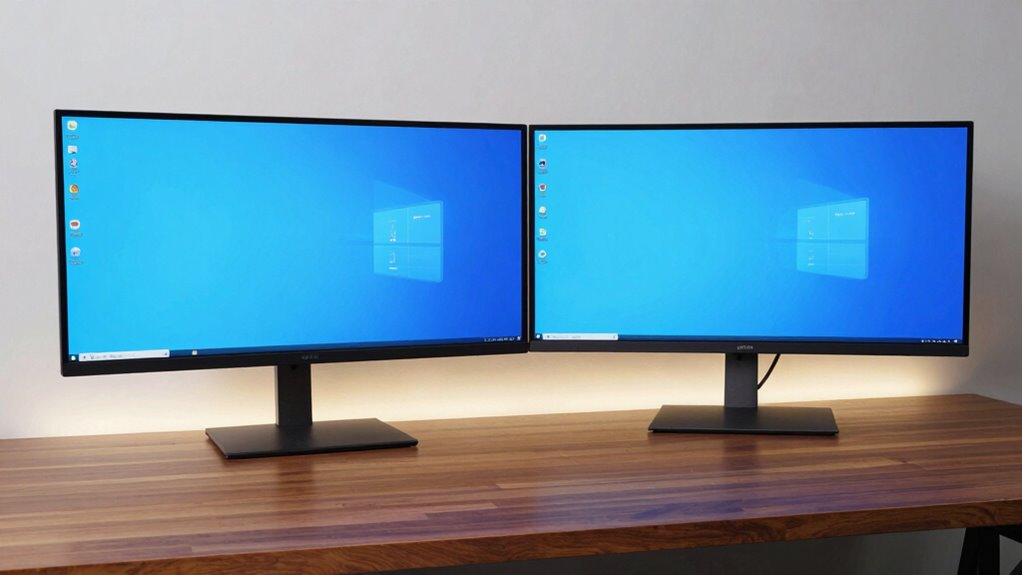
Having more screen space can considerably boost your productivity, but before making any upgrades, it’s important to make sure your desk can accommodate the new monitors. Adequate desk space is essential to ensure proper monitor placement, preventing clutter and discomfort. Measure your desk carefully to determine if it can support the width and height of ultrawide or dual monitors. Consider the depth needed for comfortable viewing distances and ease of access. If your desk is too small, you might need to clear space or opt for smaller monitors. Proper monitor placement is key to avoid strain and maximize efficiency. Confirm your desk can handle the new setup will help you enjoy the benefits of increased screen real estate without sacrificing comfort or organization. Incorporating cybersecurity measures into your workspace setup can also protect your devices and data from potential threats. Additionally, evaluating desk ergonomics can further enhance comfort during extended usage. Ensuring your workspace has sufficient monitor support is also vital to maintain stability and prevent accidental falls or damage.
How Comfortable Are Ultrawide and Dual Monitors for Long Use?
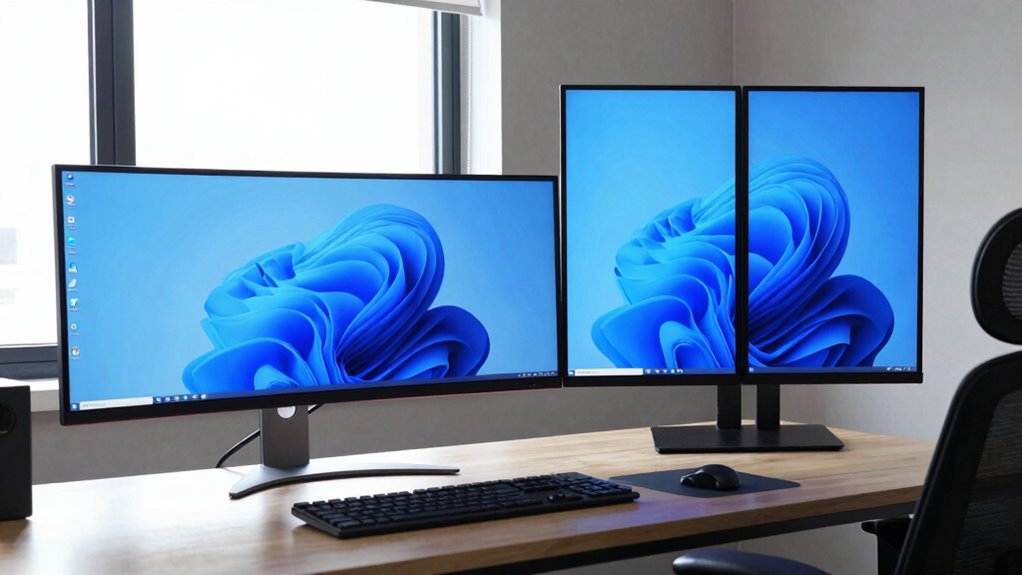
When using ultrawide or dual monitors for extended periods, your comfort depends on ergonomic setup and visual strain. Poor positioning can lead to neck or eye fatigue, making long work sessions uncomfortable. Considering factors like screen placement and brightness helps guarantee a more comfortable experience. Additionally, proper piercing care and hygiene can help prevent discomfort or irritation if piercings are worn during long screen time. Maintaining good ergonomic workstation habits can further reduce strain and enhance overall comfort during prolonged use. Being aware of natural lighting in your workspace can also minimize glare and reduce eye strain for longer sessions. Incorporating visual ergonomics principles ensures that your monitor setup supports healthy posture and reduces fatigue during extended use.
Ergonomics and Comfort
Ultrawide and dual monitors each offer distinct ergonomic benefits and challenges that can impact comfort during extended use. Proper ergonomic positioning is key to preventing strain, and ergonomic accessories can help optimize your setup.
- Ultrawide monitors often reduce neck movement, but their curvature may require adjustments to eye level for comfort. Additionally, the curvature of ultrawide screens can influence how your eyes track across the display, affecting long-term comfort. Incorporating ergonomic principles can help mitigate these issues.
- Dual monitors allow you to position screens at ideal heights, but managing multiple stands or mounts can be cumbersome. Considering ergonomic accessories can greatly improve setup flexibility and comfort.
- Both setups benefit from ergonomic accessories like adjustable stands, monitor arms, and anti-glare filters, which help maintain a natural posture and reduce fatigue during long sessions.
- Additionally, selecting monitors with high refresh rates and low input lag can enhance comfort by providing smoother visuals during prolonged use, especially in gaming or detailed editing tasks.
- Ensuring proper ergonomic setup from the start can significantly decrease the risk of discomfort and improve overall productivity during extended monitor use.
Visual Fatigue Factors
Both ultrawide and dual monitors can cause visual fatigue over long periods, but they do so in different ways. Ultrawides reduce the need to shift your gaze, potentially lowering eye fatigue, but their curved screens can cause visual strain if the curvature isn’t comfortable. Dual monitors, on the other hand, may lead to frequent refocusing and eye movement, increasing eye fatigue. The table below highlights key differences:
| Factor | Ultrawide Monitors | Dual Monitors |
|---|---|---|
| Visual Strain | Less from constant refocusing | Higher with frequent switches |
| Eye Fatigue | Reduced due to continuous view | Increased from eye movement |
| Screen Size | Large, single view | Multiple screens, smaller view |
| Curvature | Can cause discomfort if misaligned | No curvature, easier adjustment |
| Long-term Use | Generally more comfortable | May cause more strain |
Additionally, ergonomic positioning and proper calibration can further influence visual comfort during extended use. Proper lighting conditions are also essential to minimize glare and reflections that contribute to eye strain. Ensuring your workspace is ergonomically optimized and monitor placement is correctly adjusted can make a significant difference in reducing overall visual fatigue. Furthermore, incorporating regular breaks can help alleviate strain and maintain comfort during prolonged screen time.
What’s Your Budget? Comparing Costs of Ultrawide and Dual Monitors
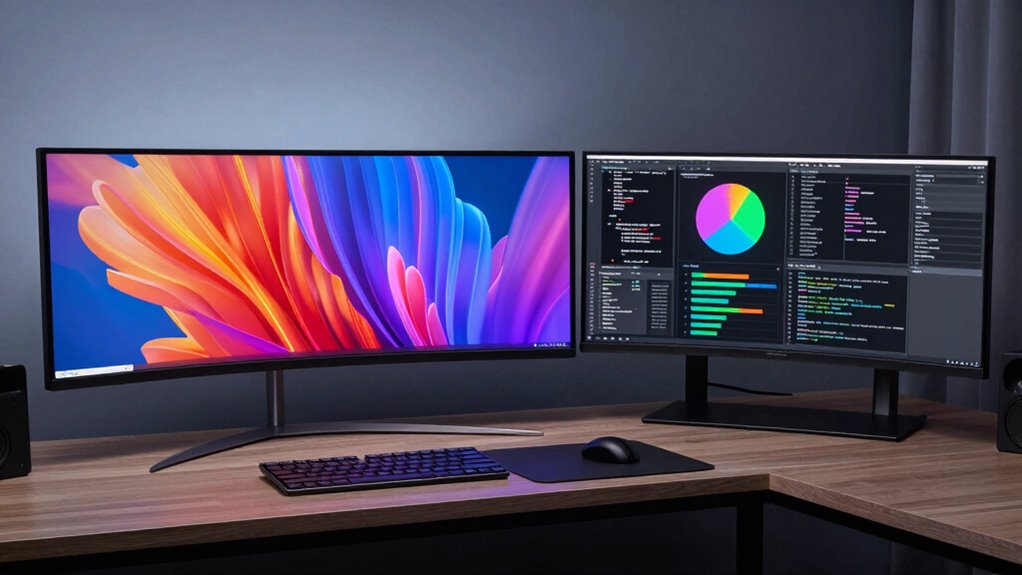
Budget plays a significant role in deciding whether to go for an ultrawide or dual monitors setup. Your budget considerations will influence your options, especially when comparing costs. Generally, ultrawide monitors tend to be more expensive upfront, but they eliminate the need for multiple screens. In contrast, dual monitors can be more flexible, allowing you to choose different sizes and brands.
Budget is key: ultrawide monitors cost more upfront but replace multiple screens, while dual monitors offer flexibility at lower prices.
Here’s a quick cost comparison:
- Ultrawide monitors typically range from $400 to over $1,000.
- Dual monitors can start around $150 each, with higher-end models costing more.
- Additional expenses like mounts, cables, or adapters also factor into your overall budget.
Understanding these costs helps you decide based on your financial limits and desired setup.
Are Your Devices Compatible? Connectivity and Resolution Tips
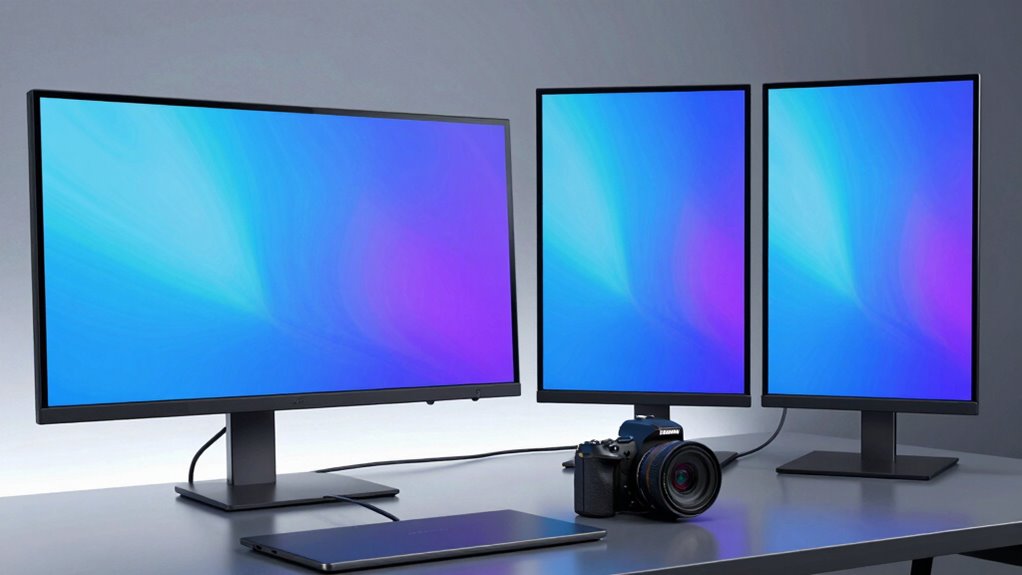
Before investing in a new monitor setup, it’s important to check if your current devices can support it. Start by verifying cable compatibility; ensure your computer has the right ports, like HDMI, DisplayPort, or USB-C, to connect your monitors. If you plan to use multiple screens, consider whether your graphics card can handle the additional output. Additionally, resolution matching is vital—mismatched resolutions can cause display issues or performance drops. Check your device’s specifications to confirm it can support the desired resolution, especially for ultrawide or dual monitors. Using incompatible cables or mismatched resolutions might limit your setup’s effectiveness or cause visual distortion. Taking these steps guarantees your devices work smoothly together, providing a seamless and efficient multitasking experience.
How Do Multitasking and Window Management Differ?
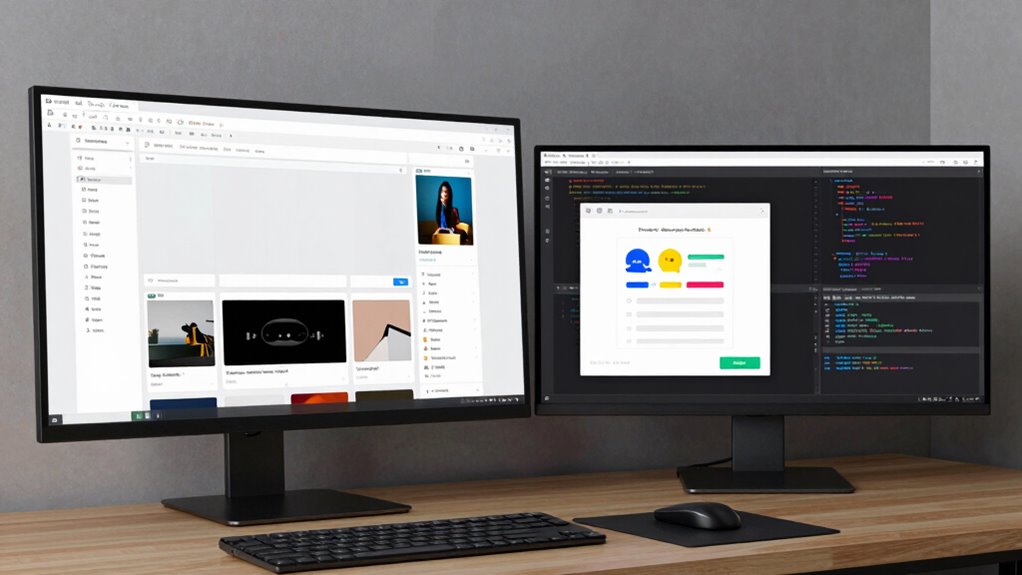
While multitasking and window management are closely related, they serve different purposes in how you interact with your computer. Multitasking focuses on increasing your multitasking efficiency by juggling multiple tasks simultaneously, often through quick switching or overlapping activities. Window management, on the other hand, emphasizes effective window organization to optimize your workspace. To improve, consider these strategies:
- Use snapping tools to arrange windows neatly side by side.
- Group related applications into virtual desktops for better focus.
- Customize hotkeys for swift window switching and resizing.
Understanding the distinction helps you streamline your workflow, whether you’re managing multiple applications or organizing your workspace for better productivity. Both skills enhance your overall multitasking efficiency, especially when working across ultrawide or dual monitors.
Can You Future-Proof Your Monitor Setup? Planning for Upgrades
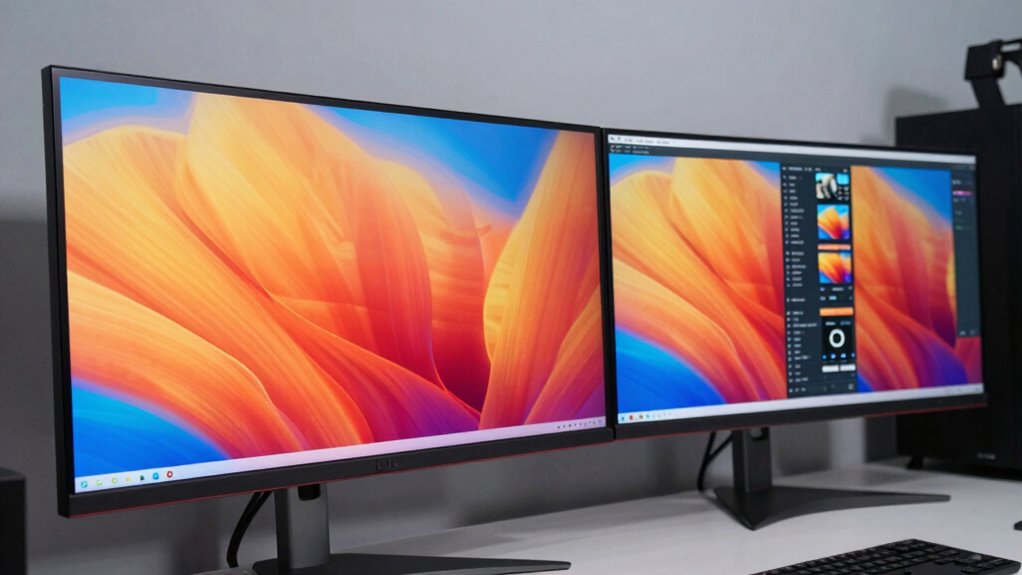
Planning your monitor setup with future upgrades in mind guarantees you stay current with evolving technology and avoid frequent replacements. To future-proof effectively, focus on features like a high refresh rate for smoother performance and easy monitor calibration options for consistent image quality. Consider compatibility with upcoming graphics cards and interfaces, such as HDMI 2.1 or DisplayHDR.
| Aspect | Consideration |
|---|---|
| Refresh Rate | Opt for 120Hz or higher for gaming future-proofing |
| Calibration | Look for built-in tools or software support |
| Connectivity | Ensure multiple ports for upgrades |
| Resolution | 4K or higher to stay relevant |
| Compatibility | Check compatibility with your hardware |
Which Monitor Setup Is Right for You? Making Your Final Decision
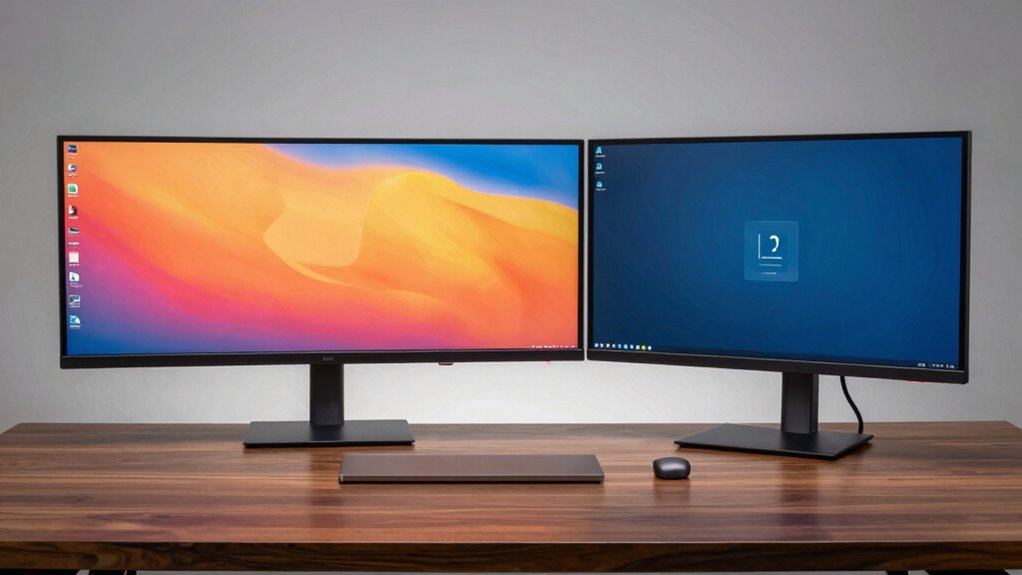
Choosing the right monitor setup depends on your specific needs and how you use your computer. Consider these factors to make your final decision:
- If you prioritize seamless workflows and minimal clutter, an ultrawide monitor offers an ergonomic design that reduces the need for multiple screens, enhancing aesthetic appeal.
- For multitasking or specialized tasks, dual monitors provide flexibility, allowing you to customize each display for ideal ergonomic comfort and visual organization.
- Your workspace size and aesthetic preferences matter; ultrawides create a sleek, modern look, while dual monitors can be arranged to suit your ergonomic comfort and style.
Ultimately, align your setup with your workflow, ergonomic needs, and aesthetic preferences for the best experience.
Frequently Asked Questions
How Do Ultrawide and Dual Monitors Impact Eye Strain?
Ultrawide and dual monitors can both affect your eye strain and eye fatigue, but in different ways. Ultrawide screens reduce the need to turn your head, helping minimize visual strain, yet the continuous, expansive view might cause eye fatigue if you don’t adjust properly. Dual monitors can increase visual strain if you frequently switch focus, but they allow better control over each screen, reducing overall eye fatigue when set up correctly.
What Are the Maintenance Needs for Ultrawide Versus Dual Monitors?
Your monitors, whether ultrawide or dual, demand attention like a demanding boss. You’ll need to regularly clean the screens with gentle monitor cleaning to prevent dust buildup and reduce glare. Cable management is essential to keep everything tidy and prevent damage. Both types require similar maintenance, but ultrawide monitors might need extra care for their larger surface area. Stay proactive, and your setup will stay sleek and functional for years.
Which Setup Offers Better Sound Quality or Audio Options?
A dual monitor setup generally offers better sound quality and more flexible audio options because you can connect each monitor to separate audio sources or speakers. Ultrawide monitors often have built-in speakers, but their sound setup usually isn’t as high quality or customizable. If audio quality matters most to you, you might prefer dual monitors with dedicated speakers or external audio systems, ensuring a richer, more immersive sound experience.
How Do Power Consumption Differences Affect Long-Term Costs?
Power consumption differences considerably impact your long-term costs. Ultrawide monitors tend to be more energy-efficient, offering better energy efficiency with lower power usage per screen area. This means you’ll enjoy greater power savings over time, reducing your electricity bills. By choosing an energy-efficient monitor, you not only save money but also cut down on environmental impact, making it a smarter, cost-effective decision for your setup.
Are There Ergonomic Considerations Unique to Ultrawide or Dual Monitors?
You should consider ergonomic posture and desk space when choosing between ultrawide and dual monitors. Ultrawide screens help you maintain a natural, ergonomic posture by reducing neck and eye strain, since you don’t have to turn your head as much. Dual monitors require more desk space and can lead to awkward angles if not positioned properly. Think about your workspace layout to make certain of comfort and efficiency.
Conclusion
Ultimately, the choice between ultrawide and dual monitors hinges on your unique needs—and there’s more at stake than you might realize. Will you prioritize immersive visuals or flexible multitasking? The decision could transform your workflow—or leave you wishing for something different. So, are you ready to make the leap? Consider your space, tasks, and future plans carefully—because once you choose, there’s no turning back. The real question is: are you prepared for what’s next?
Fall Picks
fall essentials
As an affiliate, we earn on qualifying purchases.