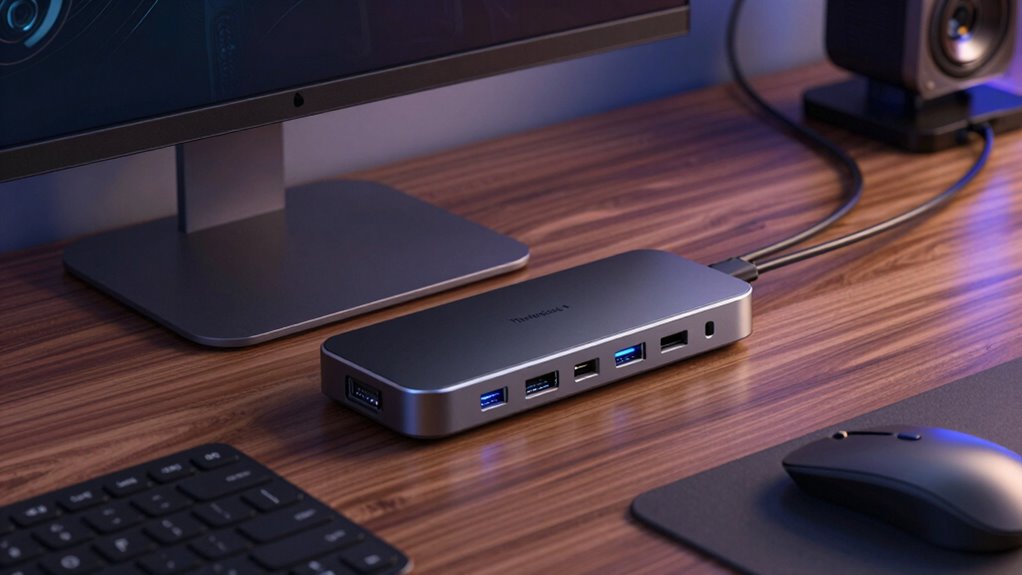

A Thunderbolt 4 docking station can connect displays, storage, networking, and peripherals through one cable, but the right choice depends on your laptop and desk setup. I rank the UGREEN 13-in-1 as my best overall pick for its broad port selection, while the Dell Pro SD25TB4 suits managed work environments and the UGREEN 8-in-1 favors a simpler, smaller setup. The main tradeoffs are port variety versus footprint, charging capacity, and how well a dock matches your computer’s display requirements. More ports do not automatically mean better compatibility, especially with multi-monitor Mac setups. Read on for the full comparison and guidance on choosing a dock that fits your devices.

Get the latest gadgets delivered free with Prime
- Fast, free delivery on millions of items
- Prime Video, Amazon Music and more included
- Member-only deals all year
Complete the kit



Key Takeaways
- The UGREEN 13-in-1 is the most versatile pick: its larger selection of connections makes it a better hub for a busy desk than the more compact UGREEN 8-in-1.
- Port count is not the only measure of fit: the 8-in-1 may suit a lean setup better, while the Plugable 16-in-1 is aimed at users who need many connections and dual-display support.
- Charging needs differ by laptop: the 100W Plugable models suit many MacBook workflows, while the Dell model specified with 130W Power Delivery is a more natural match for compatible Dell systems.
- Brand and workplace needs shape the shortlist: Microsoft Surface owners may prefer the Surface dock, while Dell Pro SD25TB4 is positioned for business users prioritizing managed desk setups.
- Several listings are easy to confuse: the two Dell WD22TB4 entries and two Plugable 100W models should be compared by their exact configuration, not just the shared family name.
| UGREEN 8-in-1 Thunderbolt 4 Docking Station |  | Best for Thunderbolt Expansion | Ports: 3 Thunderbolt 4, 3 USB-A 3.2, 1 Gigabit Ethernet, 1 power input | Thunderbolt 4 data speed: Up to 40 Gbps | Display support: Up to two 4K at 60Hz displays or one 8K at 30Hz display on compatible systems | VIEW ON AMAZON | See Our Full Breakdown |
| Dell WD22TB4 Thunderbolt 4 Docking Station |  | Best for Windows Multi-Monitor Desks | Host connection: Thunderbolt 4 | Data transfer speed: Up to 40 Gbps | Power delivery: Up to 130W | VIEW ON AMAZON | See Our Full Breakdown |
| Dell Thunderbolt Dock WD22TB4 with 130W Power Delivery |  | Best for Dell Business Fleets | Ports: 2 Thunderbolt 4, 1 USB-C 3.2 Gen 2, 3 USB-A 3.2 Gen 1, 2 DisplayPort 1.4, 1 HDMI 2.0, 1 USB-C Multifunction DisplayPort, 1 RJ45 Ethernet | Maximum data transfer rate: 40 Gbps | Power delivery: Up to 130W for Dell devices | VIEW ON AMAZON | See Our Full Breakdown |
| Plugable TBT-UDM Thunderbolt 4 Dock for MacBook, 100W Charging |  | Best for MacBook Creators | Interface: Thunderbolt 4 | Total ports: 13 | Display support: Up to two 4K displays at 60Hz or one 6K display | VIEW ON AMAZON | See Our Full Breakdown |
| Plugable Thunderbolt 4 Dock with 100W Charging and Dual Monitor Support |  | Best for Dual-Display Flexibility | Interface and data speed: Thunderbolt 4; up to 40 Gbps | Total ports: 13 | Display support: Dual 4K 60Hz HDMI or single 8K on compatible systems | VIEW ON AMAZON | See Our Full Breakdown |
| Microsoft Surface Thunderbolt 4 Docking Station, Black (T8H-00001) |  | Best for Surface Users | Model: T8H-00001 | USB-C ports: 3 | USB-A ports: 3 | VIEW ON AMAZON | See Our Full Breakdown |
| UGREEN 13-in-1 Thunderbolt 4 Docking Station |  | Best for Quiet, Port-Rich Desks | Total ports: 13 | Thunderbolt 4: 3 ports, up to 40Gbps | USB-C: 2 ports, 10Gbps; one supports 20W PD | VIEW ON AMAZON | See Our Full Breakdown |
| Dell Pro Thunderbolt 4 Smart Dock SD25TB4 |  | Best for Multi-Display Dell Setups | Model: SD25TB4 | Total ports: 12 | USB ports: 6 | VIEW ON AMAZON | See Our Full Breakdown |
| Plugable 16-in-1 Thunderbolt 4 Dock with Dual 4K Display Support and 100W Charging |  | Best for Broad Host and Display Compatibility | Total ports: 16, including 7 USB ports | Display outputs: 2 HDMI and 2 DisplayPort | Maximum display support: Dual 4K at 60Hz | VIEW ON AMAZON | See Our Full Breakdown |
| thunderbolt 4 docking station | Display support | Dimensions | Total ports |
|---|---|---|---|
| UGREEN 8-in-1 Thunderbolt 4 Do | Up to two 4K at 60Hz displays or one 8K at 30Hz display on compatible systems | — | — |
| Dell WD22TB4 Thunderbolt 4 Doc | Up to four 4K 60Hz monitors on Windows; varies by Mac model | — | — |
| Dell Thunderbolt Dock WD22TB4 | — | 12 × 12 × 3 in | — |
| Plugable TBT-UDM Thunderbolt 4 | Up to two 4K displays at 60Hz or one 6K display | — | 13 |
| Plugable Thunderbolt 4 Dock wi | Dual 4K 60Hz HDMI or single 8K on compatible systems | — | 13 |
| Microsoft Surface Thunderbolt | — | 11 x 4.4 x 3.2 in | — |
| UGREEN 13-in-1 Thunderbolt 4 D | Dual 4K at 60Hz or single 8K at 30Hz | 3.7 × 1.96 × 5.78 in | 13 |
| Dell Pro Thunderbolt 4 Smart D | Up to four 4K displays | 1.39 × 3.54 × 8.07 in | 12 |
| Plugable 16-in-1 Thunderbolt 4 | — | 4.1 x 1.4 x 7.7 in | 16, including 7 USB ports |
More Details on Our Top Picks
UGREEN 8-in-1 Thunderbolt 4 Docking Station
The UGREEN 8-in-1 stands out when your setup needs more Thunderbolt 4 connections rather than a long list of specialized ports. Its three downstream Thunderbolt 4 ports can connect fast storage or other accessories, while three USB-A ports and gigabit Ethernet cover common desk gear. The included 140W charger powers the dock and supports up to 85W laptop charging, so the system is ready to anchor a workstation without a separate adapter.
Compared with the Plugable TBT-UDM, this UGREEN gives up built-in HDMI and card readers in favor of additional Thunderbolt connections. That suits a desk built around Thunderbolt peripherals, but not someone who wants direct monitor and camera-card connections. Its dual-display capabilities also depend on the computer; basic M-series MacBooks and some USB-C systems may not support the advertised setup.
Pros:- Three downstream Thunderbolt 4 ports support multiple high-speed accessories.
- Three USB-A ports and gigabit Ethernet handle familiar peripherals and wired networking.
- Included 140W charger supports up to 85W laptop charging.
- Supports up to two 4K displays or one 8K display on compatible systems.
Cons:- Display capacity depends on the host computer and is limited on some basic M-series MacBooks and USB-C systems.
- Requires the included power adapter to operate.
- Lacks built-in HDMI and SD or microSD card readers found on the Plugable TBT-UDM.
Best for: Laptop owners building a desk around several Thunderbolt peripherals, USB-A accessories, and wired Ethernet.
Not ideal for: Mac users who need dual external displays from a base M-series MacBook, or anyone who wants built-in HDMI and SD card readers.
- Ports:3 Thunderbolt 4, 3 USB-A 3.2, 1 Gigabit Ethernet, 1 power input
- Thunderbolt 4 data speed:Up to 40 Gbps
- Display support:Up to two 4K at 60Hz displays or one 8K at 30Hz display on compatible systems
- Laptop charging:Up to 85W
- Included charger:140W GaN
- Compatibility:Thunderbolt 4, Thunderbolt 3, USB4, and USB-C computers or tablets
- Operating systems:macOS 11.4 or later; Windows 10 or later
- Dimensions and weight:9.5 × 9.5 × 2.5 in; 1.4 kg
Our verdict“Choose the UGREEN if you want multiple downstream Thunderbolt connections and can confirm your computer supports your planned display setup.”
Dell WD22TB4 Thunderbolt 4 Docking Station
The Dell WD22TB4 is the strongest fit here for a Windows desk built around several high-resolution monitors. Its listed support for up to four 4K 60Hz displays gives it a different job from the UGREEN 8-in-1, which focuses more on downstream Thunderbolt connections and supports fewer displays. The Dell also combines Thunderbolt 4, USB-C, USB-A, DisplayPort, HDMI, gigabit Ethernet, and an audio jack, making it a practical hub for mixed office equipment.
Power delivery reaches up to 130W, though that figure is most relevant to Dell systems and display support varies by computer and operating system. I would treat the stated port count cautiously: the supplied product information says both 12 and 13 ports. The minimum operating system is listed as Windows 11, so buyers with older Windows installations should verify compatibility before choosing it over the more clearly specified Plugable docks.
Pros:- Supports up to four 4K 60Hz monitors on Windows, subject to host capabilities.
- Provides up to 130W power delivery, with the strongest fit for Dell devices.
- Includes DisplayPort, HDMI, USB-C, USB-A, gigabit Ethernet, and a combo audio jack.
- Thunderbolt 4 connection supports data transfer up to 40 Gbps.
Cons:- Display support varies by operating system and computer model, especially on Mac.
- Product information conflicts on whether the dock has 12 or 13 ports.
- Listed minimum operating system is Windows 11, which may rule out some older office PCs.
Best for: Windows users, especially Dell laptop owners, who need a wired desk setup with multiple 4K monitors and a broad mix of ports.
Not ideal for: Mac users prioritizing predictable multi-monitor behavior, or buyers who need a clearly confirmed port count and compatibility details before purchase.
- Host connection:Thunderbolt 4
- Data transfer speed:Up to 40 Gbps
- Power delivery:Up to 130W
- Display support:Up to four 4K 60Hz monitors on Windows; varies by Mac model
- Video ports:2 DisplayPort 1.4 and 1 HDMI 2.0
- Other connections:Thunderbolt 4, USB-C, USB-A, Gigabit RJ45, and 3.5 mm audio combo jack
- Dock wattage:180W
- Operating system listed:Windows 11 minimum
Our verdict“Pick the Dell WD22TB4 for a compatible Windows workstation that needs multiple 4K displays and Dell-focused high-wattage charging.”
Dell Thunderbolt Dock WD22TB4 with 130W Power Delivery
This WD22TB4 version earns a distinct place for Dell-centered business setups, where high-wattage charging and serviceability may matter as much as the port selection. It delivers up to 130W to Dell devices and has a swappable connectivity module, giving IT teams a way to replace or upgrade that section without treating the whole dock as a fixed unit. DisplayPort, HDMI, USB, and Ethernet connections make it easier to connect varied office equipment through one laptop cable.
Compared with the Dell WD22TB4 listed elsewhere in this roundup, this product entry gives a more detailed port breakdown and explicitly describes the swappable module. It is less appealing for mixed-brand laptop fleets: the 130W figure is specified for Dell devices, and some features depend on the connected computer. Buyers seeking SD and microSD readers or straightforward dual-HDMI connections may prefer the Plugable TBT-UDM instead.
Pros:- Swappable connectivity module supports replacement or upgrades.
- Provides up to 130W power delivery for Dell devices.
- Offers DisplayPort, HDMI, USB-C, USB-A, and gigabit Ethernet connections.
- Supports data transfer speeds up to 40 Gbps.
Cons:- The 130W charging specification is for Dell devices, so other laptops may receive less.
- Display and other features depend on the connected computer.
- No SD or microSD card readers, unlike the Plugable TBT-UDM.
Best for: IT teams and Dell laptop owners who want a serviceable Thunderbolt dock with broad display, USB, and Ethernet connectivity.
Not ideal for: Mixed-brand laptop users who rely on the full 130W charging figure, or creative users who need built-in SD and microSD readers.
- Ports:2 Thunderbolt 4, 1 USB-C 3.2 Gen 2, 3 USB-A 3.2 Gen 1, 2 DisplayPort 1.4, 1 HDMI 2.0, 1 USB-C Multifunction DisplayPort, 1 RJ45 Ethernet
- Maximum data transfer rate:40 Gbps
- Power delivery:Up to 130W for Dell devices
- Power adapter:180W
- Compatibility:Thunderbolt 4, Thunderbolt 3, or USB-C devices
- Operating systems:Windows 10 and Windows 11
- Dimensions:12 × 12 × 3 in
- Weight:16 oz
Our verdict“Choose this WD22TB4 when a Dell-focused office needs a replaceable connectivity module and a wide selection of desk ports.”
Plugable TBT-UDM Thunderbolt 4 Dock for MacBook, 100W Charging
The Plugable TBT-UDM is a good match for MacBook owners who want dual HDMI outputs and card readers in the same Thunderbolt 4 dock. Its SD and microSD UHS-II slots give photographers a direct way to offload cards, while four USB-A ports, Ethernet, and audio cover everyday desk connections. With up to 100W host charging, it can also supply power through the same cable used for displays and peripherals.
Compared with the UGREEN 8-in-1, the TBT-UDM trades extra downstream Thunderbolt ports for more built-in convenience, especially HDMI and card readers. The main limitation is not the dock but the Mac: base M1 and M2 models support only one external display, and base M3 models need clamshell mode for two. Windows Thunderbolt 4 and USB4 systems are supported, but buyers should confirm their computer’s display rules before planning a multi-monitor desk.
Pros:- Two HDMI ports support up to two 4K 60Hz displays on compatible systems.
- SD and microSD UHS-II readers simplify camera-card transfers.
- Provides up to 100W host charging.
- Includes Ethernet, four USB-A ports, audio, and a downstream Thunderbolt 4 port.
Cons:- Base M1 and M2 MacBooks support only one external display.
- Base M3 Macs require clamshell mode for dual-display use.
- Has one downstream Thunderbolt 4 port, fewer than the three on the UGREEN 8-in-1.
Best for: MacBook photographers and video creators who want direct HDMI monitor connections, card readers, and laptop charging from one dock.
Not ideal for: Owners of base M1 or M2 MacBooks who need two external displays, or users who prefer several downstream Thunderbolt ports.
- Interface:Thunderbolt 4
- Total ports:13
- Display support:Up to two 4K displays at 60Hz or one 6K display
- Host charging:Up to 100W
- Downstream Thunderbolt 4:1 port, up to 40 Gbps
- Other ports:1 USB-C, 4 USB-A, SD and microSD UHS-II, Ethernet, and 3.5 mm audio
- Compatibility:Supported MacBooks and Windows systems with Thunderbolt 4 or USB4
- Dimensions and weight:3.3 × 8.9 × 0.9 in; 1.3 kg
Our verdict“Choose the TBT-UDM if your compatible MacBook workflow benefits from dual HDMI, card readers, and up to 100W charging.”
Plugable Thunderbolt 4 Dock with 100W Charging and Dual Monitor Support
This Plugable dock suits buyers who want two HDMI monitor connections without giving up an option for a single 8K display on a compatible system. It combines 13 ports, gigabit Ethernet, SD and microSD readers, and a downstream Thunderbolt 4 port, so it can serve a mixed-use desk with fewer adapters. Its up to 100W power delivery is listed as 96W certified, a useful charging level for many laptop setups.
Against the Plugable TBT-UDM, this model shares the broad port-and-card-reader approach, but its specs explicitly list dual 4K HDMI or single 8K support and a 15W downstream Thunderbolt charging capability. Neither dock can bypass the host computer’s display limits: Thunderbolt 3 and non-Thunderbolt USB-C systems support only one external display here. Buyers wanting several downstream Thunderbolt connections may find the UGREEN 8-in-1 a better fit.
Pros:- Supports dual 4K 60Hz HDMI displays or a single 8K display on compatible systems.
- Offers up to 100W power delivery, listed as 96W certified.
- Includes 13 ports with gigabit Ethernet and SD and microSD readers.
- Downstream Thunderbolt 4 port supports up to 40 Gbps and 15W charging.
Cons:- Dual-display support depends on the host computer and operating system.
- Thunderbolt 3 and non-Thunderbolt USB-C systems support only one external display.
- Provides fewer downstream Thunderbolt connections than the UGREEN 8-in-1.
Best for: Laptop users with a compatible Thunderbolt 4 system who want dual HDMI monitors, card readers, Ethernet, and a downstream Thunderbolt connection.
Not ideal for: Thunderbolt 3 or non-Thunderbolt USB-C users who require two external displays, or anyone needing multiple downstream Thunderbolt ports.
- Interface and data speed:Thunderbolt 4; up to 40 Gbps
- Total ports:13
- Display support:Dual 4K 60Hz HDMI or single 8K on compatible systems
- Power delivery:Up to 100W; 96W certified
- USB ports:6
- Other connections:2 HDMI, Gigabit Ethernet, SD and microSD readers, audio, and downstream Thunderbolt 4
- Downstream Thunderbolt 4:40 Gbps; 15W charging
- Dimensions and weight:8.9 × 3.3 × 0.9 in; 2.4 lb
Our verdict“Pick this Plugable when your computer supports dual displays and you want HDMI, card readers, and up to 100W charging in one dock.”
Microsoft Surface Thunderbolt 4 Docking Station, Black (T8H-00001)
This dock makes the most sense for a Surface-centered desk where easy port identification and a useful mix of everyday connections matter more than a very high display count. It supports two 4K monitors, adds 2.5G Ethernet, and provides six USB ports, giving a laptop a broad desktop setup without matching the Dell Pro SD25TB4’s four-display focus. Its tactile port indicators can help when connecting accessories by feel, while the use of 20% recycled ocean-bound plastic is a distinct materials choice. The tradeoff is that the listed compatibility is framed around Microsoft Surface devices, so buyers with other laptops should confirm their system’s Thunderbolt support before choosing it. Compared with the more port-dense UGREEN 13-in-1, this is the more Surface-oriented, less feature-heavy pick.
Pros:- Supports up to two 4K monitors
- Combines Thunderbolt 4, three USB-C ports, three USB-A ports, and 2.5G Ethernet
- Tactile port indicators can make connections easier to identify by touch
- Made with 20% recycled ocean-bound plastic
Cons:- Compatibility information is specifically framed around Microsoft Surface devices
- The supplied details do not state a laptop charging wattage
- Offers less port variety than the 13-port UGREEN dock
Best for: Surface owners building a two-monitor workstation who want tactile port indicators, 2.5G Ethernet, and a straightforward mix of USB connections.
Not ideal for: Buyers who need four displays, a stated high-wattage laptop charging output, or broad cross-platform compatibility details beyond the Surface-focused listing.
- Model:T8H-00001
- USB-C ports:3
- USB-A ports:3
- Ethernet:2.5G
- Monitor support:Up to two 4K monitors
- Dimensions:11 x 4.4 x 3.2 in
- Weight:14.4 oz
- Recycled material:20% recycled ocean-bound plastic
Our verdict“Choose this dock for a Surface-based two-monitor desk where tactile port cues and 2.5G Ethernet matter more than maximum display or port counts.”
UGREEN 13-in-1 Thunderbolt 4 Docking Station
The UGREEN 13-in-1 is a strong match for anyone who wants a compact dock to connect storage, card media, wired networking, and displays without adding fan noise to the desk. Its three Thunderbolt 4 ports, SD/TF readers, and 13-port total make it more versatile for mixed peripherals than the Surface dock, while up to 96W charging suits many laptop setups. It can drive dual 4K at 60Hz or one 8K display at 30Hz, though the display connections need attention: HDMI screens require an active DisplayPort-to-HDMI adapter or cable, and DisplayPort does not support DP++. That makes it less direct for HDMI-heavy setups than the Plugable 16-in-1, which lists HDMI outputs. Fanless cooling and an aluminum body favor quiet use, but its one-year warranty is a relatively short listed coverage period.
Pros:- 13 ports include three Thunderbolt 4 connections and SD/TF card readers
- Supports dual 4K at 60Hz or a single 8K display at 30Hz
- Provides up to 96W laptop charging from a 180W adapter
- Fanless cooling and compact aluminum construction suit quiet desktop use
Cons:- HDMI displays require an active DisplayPort-to-HDMI adapter or cable
- DisplayPort does not support DP++
- Listed warranty is one year
Best for: Laptop users who want a quiet, compact desk hub with Thunderbolt 4, card readers, wired Ethernet, and up to 96W charging.
Not ideal for: Buyers who need direct HDMI connections without adapters, DP++ support, or a longer stated warranty.
- Total ports:13
- Thunderbolt 4:3 ports, up to 40Gbps
- USB-C:2 ports, 10Gbps; one supports 20W PD
- Display support:Dual 4K at 60Hz or single 8K at 30Hz
- Laptop charging:Up to 96W
- Card reader:SD/TF 3.0, up to 200MB/s
- Ethernet:Gigabit
- Dimensions:3.7 × 1.96 × 5.78 in
- Warranty:1 year
Our verdict“Pick the UGREEN for a quiet, compact workstation with lots of peripheral connections, provided its DisplayPort-to-HDMI setup works for your screens.”
Dell Pro Thunderbolt 4 Smart Dock SD25TB4
For a desk built around several high-resolution screens, the SD25TB4 has the standout claim in this group: support for up to four 4K displays. It also supplies up to 130W charging for Dell devices, giving compatible Dell laptops more headroom than the UGREEN 13-in-1’s 96W maximum; charging drops to 96W for other devices. Remote Wi-Fi management and business security features make this a more IT-oriented choice than the simpler Microsoft Surface dock. Its 12-port layout includes HDMI, DisplayPort, Thunderbolt 4, USB, and USB-C, and the housing uses recycled materials. The main limits are clear: the highest charging output is Dell-specific, and the listed minimum operating system is Windows 10. Buyers with a non-Dell laptop or a simpler monitor setup may get more flexibility from the Plugable 16-in-1 instead.
Pros:- Supports up to four 4K displays
- Provides up to 130W charging for Dell devices and 96W for other devices
- Includes remote Wi-Fi management and business security features
- Uses 65% recycled plastic and 100% recycled packaging
Cons:- Charging output is limited to 96W for non-Dell devices
- The listed minimum operating system is Windows 10
- Its four-display capacity may be unnecessary for buyers with a simpler workstation
Best for: Dell laptop users and workplace IT teams managing multi-monitor desks that need up to four 4K displays, higher Dell-specific charging, and remote management.
Not ideal for: Non-Dell laptop owners seeking more than 96W charging, or buyers using operating systems outside the listed Windows 10-or-later requirement.
- Model:SD25TB4
- Total ports:12
- USB ports:6
- Display support:Up to four 4K displays
- Charging output:Up to 130W for Dell devices; 96W for other devices
- Dock wattage:180W
- Minimum operating system:Windows 10
- Dimensions:1.39 × 3.54 × 8.07 in
- Recycled materials:65% recycled plastic; 100% recycled packaging
Our verdict“Choose the SD25TB4 for a Dell-centered business desk that needs four 4K displays and remote management, not for maximum charging on non-Dell laptops.”
Plugable 16-in-1 Thunderbolt 4 Dock with Dual 4K Display Support and 100W Charging
The Plugable 16-in-1 is the most connection-rich option here, with 16 total ports, four video outputs, 2.5Gbps Ethernet, and card readers. Its host support spans Thunderbolt 5, Thunderbolt 4, USB4, and USB-C, making it a flexible choice for households or teams with different laptop generations. It provides 100W Power Delivery and supports two 4K displays at 60Hz on compatible systems. Compared with the UGREEN 13-in-1, the Plugable lists direct HDMI outputs and faster Ethernet, though its maximum is dual 4K rather than the Dell SD25TB4’s four 4K displays. Display behavior still depends on the host and configuration, so the four video connectors do not mean four simultaneous screens. Check your laptop’s display support before buying.
Pros:- 16 total ports include seven USB ports, SD and microSD readers, and audio
- Supports dual 4K at 60Hz on compatible laptops
- 100W Power Delivery and 2.5Gbps Ethernet
- Supports Thunderbolt 5, Thunderbolt 4, USB4, and USB-C hosts
Cons:- Dual-display support depends on laptop compatibility and configuration
- Some listed features may not be available on every compatible laptop
- Supports a maximum of two 4K displays, fewer than the Dell Pro SD25TB4
Best for: People sharing a dock across Thunderbolt, USB4, and USB-C laptops who need many USB connections, card readers, 2.5Gbps Ethernet, and dual 4K output.
Not ideal for: Buyers who need more than two 4K displays, or who expect every compatible laptop to support the same dual-display behavior.
- Total ports:16, including 7 USB ports
- Display outputs:2 HDMI and 2 DisplayPort
- Maximum display support:Dual 4K at 60Hz
- Ethernet:2.5Gbps
- Laptop charging:100W Power Delivery
- Host compatibility:Thunderbolt 5, Thunderbolt 4, USB4, and USB-C
- Operating system compatibility:macOS 11 or later; Windows 10 or later
- Included cable:Thunderbolt 4, 40Gbps, 3.3 ft (1 m)
- Dimensions:4.1 x 1.4 x 7.7 in
Our verdict“Choose the Plugable for a varied collection of laptops and peripherals when broad host support and dual 4K output matter more than four-display capacity.”

How We Picked
I ranked these docks by how well their advertised Thunderbolt 4 connections, charging, display support, and port mix serve distinct desk setups. I gave more weight to practical fit than raw port count: a dock should match the laptop’s charging needs, the displays a buyer plans to connect, and the peripherals they want to leave attached. I also considered the likely usability tradeoff between compact designs and fuller desktop hubs.
The order reflects versatility and clarity of use, with the UGREEN 13-in-1 leading as a broad-connectivity option and the UGREEN 8-in-1 serving buyers who want fewer connections in a smaller hub. Dell and Microsoft choices earn attention for their closer fit with their respective device ecosystems, while Plugable’s models distinguish themselves through Mac-oriented positioning, 100W charging, and dual-display or expanded-port configurations. Similar model names do not guarantee identical specifications, so I treat the exact listing details as part of the buying decision rather than assuming every version is interchangeable.
| thunderbolt 4 docking station | Display support |
|---|---|
| UGREEN 8-in-1 Thunderbolt 4 Do | Up to two 4K at 60Hz displays or one 8K at 30Hz display on compatible systems |
| Dell WD22TB4 Thunderbolt 4 Doc | Up to four 4K 60Hz monitors on Windows; varies by Mac model |
| Dell Thunderbolt Dock WD22TB4 | — |
| Plugable TBT-UDM Thunderbolt 4 | Up to two 4K displays at 60Hz or one 6K display |
| Plugable Thunderbolt 4 Dock wi | Dual 4K 60Hz HDMI or single 8K on compatible systems |
| Microsoft Surface Thunderbolt | — |
| UGREEN 13-in-1 Thunderbolt 4 D | Dual 4K at 60Hz or single 8K at 30Hz |
| Dell Pro Thunderbolt 4 Smart D | Up to four 4K displays |
| Plugable 16-in-1 Thunderbolt 4 | — |
Factors to Consider When Choosing Thunderbolt 4 Docking Station
Before choosing by brand or port count, I would match the dock to the computer, displays, and daily accessories it needs to support. These checks can prevent a common mismatch: buying a capable Thunderbolt dock that still falls short on charging, display output, or the connections your desk relies on.
Check Laptop Compatibility Before Comparing Ports
Thunderbolt 4 uses a consistent connection standard, but the experience still depends on the laptop’s own ports, operating system, and display capabilities. Confirm that the computer has a Thunderbolt 4 port rather than a USB-C port that only supports charging or basic data. Then check the dock maker’s compatibility notes for your exact laptop family and operating system. This matters especially when comparing Mac-focused Plugable options, Surface hardware, and Dell business docks. A dock can connect physically yet fail to deliver the display arrangement or charging behavior you expect. I would verify the computer model first, then narrow the shortlist.
Plan Displays Around the Computer, Not Just the Dock
Display support is a frequent source of buyer confusion because the dock and laptop both affect the result. Check the number of displays, their resolution and refresh rate, and whether your computer supports that configuration over one Thunderbolt connection. Mac models can handle external displays differently from Windows laptops, so a dock advertised with dual-monitor support may not produce the same result on every Mac. Also check whether a display needs HDMI, DisplayPort, or USB-C, and whether the dock supplies that connection directly. If your screen setup is fixed, prioritize confirmed compatibility over extra ports you may never use. This is more useful than assuming that “dual 4K” means the same thing in every setup.
Match Power Delivery to Your Laptop’s Needs
A dock’s charging output affects whether it can replace your laptop’s separate power adapter during desk use. Compare the dock’s stated Power Delivery with the laptop’s recommended charging requirement, not only with the wattage printed in the product name. The Dell WD22TB4 listing with 130W Power Delivery is distinct from the standard WD22TB4 entry, so buyers should check the exact configuration and how that wattage is delivered to their system. The 100W Plugable models may be a sensible fit for many laptops, but a power-hungry machine may charge slowly or need its original adapter as well. Leave some headroom if you use demanding workloads or connect power-hungry accessories. Charging needs can also change across laptop models within the same product line.
Choose a Port Layout for Your Actual Desk
Count the connections you use every day: displays, wired network, storage, keyboard, mouse, audio, and card readers. A higher port count can reduce adapter clutter, but it can also make a dock larger and leave you paying in desk space for connectors that stay empty. A compact option such as the UGREEN 8-in-1 may suit a laptop-first desk, while an expanded dock is more useful when several devices remain connected all week. Check which ports are on the front for frequent access and which are on the rear for permanent cables. Buyers often overlook whether a dock has the specific port their accessory requires, then rely on another adapter anyway. Match the layout to your habits, not a headline number.
Decide Whether Ecosystem Features Matter
A dock from the same brand as your laptop can simplify support and fit, particularly in workplaces that standardize on one computer platform. Dell’s WD22TB4 and SD25TB4 choices may appeal to Dell users, while the Microsoft Surface dock is an obvious candidate for a Surface-centered desk. That does not mean cross-brand docks are unsuitable; Thunderbolt 4 is designed to work across compatible devices. Still, business buyers should check management, firmware, and deployment requirements with their IT team before ordering multiple docks. Home users may care more about everyday port access and a straightforward setup than enterprise features. Pay for ecosystem alignment when it solves a real support or fleet-management need.
Treat Model Names and Included Accessories Carefully
Several options here share a product family name, which makes a quick comparison risky. The Dell WD22TB4 appears in two listings, including one that explicitly calls out 130W Power Delivery, and Plugable has multiple 100W models with different stated display or port configurations. Check the full model number, included power supply, cable, and supported connections before purchase. Do not assume that a similarly named dock includes the same ports or charging capability. For a shared office, confirm that each dock arrives with the cables needed for the intended monitor setup. A careful specification check can matter more than choosing between familiar brands.
Frequently Asked Questions
Can I use a Thunderbolt 4 dock with a USB-C laptop?
Sometimes, but a USB-C connector alone does not confirm full compatibility. A laptop without Thunderbolt may support only a subset of the dock’s data, display, or charging functions, and some ports may not work as expected. Check the dock’s compatibility notes for the exact laptop model and find out which USB-C standards it supports. If you need multiple displays or high-speed storage, confirm those specific functions rather than relying on the connector shape. When the laptop has Thunderbolt 4, you have a clearer path to the features these docks are designed to provide.
Will a Thunderbolt 4 dock run two external monitors on my Mac?
It depends on the Mac model and the monitor configuration, not just the dock’s dual-display claim. Some Macs support fewer external displays than others, and the supported number can vary by chip and laptop generation. Check Apple’s display limits for your exact Mac, then compare them with the dock’s output options and resolution support. The Plugable dual-display listings may suit a compatible setup, but they cannot override a computer’s display limit. If two screens are a must, confirm the complete laptop-and-dock combination before choosing.
Should I choose a 100W dock or the Dell dock listed with 130W Power Delivery?
Start with the charging requirement for your laptop and the dock’s exact power-delivery details. A 100W model can be a good match for many MacBooks and other laptops, while some larger or higher-performance systems benefit from more power. The Dell listing that specifies 130W is particularly relevant to compatible Dell laptops, but its charging behavior should not be assumed for every brand. If the dock supplies less power than your computer needs, it may charge slowly under load or require the laptop’s own adapter. Check the laptop maker’s guidance and the dock’s full specification before deciding.
Is a dock with more ports always a better buy for a desktop setup?
No; extra ports help only when they match devices you actually connect. A larger dock can reduce adapter use for a desk with several displays, drives, and wired accessories, but it may take more space and add unused connections to a simpler setup. The UGREEN 8-in-1 represents the compact end of this lineup, while the UGREEN 13-in-1 and Plugable 16-in-1 target busier desks. Make a list of current devices and likely additions before comparing port counts. Also check that the dock includes the particular connection type you need, since two docks with similar totals can have very different layouts.
How do I choose between the two Dell WD22TB4 listings?
Compare the exact configuration and stated power-delivery details rather than relying on the shared WD22TB4 name. One listing specifically identifies 130W Power Delivery, while the other is titled as the Dell WD22TB4 dock without that detail. Confirm the model number, included power supply, host charging behavior, and available ports in the product specifications. This distinction matters most if you plan to power a Dell laptop through the dock or are buying for a workplace fleet. If the listing does not make the configuration clear, verify it with the seller or manufacturer before ordering.
Conclusion
For most buyers who want a flexible desktop hub, I recommend the UGREEN 13-in-1 as the best overall choice because its broader port mix can serve more varied setups than the 8-in-1. The UGREEN 8-in-1 is my best value-style pick for a simpler desk where a smaller connection set matters more than expansion. For a premium or business-focused fit, consider the Dell Pro SD25TB4, especially in a managed Dell environment; the Microsoft Surface Thunderbolt 4 Dock is the more natural starting point for Surface users. Beginners with a modest setup should favor a straightforward dock that matches their laptop and displays over a high port count. For Mac users who need expanded connections or dual-display support, compare the exact Plugable configuration with the Mac’s display limits before choosing. If charging is the deciding factor, check your laptop’s requirements against the specific Dell 130W and Plugable 100W listings rather than choosing by family name.