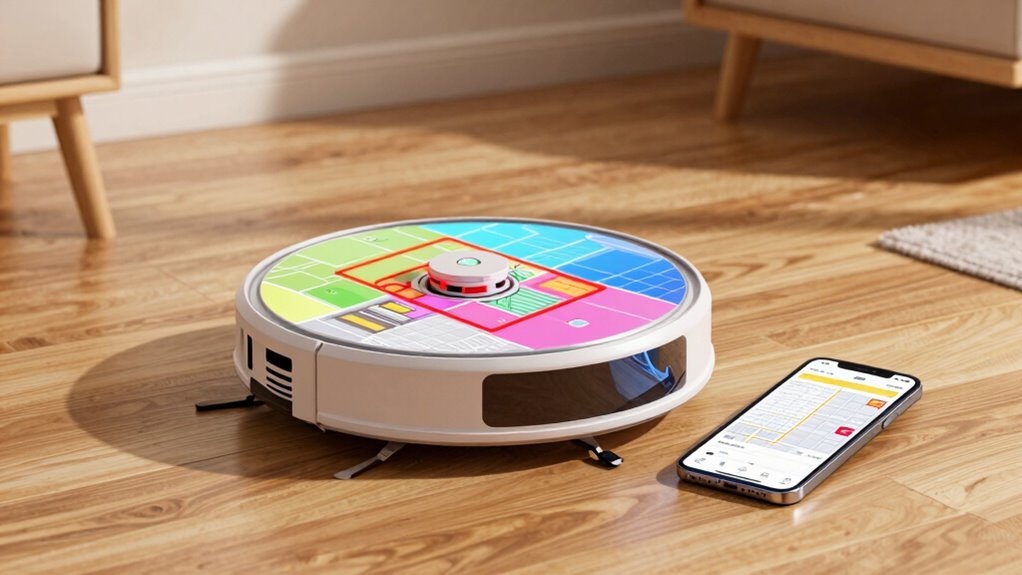

To fix bad mapping and no-go zones, start by inspecting and cleaning your robot’s sensors and cameras regularly to guarantee they work properly. Update its firmware and recalibrate sensors if needed. Remove clutter and obstacles during remapping to help your device create accurate maps. Use zone customization in the app to define specific areas and avoid problematic zones. Maintaining these steps can boost your vacuum’s performance, and more tips are available if you explore further.

Get the latest gadgets delivered free with Prime
- Fast, free delivery on millions of items
- Prime Video, Amazon Music and more included
- Member-only deals all year
Key Takeaways
- Regularly clean sensors and update firmware to improve map accuracy and address mapping issues.
- Reset the map and remap in a well-lit, clutter-free environment for better accuracy.
- Calibrate sensors properly and ensure correct placement for precise navigation.
- Use zone setup features to define no-go zones and prevent unwanted areas during cleaning.
- Maintain environment cleanliness and keep software up-to-date for consistent mapping performance.
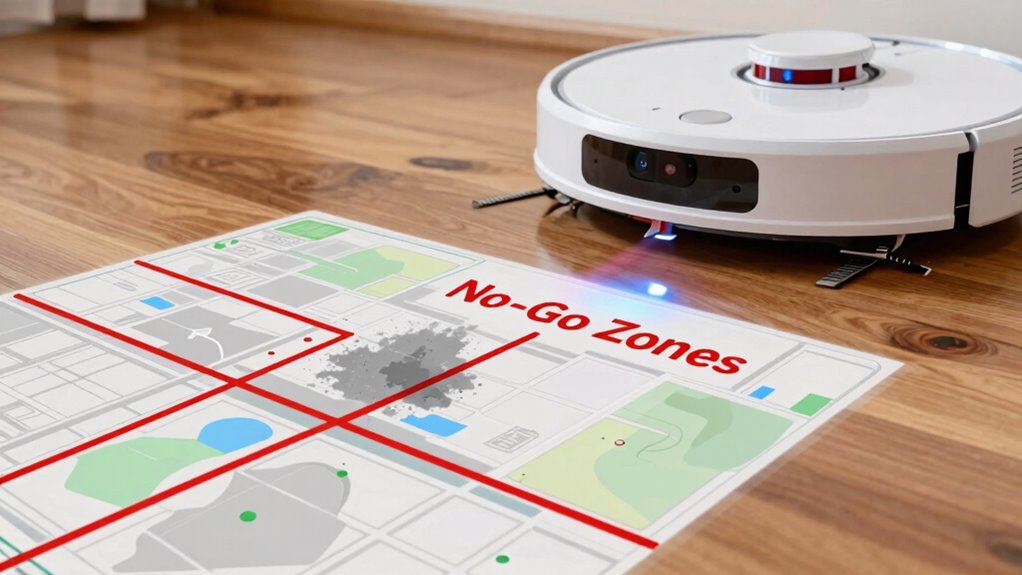
Have you ever wondered how robot vacuums navigate your home so efficiently? It all comes down to their mapping capabilities, and understanding how they create and update their maps can help you fix issues like bad mapping and no-go zones. When your robot struggles to clean certain areas or keeps missing spots, it’s usually tied to poor mapping accuracy. This accuracy depends on the robot’s sensors, cameras, and algorithms working together to generate a precise layout of your space. If the map is inaccurate, the vacuum might get confused about room boundaries or miss entire sections, leading to inefficient cleaning and frustration. Fortunately, many models now offer zone customization, allowing you to define specific areas to clean or avoid, which can help improve overall performance.
To fix bad mapping, start by inspecting your robot’s sensors and ensuring they’re clean and unobstructed. Dust or debris on sensors can distort the map, so wipe them gently with a soft cloth. Next, update your robot’s firmware or mapping software if updates are available. Manufacturers often release improvements that enhance mapping accuracy, helping your device adapt better to your home’s layout. You can also reset the map if your robot keeps creating faulty layouts. Most models allow you to delete the current map and let the robot remap your space from scratch, which often results in a more accurate representation. When doing this, ensure your home environment is well-lit, clutter-free, and free of obstacles that could confuse the sensors during the remapping process. Additionally, understanding the importance of mapping accuracy can help you ensure your robot navigates effectively and covers all areas efficiently. Being aware of how sensor technology impacts mapping can also assist in troubleshooting issues. Proper sensor calibration and placement are key factors in achieving mapping precision. Recognizing how mapping algorithms work can further improve your ability to troubleshoot and optimize your robot’s performance.
Zone customization plays a crucial role in refining your robot’s cleaning efficiency. By setting designated zones, you can prevent the robot from entering areas where it previously struggled or where you don’t want it to go—like pet feeding stations or delicate decorations. Use the app to draw boundaries or assign specific tasks to these zones, guiding your robot to focus on high-traffic spots or avoid trouble areas entirely. This targeted approach not only enhances mapping accuracy but also allows you to tailor cleaning schedules based on your needs. Remember, a well-planned map with appropriate zone customization minimizes errors and helps your robot work smarter, not harder.
In the end, maintaining good mapping accuracy and customizing zones ensures your robot vacuum performs at its best. Regular cleaning of sensors, software updates, and thoughtful zone setup will keep your home clean and your device functioning smoothly. When you invest a little effort into these steps, you’ll find that your robot can adapt to your environment more effectively, making your cleaning routine simpler and more dependable.
Products Worth Considering

Samsung Galaxy Tab A11+ 11-Inch Tablet, 6GB RAM, 128GB Storage, Expandable, Gray

Bose TV Speaker Compact Soundbar with Bluetooth and HDMI-ARC, Black

Logitech MX Master 4 for Mac Wireless Ergonomic Mouse, Space Black
As an affiliate, we earn on qualifying purchases.
Frequently Asked Questions
How Often Should I Update My Robot Vacuum’s Firmware?
You should update your robot vacuum’s firmware whenever updates become available, ideally every few months, to improve mapping accuracy and fix bugs. Regular firmware updates guarantee your vacuum maintains peak performance, especially in fixing bad mapping issues and managing no-go zones. Staying current with updates helps your device adapt to new cleaning challenges, so check your app or manufacturer’s site periodically, and install updates promptly for the best results.
Can Multiple Robots Share the Same Map?
Think of shared mapping as a communal map in a bustling city. Multiple robots can indeed share the same map, turning your smart home into a synchronized team. This setup allows your robots to coordinate cleaning paths efficiently, avoiding overlap. Just make certain your robot vacuum’s software supports shared mapping and that all units are compatible. This teamwork results in quicker, more thorough cleaning with minimal effort on your part.
What Is the Best Way to Train My Robot for New Obstacles?
To train your robot for new obstacles, focus on improving obstacle recognition and mapping accuracy. Start by manually guiding your robot around new furniture or objects to help it learn their locations. Use the app’s update or mapping features regularly, and re-run a cleaning cycle so it can incorporate new obstacles into its map. Ensuring the robot’s sensors are clean and functioning well boosts obstacle detection, making future navigation more accurate.
How Do I Reset My Robot Vacuum’s Mapping Data?
Resetting your robot vacuum’s mapping data can markedly improve its mapping accuracy and obstacle recognition. Start by accessing the app or control panel, then choose the reset or clear map option—often labeled as “Reset Mapping” or “Delete Map.” Confirm your choice, and the vacuum will erase existing data. Keep in mind, this process helps the robot relearn your space, leading to better navigation and obstacle detection on its next run.
Are There Risks of Damage When Editing No-Go Zones?
Editing no-go zones usually doesn’t cause damage, but you should be cautious. Incorrectly setting zones might lead to collision risks if the robot tries to navigate into unexpected areas. Also, software glitches could cause the robot to ignore or misinterpret your zones, leading to potential issues. Always double-check your zone settings after editing and keep your app and firmware updated to minimize risks of damage or navigation problems.
Conclusion
To make sure your robot vacuum maps are as accurate as a trusted guide, take the time to fine-tune and reassess your no-go zones regularly. With gentle adjustments, you’ll help your device navigate smoothly without unnecessary hiccups. Remember, a little patience goes a long way—think of it as nurturing a helpful companion that’s keen to serve you better each day. Keep refining, and enjoy a cleaner home with less fuss and more peace of mind.