Calibrating your monitor is a quick and simple routine that *considerably* boosts your display quality. You’ll *guarantee* accurate colors, consistent brightness, and reduce eye strain. Regular adjustments using affordable calibration tools or software will keep your visuals sharp and true-to-life, whether you’re editing photos or just enjoying media. It’s a straightforward step that improves everything you see on your screen. Stick with it, and you’ll discover even more tips to optimize your viewing experience.

Get the latest gadgets delivered free with Prime
- Fast, free delivery on millions of items
- Prime Video, Amazon Music and more included
- Member-only deals all year
Key Takeaways
- Regularly calibrate your monitor using user-friendly software to ensure accurate colors and brightness.
- Use built-in or affordable calibration tools to simplify the adjustment process.
- Follow a consistent routine to maintain visual accuracy over time.
- Adjust monitor settings for natural color balance and uniform brightness.
- Proper calibration enhances image quality, reduces eye strain, and improves professional accuracy.
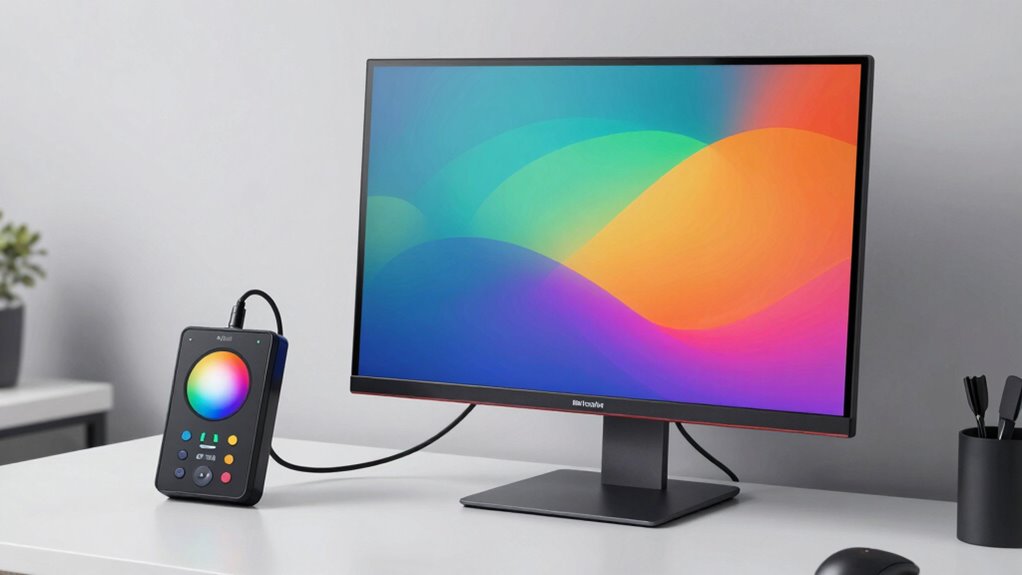
Have you ever wondered why your photos or videos look different on various screens? The answer often comes down to how well your monitor is calibrated. When a display isn’t properly calibrated, it can distort colors and alter brightness levels, making your work look inconsistent and less true to life. Good monitor calibration ensures that what you see on your screen accurately reflects the original image, improving color accuracy and brightness consistency across different devices and viewing conditions. This simple routine can dramatically enhance your visual experience, whether you’re editing photos, creating digital art, or simply enjoying media.
Calibrating your monitor involves adjusting its settings so that colors appear natural and consistent. Without calibration, displays tend to oversaturate certain hues or wash out others, leading to misrepresentation of colors. When you calibrate, you set the monitor’s color profile to match industry standards, resulting in a more precise reproduction of reds, greens, blues, and all the intermediate shades. This process is especially vital if you’re a professional whose work depends on color fidelity, but it’s equally valuable for anyone who wants a more true-to-life viewing experience.
Brightness consistency is another essential aspect of calibration. Many screens have uneven brightness levels or display images differently depending on the viewing angle. Calibration tools help you set the monitor’s brightness to a level that’s comfortable for your eyes and maintains uniformity across the screen. This step prevents issues like eye strain and ensures your images don’t appear overly dark or washed out. When your monitor’s brightness is calibrated properly, you’ll notice a more balanced contrast, which enhances detail and depth in your images and videos. Additionally, consistent display performance can reduce eye fatigue during long viewing sessions. Regular calibration also helps in maintaining color accuracy over time, ensuring your work remains precise.
You don’t need advanced equipment to get started—there are user-friendly calibration tools and software available for free or at a low cost that make the process straightforward. Typically, you’ll begin by adjusting your monitor’s internal settings, then use calibration software to fine-tune color profiles and brightness levels. A basic understanding of how monitor calibration affects visual quality can help you optimize your setup more effectively. Once calibrated, your display will stay more consistent over time, reducing the need for frequent adjustments. Regular calibration, especially if you use your monitor for professional work or long hours, keeps your display’s performance at its best and your visuals true to the original.
In the end, investing a few minutes into a monitor calibration routine makes a noticeable difference. It guarantees your colors are accurate, your brightness is uniform, and your overall viewing experience is better. Whether for work or leisure, a calibrated monitor helps you see your content as it was meant to be seen—vivid, precise, and true to life. Additionally, understanding the importance of accurate display calibration can help you maintain consistent quality in your visual projects over time.
As an affiliate, we earn on qualifying purchases.
Frequently Asked Questions
How Often Should I Calibrate My Monitor?
You should calibrate your monitor at least once a month to maintain ideal color accuracy and display consistency. Regular calibration ensures your colors stay true, which is especially important for photo editing or design work. If you notice colors look off or your display seems inconsistent, calibrate sooner. Consistent calibration helps keep your monitor’s performance reliable, so your work always looks just right and colors remain accurate over time.
Can Calibration Fix Color Issues Caused by Hardware Problems?
Calibration can’t fix hardware deterioration that causes color issues. If your monitor’s hardware is failing, you’ll likely see inconsistent colors or dead pixels despite regular calibration. Calibration improves color accuracy and consistency when hardware is functioning properly. If issues persist after calibration, it’s a sign to check for hardware problems or consider replacing your monitor to restore proper color performance.
What Tools Are Best for Professional Calibration?
For professional calibration, you need reliable tools that guarantee color accuracy. A high-quality calibration device like the X-Rite i1Display Pro or Datacolor SpyderX Elite works best. Pair it with calibration software such as X-Rite’s i1Profiler or Datacolor’s SpyderX software, which guides you through precise adjustments. These tools help you achieve consistent, accurate colors, making your monitor perfect for professional work, photography, or design projects.
Does Calibration Improve Gaming or Only Photo Editing?
Calibration improves both gaming and photo editing, but the benefits differ. For gaming, calibration enhances screen consistency and color accuracy, making visuals more vibrant and true to life. In photo editing, precise color accuracy guarantees your images look consistent across devices, helping you achieve professional-quality results. Overall, calibration creates a more reliable viewing experience, whether you’re gaming or working on detailed visuals, by optimizing your monitor’s display performance.
Is Calibration Necessary for Laptop Screens?
You might think calibration isn’t necessary for laptop screens, but it’s essential for accurate color accuracy. Using calibration software, you can fine-tune your display to guarantee color consistency, whether you’re editing photos or just want a better viewing experience. Even though laptops have smaller screens, calibration helps eliminate color inaccuracies and improves overall clarity. It’s a simple step that makes a noticeable difference in how your screen looks and performs.
Conclusion
By calibrating your monitor regularly, you guarantee colors are accurate and details are clear, making your work more professional and enjoyable. Did you know that only about 30% of users calibrate their displays consistently? Don’t miss out on this simple routine—just a few minutes can drastically improve your viewing experience. Take control today, and see the difference it makes in your images, videos, and everyday tasks. Calibration truly transforms your screen into its best self.
Fall Picks
fall essentials
As an affiliate, we earn on qualifying purchases.