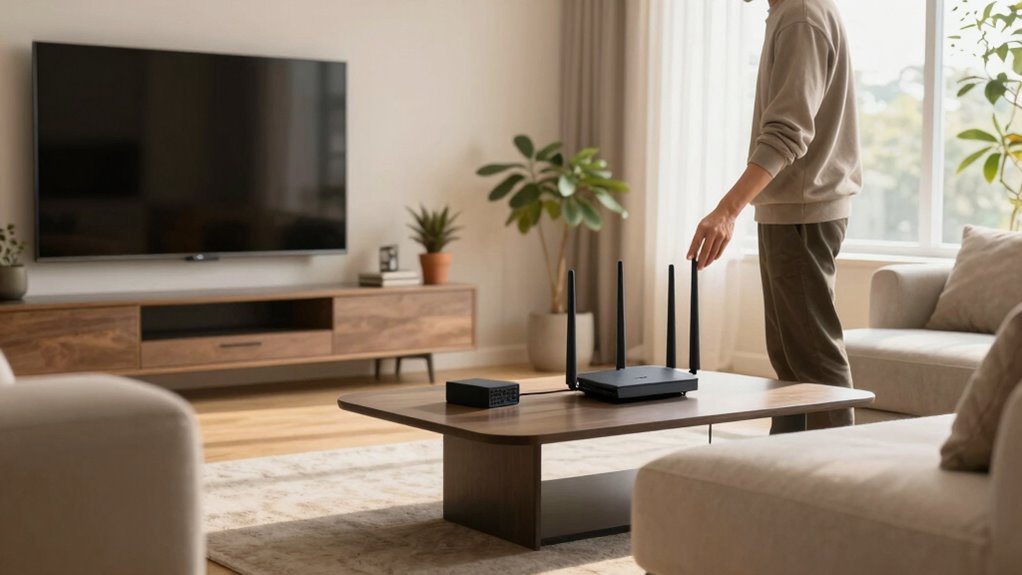
To fix Wi-Fi dead zones with better placement, position your router centrally on a higher shelf and away from thick walls, metal objects, or appliances like microwaves. Elevating it and avoiding obstructions improve coverage. Adjust antennas for targeted signals and consider signal boosters for larger spaces. Regular firmware updates and choosing a modern router can also make a difference. Keep these tips in mind, and you’ll discover more ways to optimize your network performance.

Get the latest gadgets delivered free — and shop member deals
- Fast, free delivery on millions of items
- Access to Prime Big Deal Days deals on October 6–7
- Prime Video, Amazon Music and more included
Key Takeaways
- Position the router centrally on a high shelf to ensure even signal distribution throughout your space.
- Use signal boosters strategically placed halfway between the router and dead zones to extend coverage.
- Adjust router antennas vertically and at different angles to direct signals toward weak areas.
- Keep the router away from thick walls, metal objects, and appliances like microwaves that cause interference.
- Regularly update router firmware and consider upgrading to a modern router for better coverage and reliability.

Wi-Fi dead zones can be frustrating, especially when they disrupt your browsing or streaming experience. The good news is that many dead zones can be fixed by paying attention to your router’s placement. Smart Router Placement is essential for maximizing your Wi-Fi coverage. Instead of hiding your router in a closet or placing it on the floor, position it in a central location, ideally on a higher shelf. This helps the signal radiate evenly throughout your space. Keep it away from thick walls, metal objects, and appliances like microwaves or cordless phones, which can interfere with the signal. Elevating your router and reducing obstructions can markedly improve coverage and eliminate dead zones.
Position your router centrally on a higher shelf, away from obstructions, to improve Wi-Fi coverage and eliminate dead zones.
If you’re still experiencing weak signals in certain areas, consider using Signal Boosters. These devices amplify your Wi-Fi signal, extending its reach into hard-to-cover corners. Signal Boosters are especially helpful in larger homes or spaces with multiple walls that weaken the signal. Place the booster halfway between your router and the dead zone, ensuring it’s within the router’s effective range. When used properly, signal boosters can provide a noticeable improvement in coverage, turning those frustrating dead spots into usable zones.
In addition to proper placement and signal boosters, you can also enhance your Wi-Fi network by adjusting your router’s antennas, if it has them. Positioning antennas vertically or at different angles can help direct the signal toward areas with poor coverage. Many routers now come with adjustable antennas, so take advantage of this feature to fine-tune your signal distribution. Ensuring your router supports the latest wireless standards can also improve overall network performance. Regularly checking your network’s coverage area can help identify new dead spots as your environment changes over time.
Furthermore, keep your router’s firmware up to date. Manufacturers often release updates that improve performance and fix bugs that might be causing connectivity issues. A well-maintained router runs more efficiently, helping to prevent dead zones from forming in the first place. Understanding the importance of router placement can significantly improve your Wi-Fi experience.
Finally, if your current router isn’t cutting it, consider upgrading to a newer model, preferably one designed for whole-home coverage. Modern routers often come with multiple antennas and advanced technology that helps distribute Wi-Fi more evenly. Pairing a new router with smart placement and signal boosters can give you a robust network, free of dead zones. By paying attention to these details, you can improve your Wi-Fi coverage considerably, ensuring smooth browsing, streaming, and working from anywhere in your home.
As an affiliate, we earn on qualifying purchases.
Frequently Asked Questions
Can Adding More Routers Eliminate Wi-Fi Dead Zones?
Adding more routers can help eliminate Wi-Fi dead zones, but it’s not a guaranteed fix. To maximize effectiveness, make sure your routers have strong security settings and are regularly updated with the latest firmware. Proper placement is vital—spread routers evenly and avoid obstacles. This approach improves coverage, reduces dead spots, and keeps your network secure, making your Wi-Fi more reliable throughout your home.
How Do I Identify Wi-Fi Dead Zones in My Home?
Imagine you’re Sherlock Holmes, but for Wi-Fi. To spot dead zones, start with signal testing using your device or a Wi-Fi analyzer app to map strength. Look for interference sources like thick walls, appliances, or electronics that block signals. These dead zones appear where signals weaken or drop. By identifying these areas, you can better position your router or add extenders for a stronger, more consistent Wi-Fi throughout your home.
Do Wi-Fi Extenders Always Improve Signal Coverage?
Wi-Fi extenders usually improve signal coverage, but they don’t always guarantee better performance. Wireless interference and signal attenuation can still affect their effectiveness, especially if placed poorly or if there are thick walls or electronic devices causing interference. To get the best results, position extenders carefully, away from interference sources, and make sure they’re within range of your router. Proper placement helps minimize dead zones and maximizes coverage.
What Is the Ideal Placement Height for Wi-Fi Routers?
You should place your Wi-Fi router at a height of about 3 to 6 feet for ideal coverage, avoiding clutter and obstructions that can block signals. Keep in mind that router aesthetics matter, so choose a location that blends with your space while maintaining good airflow. Position it centrally to maximize signal frequency distribution, ensuring your devices get strong, consistent Wi-Fi without dead zones.
How Do Building Materials Affect Wi-Fi Signal Strength?
A word to the wise: building materials can make or break your Wi-Fi. They cause building interference, weakening your signal through signal attenuation. Thick walls, metal, and concrete block or reflect Wi-Fi signals, reducing strength and coverage. To improve, avoid placing your router near these materials. Instead, position it in open spaces, high up, and away from dense walls to minimize building interference and boost your connection.
Conclusion
So, next time your Wi-Fi decides to go on vacation in the far corners of your home, remember it’s just playing hard to get. With a little smarter placement and some strategic planning, you’ll have your signal spreading like gossip at a family reunion. No more dead zones—just seamless streaming, smooth browsing, and the sweet victory of a connection that actually works when you need it most. Happy Wi-Fi hunting!
Fall Picks
fall essentials
As an affiliate, we earn on qualifying purchases.