Your gaming laptop’s performance drops after about 10 minutes mainly due to overheating. This happens when internal components like the CPU and GPU get too hot, causing throttling to protect the hardware. Poor airflow, dust buildup, or dried thermal paste can block heat transfer and trap heat inside. Ensuring proper cooling—such as cleaning vents, reapplying thermal paste, and optimizing airflow—can help. Keep exploring to discover more ways to keep your laptop cool and perform at its best.

Get the latest gadgets delivered free — and shop member deals
- Fast, free delivery on millions of items
- Access to Prime Big Deal Days deals on October 6–7
- Prime Video, Amazon Music and more included
Key Takeaways
- Thermal paste degradation reduces heat transfer efficiency, causing internal components to overheat after about 10 minutes of gaming.
- Dust buildup in vents restricts airflow, leading to heat accumulation and performance throttling.
- Blocked vents and poor airflow prevent effective cooling, resulting in temperature spikes during extended gaming sessions.
- External environmental factors, like playing on soft surfaces, hinder heat dissipation and increase overheating risks.
- Overheating triggers thermal throttling, reducing CPU and GPU performance to prevent damage after sustained use.
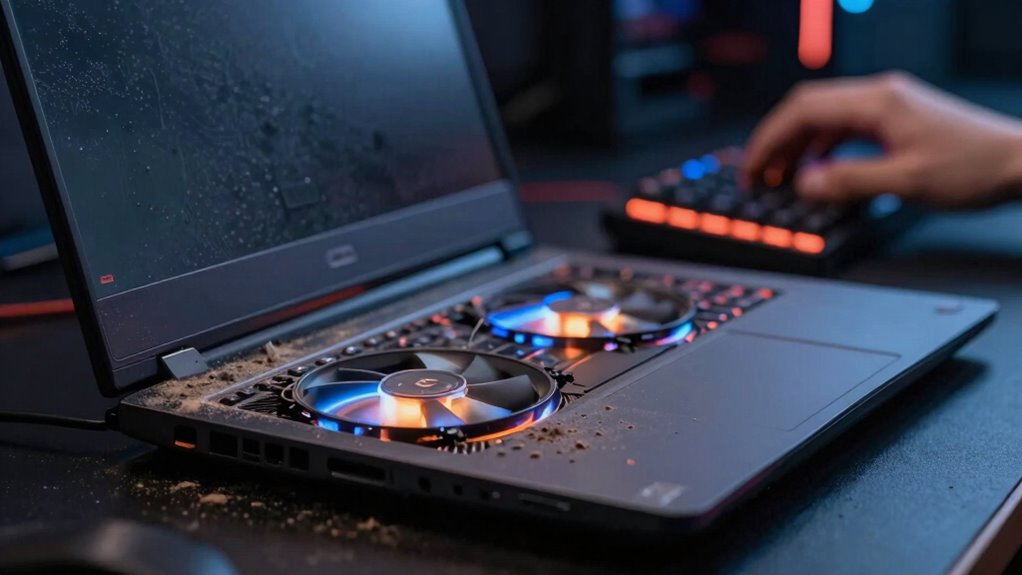
Ever wonder how gaming laptops stay cool during intense gameplay? The secret lies in a combination of well-designed cooling systems and proper maintenance. When your laptop begins to heat up after about 10 minutes of play, it’s often due to thermal buildup that hampers performance. To prevent this, understanding how thermal paste and airflow optimization work together is key. Thermal paste, which sits between your CPU or GPU and their heatsinks, guarantees efficient heat transfer. Over time, it can dry out or degrade, creating a barrier that traps heat and causes temperatures to spike. Reapplying fresh thermal paste can markedly improve heat dissipation, allowing your laptop to run cooler and maintain peak performance longer.
Airflow optimization also plays an essential role. Many gaming laptops have vents and fans designed to channel cool air in and hot air out. If these vents become blocked or dust accumulates inside, airflow gets restricted, leading to overheating. Regularly cleaning your laptop’s vents and fans can prevent dust buildup that impairs airflow. Additionally, adjusting your laptop’s position—elevating it slightly or using cooling pads—can boost airflow around the vents, helping the internal fans work more efficiently. Proper airflow prevents the internal components from reaching critical temperatures, which often triggers throttling. Throttling intentionally slows down your processor to reduce heat, but it also drops your gaming performance, especially after prolonged periods.
Furthermore, managing your gaming environment can make a difference. Playing in a cool, well-ventilated room reduces external heat stress on your laptop. Avoid placing your device on soft surfaces like beds or cushions, which can block vents and trap heat. Instead, opt for a hard, flat surface that allows air to circulate freely underneath. Ensuring good thermal management techniques can help maintain optimal temperatures and prevent performance drops. Incorporating proper airflow measures, such as adjusting fan curves or using external cooling solutions, can further enhance cooling efficiency. Additionally, ensuring that your device’s internal fans are functioning correctly and are not obstructed is crucial for optimal airflow. Combining these steps—reapplying thermal paste, maintaining airflow, and optimizing your environment—can help keep your gaming laptop cool, even during extended gaming sessions. When your device stays cooler, it’s less likely to throttle, delivering consistent performance from start to finish. This means you can enjoy longer gaming sessions without interruptions caused by overheating, guaranteeing your hardware functions efficiently and your gameplay remains smooth.
As an affiliate, we earn on qualifying purchases.
Frequently Asked Questions
How Often Should I Clean My Gaming Laptop’s Cooling System?
You should clean your gaming laptop’s cooling system every 3 to 6 months. Regular cleaning helps remove dust buildup that blocks airflow and causes overheating. While cleaning, consider replacing the thermal paste if it’s old or dried out, as it improves heat transfer. Keeping the fans and vents clear guarantees ideal cooling, prevents performance drops, and extends your laptop’s lifespan.
Can External Fans Improve Cooling Performance During Gaming Sessions?
Sure, external fans can actually boost cooling efficiency during gaming sessions—irony intended! They help dissipate heat more effectively, preventing your laptop from overheating and throttling performance. Just remember, external fans aren’t magic; they work best when combined with a clean cooling system and proper airflow. So, if your laptop’s temperature spikes, adding external fans might just be the upgrade you need to keep gaming smoothly.
Does Overclocking Increase the Risk of Overheating?
Yes, overclocking increases the risk of overheating because it pushes your hardware beyond its standard limits. Overclocking risks include higher temperatures, which can lead to thermal throttling or even permanent damage if cooling isn’t sufficient. If you overclock, you should monitor temperatures carefully and guarantee your cooling system is capable of handling the extra heat to prevent overheating concerns. Always balance performance gains with thermal safety.
Are There Specific Cooling Pads Recommended for Gaming Laptops?
Did you know that a good cooling pad can improve your gaming laptop’s cooling efficiency by up to 30%? There are many recommended cooling pads designed specifically for gaming laptops, which enhance laptop ventilation and reduce overheating. Look for models with adjustable fans and good airflow design. Popular brands include Cooler Master and Razer, which offer reliable options to keep your performance steady during intense gaming sessions.
How Does Ambient Room Temperature Affect Gaming Laptop Cooling?
Ambient room temperature markedly impacts your gaming laptop’s cooling because higher temperatures hinder air circulation, making it harder for your device to shed heat effectively. When the room is warm, your laptop struggles with temperature regulation, causing it to overheat faster and throttle performance. To keep things ideal, aim for a cooler environment, enhance air circulation around your laptop, and guarantee proper ventilation to maintain consistent cooling during long gaming sessions.
Conclusion
To keep your gaming laptop running smoothly, prioritize effective cooling just like a cooling fan keeps a room comfortable. Regularly clean your vents, use a cooling pad, and avoid blocking airflow. When you do, you’ll prevent those frustrating drops in performance after 10 minutes, much like a car overheating on a hot day. Stay proactive, and your gaming experience will stay cool and smooth, letting you enjoy every moment without interruptions.
Evergreen bestsellers Picks
bestsellers
As an affiliate, we earn on qualifying purchases.