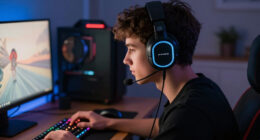
This guide walks you through setting up a wireless gaming headset from unboxing to a fully working audio and chat configuration. By the end, you will have your headset charged, connected to your platform (PC, PlayStation, or Xbox), configured as both the audio output and microphone input, and tested so game sound and voice chat both work correctly. You will also apply a few settings that reduce latency and prevent the most common wireless problems.

Get the latest gadgets delivered free — and shop member deals
- Fast, free delivery on millions of items
- Access to Prime Big Deal Days deals on October 6–7
- Prime Video, Amazon Music and more included

Turtle Beach Stealth 600 Wireless Gaming Headset
- ✔ Connectivity: 2.4 GHz wireless and Bluetooth
- ✔ Driver size: 50 mm Nanoclear
- ✔ Battery life: Up to 80 hours

SteelSeries Arctis Nova 5 Wireless Multi-System Gaming Headset
- ✔ Connectivity: 2.4 GHz wireless and Bluetooth 5.3
- ✔ Battery life: Up to 60 hours
- ✔ Fast charging: 15 minutes for up to 6 hours of use

Turtle Beach Stealth 700 Gen 3 Wireless Gaming Headset
- ✔ Connectivity: 2.4 GHz wireless and Bluetooth 5.2 (simultaneous)
- ✔ Wireless transmitters: Two USB transmitters
- ✔ Drivers: 60 mm Eclipse dual drivers
This guide is written for beginners. You do not need prior audio experience — every step is a direct action with a verification check. If your headset uses a USB dongle, Bluetooth, or a base station, the relevant path is covered. Budget roughly 30 to 45 minutes: most of that is charging time, with 10 to 15 minutes of hands-on configuration.
Difficulty: Beginner | Time: 30-45 minutes
What You’ll Need
Tools & Materials:
- A wireless gaming headset (with its included USB transmitter/dongle, charging cable, and any base station)
- A PC, PlayStation, Xbox, or Nintendo Switch console with a free USB port
- The headset’s companion app or software, downloaded from the manufacturer’s website (e.g., SteelSeries GG, Logitech G HUB, Corsair iCUE, Razer Synapse) — PC only
- Access to your platform’s audio or system settings
Knowledge:
- Basic navigation of your operating system or console settings menu
- Ability to plug in a USB device and install software
Before starting, confirm your headset is compatible with your platform. Xbox requires headsets explicitly labeled Xbox-compatible; many dongle-based headsets are PC and PlayStation only. Check the box or the manufacturer’s product page. If your headset supports both 2.4GHz wireless and Bluetooth, use 2.4GHz for gaming — it has much lower latency. Keep the box and receipt until setup is confirmed working in case of a return.
Turtle Beach Stealth 600 Wireless Gaming Headset
The Turtle Beach Stealth 600 takes our best overall slot because it nails the fundamentals that matter to the largest group of buyers: up to 80 hours of battery life, dual 2.4 GHz and Bluetooth connectivity, and compatibility that stretches across Xbox, PlayStation, PC, Steam Deck, and mobile. Where the Arctis Nova 5 asks you to recharge more frequently, the Stealth 600 simply keeps going, and its quick-charge capability covers the rare sessions when you forget to plug it in.Comfort is where this model quietly outperforms expectations. The memory foam cushions with glasses-relief technology reduce the pressure points that typically build up around spectacle arms during long sessions, an area where the Arctis Nova 5 makes no specific accommodation. The flip-to-mute microphone with AI noise reduction is straightforward for teammates to hear clearly, and flipping it up to mute is faster than hunting for the retractable mic on the Nova 5.Compared with its sibling, the Stealth 700 Gen 3, the Stealth 600 trades away simultaneous 2.4 GHz plus Bluetooth audio and the larger 60 mm drivers, settling for 50 mm Nanoclear units. For most single-platform gamers, that is a fair sacrifice. Our one real gripe: Turtle Beach lists Bluetooth 5.2 in one place and 5.4 in another, a documentation inconsistency that should not affect use but does not inspire confidence, and deeper EQ tuning lives in the Swarm II app rather than on the headset itself.
Pros:
- Up to 80 hours of battery life with quick charging
- Both 2.4 GHz wireless and Bluetooth connectivity
- Glasses-friendly memory foam ear cushions
- Flip-to-mute microphone with AI noise reduction
Cons:
- Bluetooth version listed inconsistently (5.2 vs 5.4) across product details
- Advanced audio and mic customization requires the Swarm II app
- Cannot run 2.4 GHz and Bluetooth audio simultaneously like the Stealth 700 Gen 3
Best for: Single-platform or two-platform gamers who want maximum battery life and glasses-friendly comfort without paying for premium multi-device features.
Not ideal for: Players who want to game on a console while staying connected to phone audio simultaneously, or anyone who avoids companion apps entirely.
Bottom line: The Stealth 600 is the most sensible pick for most gamers, delivering flagship battery life and cross-platform comfort at a midrange feature set.
“The Stealth 600 is the most sensible pick for most gamers, delivering flagship battery life and cross-platform comfort at a midrange feature set.”
SteelSeries Arctis Nova 5 Wireless Multi-System Gaming Headset
The SteelSeries Arctis Nova 5 wins our best value slot not by matching the Turtle Beach models on raw endurance but by being smarter about how you use the battery you have. Its fast-charge system delivers roughly 6 hours of play from 15 minutes of charging, which is double what the Stealth 700 Gen 3 manages in the same window, and in day-to-day use that matters more than the headline 60-hour figure.Its signature strength is device agility. The Quick-Switch control lets you hop between 2.4 GHz wireless and Bluetooth 5.3 without digging into menus, and the compatibility list is the widest here, covering PC, PlayStation, Nintendo Switch, Meta Quest, phones, and tablets. Neither Turtle Beach model handles the Switch or Quest as gracefully, which makes the Nova 5 the natural choice for someone whose gaming is spread across a docked console, a handheld, and a headset-based VR rig.Sound-wise, the neodymium magnetic drivers are crisp and well balanced, and the 100+ game-specific audio presets are a genuinely useful shortcut if you would rather not build an EQ yourself, though you will need the companion app to apply them. The retractable ClearCast 2.X mic is the cleanest storage solution in this lineup compared with the fixed flip-to-mute booms on both Turtle Beach models, and it records at 32 kHz/16-bit, which is solid for team chat. The tradeoff is comfort specialization: there is no glasses-friendly cushion design here, so long sessions with spectacles may feel less forgiving than on the Stealth 600.
Pros:
- 15-minute charge yields up to 6 hours of play
- Quick-Switch button toggles between 2.4 GHz and Bluetooth
- Widest platform compatibility including Switch and Meta Quest
- 100+ game audio presets and a retractable ClearCast mic
Cons:
- Game audio presets and advanced settings depend on the companion app
- Shorter battery life (60 hours) than both Turtle Beach models
- No glasses-friendly cushion design
Best for: Multi-device gamers and value-focused buyers who bounce between console, Switch, Quest, and mobile and prioritize fast charging over maximum battery capacity.
Not ideal for: Glasses wearers seeking pressure-free long sessions, or Xbox gamers who need native console-specific wireless support.
Bottom line: The Arctis Nova 5 is the smart buy for platform-hopping gamers who value charging speed and device switching over headline battery numbers.
“The Arctis Nova 5 is the smart buy for platform-hopping gamers who value charging speed and device switching over headline battery numbers.”
Turtle Beach Stealth 700 Gen 3 Wireless Gaming Headset
The Stealth 700 Gen 3 is the most capable headset in this lineup, and its defining feature is simultaneous 2.4 GHz and Bluetooth 5.2 connectivity. That means you can hear game audio from your console or PC while taking a Discord call or streaming music from your phone at the same time, something neither the Stealth 600 nor the Arctis Nova 5 can do. If your gaming life involves a chat app, a second screen, or frequent phone interruptions, this alone justifies the premium.Its dual USB transmitters add another layer of flexibility: leave one plugged into your console and one in your PC and switch sources without crawling behind your entertainment center. That convenience comes at a cost in complexity, though. Multiplatform switching is entirely dependent on those dongles, so losing one limits the headset’s core selling point, and travelers will need to remember two transmitters plus the headset.Sonically, the 60 mm Eclipse dual drivers are the largest in this comparison, and the difference versus the Stealth 600’s 50 mm units shows up in low-end weight and overall spaciousness. The 10-band EQ and Advanced Superhuman Hearing mode give competitive players genuine tuning depth, alongside the same glasses-friendly ProSpecs cushions and 80-hour battery as its cheaper sibling. Compared with the Arctis Nova 5, you give up native Switch and Quest support and the faster charging rate, but you gain bigger drivers and true dual-source audio. This is a headset for the buyer who wants one device to do everything, and who accepts app-dependent setup and dongle management as the price of admission.
Pros:
- Simultaneous 2.4 GHz and Bluetooth audio from two devices
- Largest drivers in this comparison: 60 mm Eclipse dual drivers
- Two USB transmitters for fast console-to-PC switching
- Up to 80 hours of battery with 15-minute quick charge
Cons:
- Multiplatform switching depends on carrying and managing USB transmitters
- Advanced EQ and audio settings require the Swarm II app
- Slower quick-charge rate than the Arctis Nova 5 (3 hours vs 6 hours per 15 minutes)
Best for: Power users who game on multiple machines, need simultaneous phone audio, and want the largest drivers and deepest EQ tuning Turtle Beach offers.
Not ideal for: Minimalists who dislike dongle management, or gamers on a single device who would be paying for features they never touch.
Bottom line: The Stealth 700 Gen 3 is the choice for multi-device power users who need simultaneous audio sources and are willing to manage dongles to get it.
“The Stealth 700 Gen 3 is the choice for multi-device power users who need simultaneous audio sources and are willing to manage dongles to get it.”
As an Amazon Associate we earn from qualifying purchases.
Before You Start
Charge the headset fully before you begin. Most wireless headsets ship with a partial charge, and low batteries cause crackling, dropouts, and shutdowns mid-setup that are easy to mistake for defects. Plug the included cable into the headset and a wall adapter or powered USB port, and wait until the charging indicator shows a full charge (usually 1 to 3 hours). Also clear a spot near your gaming setup for the USB dongle or base station — ideally with a clear line of sight to where you sit, away from large metal objects, Wi-Fi routers, and USB 3.0 hard drives, all of which can interfere with the 2.4GHz signal.
Step-by-Step Instructions
Step 1: Charge the headset fully
Connect the included USB charging cable to the headset’s charge port (usually on the left ear cup or along the headband edge) and plug the other end into a wall adapter or a powered USB port on your computer. Leave it to charge until the indicator LED shows a full charge — this is typically a solid or green LED, while charging shows as pulsing red or amber. Consult the quick-start card for your model’s exact color codes.
Tip: Do not attempt setup on a partial charge. Low battery is the single most common cause of false ‘defective headset’ conclusions.
Check: The charging LED shows the ‘fully charged’ state described in your headset’s manual, and the headset powers on without warning beeps.
Step 2: Power on the headset and select the wireless mode
Press and hold the headset’s power button (usually 2 to 5 seconds) until you hear a power-on tone or see an LED light up. If your headset has a mode switch or button for 2.4GHz versus Bluetooth, set it to 2.4GHz wireless mode now. Most headsets pair automatically with their bundled dongle out of the box, so simply leave the headset powered on.
Tip: If your model requires pairing, the usual procedure is: plug in the dongle, hold the dongle’s pairing button (if present), then hold the headset’s power or Bluetooth button until the LED flashes rapidly, then stabilizes.
Check: You hear a startup tone, and the LED is steady rather than flashing, indicating the headset is searching or connected.
Step 3: Connect the USB dongle or base station to your platform
Plug the headset’s USB transmitter dongle directly into a USB port on your PC or console. On PC, prefer a rear motherboard port or a front-panel port; avoid unpowered USB hubs. If your headset uses a base station, connect both its USB power cable and any USB data cable, place it on your desk within sight of your seating position, and raise its antenna if it has one.
Tip: Avoid plugging the dongle into a USB 3.0 port directly next to a USB 3.0 device or external drive — USB 3.0 generates interference in the 2.4GHz band. If you get static or dropouts later, use the short USB extension cable many headsets include to move the dongle away from the PC case.
Check: Your PC or console detects a new audio device within a few seconds (PC plays the device-connect chime; console shows a headset icon or audio menu entry).
Step 4: Set the headset as the default audio device (PC)
On Windows, right-click the speaker icon in the taskbar, select Sound settings, and under Output choose the headset — it usually appears as the manufacturer’s name plus ‘Game’ or ‘Headset’ (for example, ‘Arctis 7 Game’). Then click the Input section and select the headset microphone as the default input. Note that many dongle headsets install two devices: a ‘Game’ device for audio and a ‘Chat’ device for voice. Set Game as the default output, and Chat (or the headset mic) as the default input.
On macOS, open System Settings > Sound, select the headset for both Output and Input.
Tip: On Windows 10/11, also open the old Sound Control Panel (right-click speaker icon > Sounds > Playback tab), right-click the headset, and confirm it is ‘Set as Default Device’, not just default communication device.
Check: Play a YouTube video or a music track — sound comes through the headset, and the volume slider in the taskbar controls it.
Step 5: Configure the headset on console
On PlayStation, go to Settings > Sound > Audio Output (or Sound and Screen > Audio Output Settings on older firmware) and set Output Device to the USB headset, with Output to Headphones set to ‘All Audio’. On Xbox, press the Xbox button, go to Profile & system > Settings > General > Volume & audio output, and select the headset under HDMI audio or Headset format if it appears. On Switch, plug the dongle into the dock’s USB port or the console’s USB-C port and raise the system volume — no menu changes are needed.
Tip: On PlayStation, if you only hear chat and not game audio, the ‘Output to Headphones’ setting is almost always set to ‘Chat Audio’ instead of ‘All Audio’.
Check: Game audio plays through the headset and the TV speakers are silent or muted automatically.
Step 6: Install and configure the companion software (PC only)
Download the manufacturer’s software from the official website (never third-party download sites), install it, and let it detect your headset. Use it to update the headset’s firmware if prompted — firmware updates frequently fix connection dropouts and mic issues. Then set a few basics: choose an equalizer preset you like, set sidetone/mic monitoring to a low-to-moderate level so you can hear your own voice, and disable any aggressive surround processing until you’ve confirmed stereo works cleanly.
Tip: Run the firmware update with the headset plugged in via cable if the software requests it, and do not power off mid-update — an interrupted update can brick the headset.
Check: The software shows your exact headset model as connected, with firmware listed as up to date.
Step 7: Test the microphone
On PC, open Settings > System > Sound and speak into the mic while watching the input level meter under the headset microphone — the bar should move clearly as you talk. Then run a recording test: open the Voice Recorder app, record a sentence, and play it back through the headset. On console, use the party system: start or join a party, and check that your mic icon appears when you speak. Adjust the mic boom so it sits about two finger-widths from the corner of your mouth, not directly in front of it.
Tip: If the mic is silent, check that the boom mic is fully seated in its socket (many are removable) and that the headset is not muted — most models mute by flipping the boom up or pressing a dedicated mute button with an LED indicator.
Check: The input meter moves when you speak, your recording plays back clearly, and party members (or the party UI) confirm your voice is transmitting.
Step 8: Test in an actual game and tune latency settings
Launch a game you know well and play for ten minutes. Listen for three things: lip-sync or gunshot delay relative to on-screen action (latency), crackling or dropouts when you move around, and whether in-game chat and game audio balance correctly. If your headset or software offers a low-latency mode, enable it. If the game has its own output device setting, point it at the headset’s ‘Game’ device.
Tip: Walk to the far edge of your normal play area during the test. If audio cuts out beyond 6-8 meters or through two walls, move the dongle to a more central location using the extension cable.
Check: Game audio stays in sync with visuals, no dropouts occur in your play area, and chat is audible over game sound.
Common Mistakes to Avoid
- Setting up on a partially charged headset and mistaking dropouts for a hardware defect — Always charge fully before first pairing, and recharge when the low-battery tone plays rather than continuing to play.
- Leaving the default output on PC speakers or TV audio, so the headset seems ‘connected but silent’ — After connecting the dongle, immediately set the headset as the default output AND input in sound settings, and verify with a test video before blaming the hardware.
- Plugging the USB dongle into a USB 3.0 port crowded next to other devices, causing 2.4GHz interference and static — Use the included USB extension cable to position the dongle away from the PC case, USB 3.0 drives, and the Wi-Fi router.
- Using Bluetooth mode instead of the 2.4GHz dongle for gaming — Always use the dongle for gaming. Bluetooth adds 100-200ms of audio delay and should be reserved for pairing with a phone.
Troubleshooting
Problem: Headset powered on but no sound at all
Solution: Check the system volume and the headset’s own volume wheel (usually on the right ear cup). Confirm the headset is selected as the default output device. On PlayStation, set Output to Headphones to ‘All Audio’. Re-plug the dongle and power-cycle the headset.
Problem: Game audio works but the microphone doesn’t
Solution: Confirm the mic is unmuted and fully plugged in. In sound settings, check the mic’s input level is above zero and that apps have microphone permission (Windows: Settings > Privacy & security > Microphone). On console, check the party chat audio settings and that you are not muted in the party.
Problem: Audio crackles, stutters, or drops out intermittently
Solution: Charge the headset fully, then reposition the dongle with an extension cable away from USB 3.0 devices and the router. Update firmware through the companion software. If it persists on PC, try a different USB port and disable other Bluetooth devices temporarily.
Problem: Voice chat sounds robotic or teammates hear your game audio
Solution: Robotic voice usually means wireless interference or a dying battery — address both above. Teammates hearing your game audio typically means your mic gain is too high or speaker output is active; lower mic volume in software to about 60-70% and use the headset exclusively.
What Success Looks Like
Your setup is complete when all of the following hold: the headset holds a stable connection across your entire normal play area for a full session without dropouts; game audio plays in sync with on-screen action through the headset only; your voice transmits clearly in game or party chat with the input meter responding; the companion software (if applicable) recognizes the headset with current firmware; and battery life matches the manufacturer’s stated runtime rather than degrading within an hour. Do one final 20-30 minute gaming session to confirm all five conditions before you discard the packaging.
Next Steps
Establish a charging habit: dock or plug in the headset after each session so it is never dead when you sit down to play. Recheck the companion software monthly for firmware updates. If you play across platforms, pair the headset’s Bluetooth mode to your phone for calls while keeping the dongle on your primary device. After a few weeks, revisit the equalizer and sidetone settings in the software — your ideal settings often differ from the defaults once your ears adjust. If dropouts persist after repositioning the dongle and updating firmware, contact the manufacturer’s support while the warranty is active rather than living with the problem.
Frequently Asked Questions
Can I use one wireless headset on both PC and console?
Yes, if the headset supports your console. A 2.4GHz dongle headset works on PC, PlayStation, and Switch by moving the dongle between them. Xbox requires headsets explicitly licensed as Xbox-compatible. Note that saved EQ profiles live in the PC software, so the headset will use default tuning when plugged into a console.
Is Bluetooth good enough for gaming?
No. Standard Bluetooth adds 100-200 milliseconds of audio delay, which is clearly noticeable in fast-paced games. Use the 2.4GHz dongle for all gaming and reserve Bluetooth for music or calls on a phone.
Why does my headset show two audio devices on PC, ‘Game’ and ‘Chat’?
The dongle creates two channels so you can mix game sound and chat volume separately using the headset’s second volume wheel or software mixer. Set ‘Game’ as your default output device and ‘Chat’ as the input/default communication device. Games and Discord will route correctly through each channel.
How far can I walk from my PC before the signal drops?
Most 2.4GHz headsets hold a clean signal for roughly 10-12 meters in open line of sight, but walls and interference reduce this substantially. If you need coverage to another room, elevate the dongle with its extension cable and keep the base station central to your play area.
My headset dies faster than the advertised battery life — why?
Loud volume, active RGB lighting, and always-on surround processing drain the battery faster. Drop volume to a comfortable 60-70%, disable lighting in the software, and turn the headset off with the power button rather than letting it idle — some models only sleep after prolonged inactivity.
Fall Picks
fall essentials
As an affiliate, we earn on qualifying purchases.